Customer Map
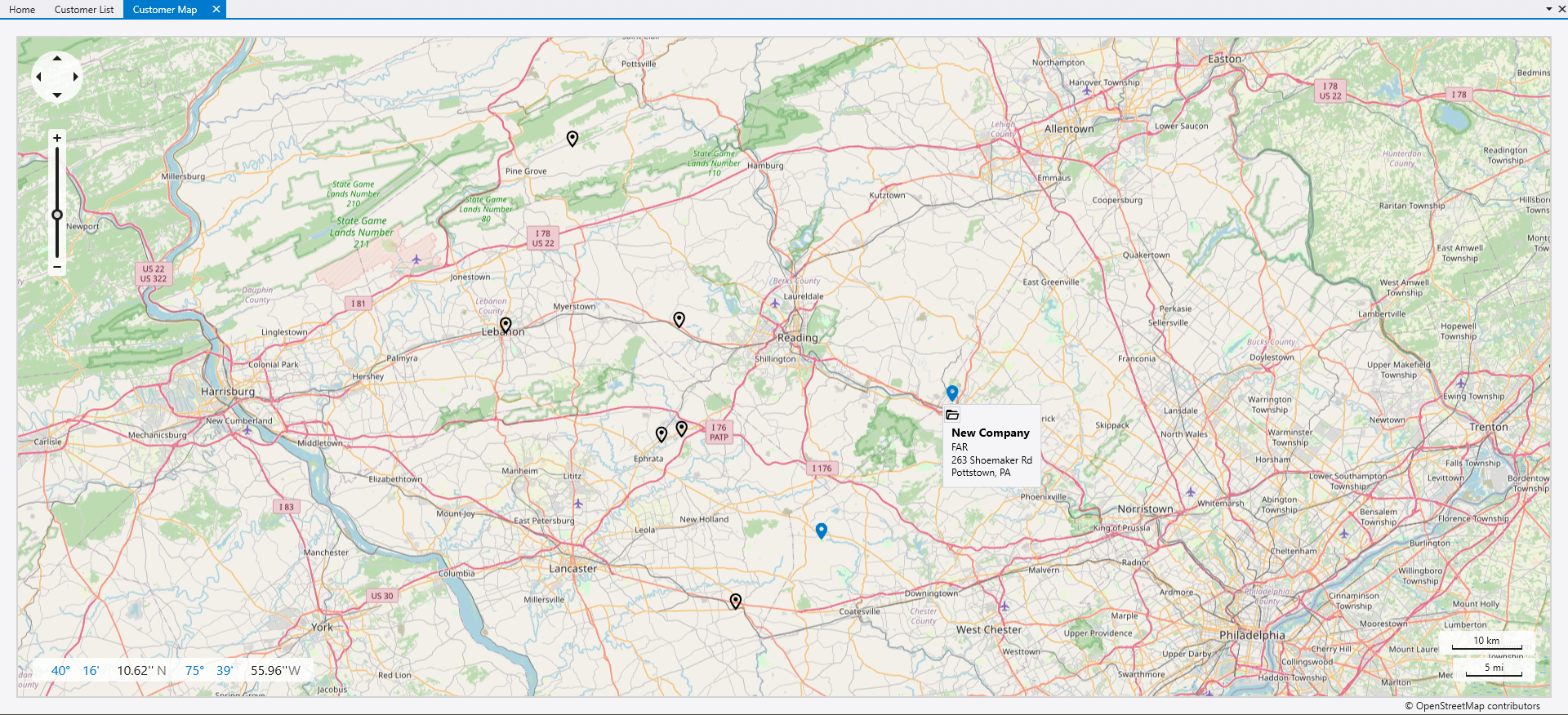
This FAQ will go over the customer map feature. This feature can only be used if the TomTom integration has been set up.
Customer Map
The customer map can be found by going to Accounts Receivable > Customers > Customer Map
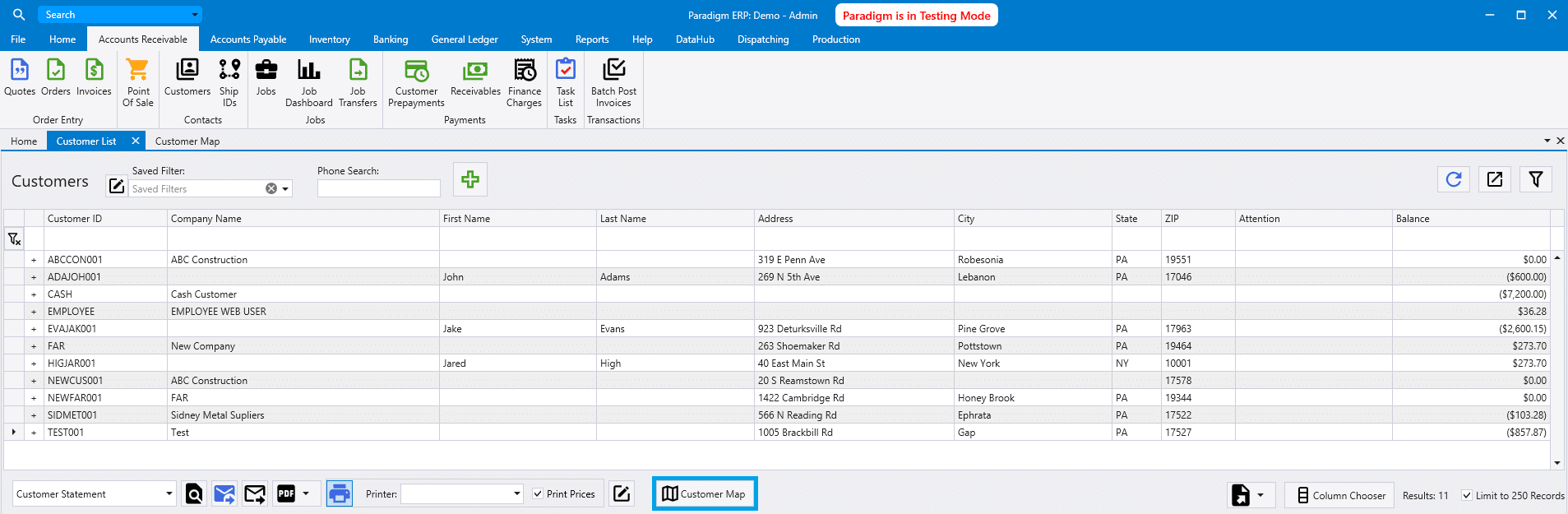
Filter the list down to the customers to view and click “Customer Map”. This can also be done by highlighting multiple customers and then right clicking and selecting “Open Customer Map”.
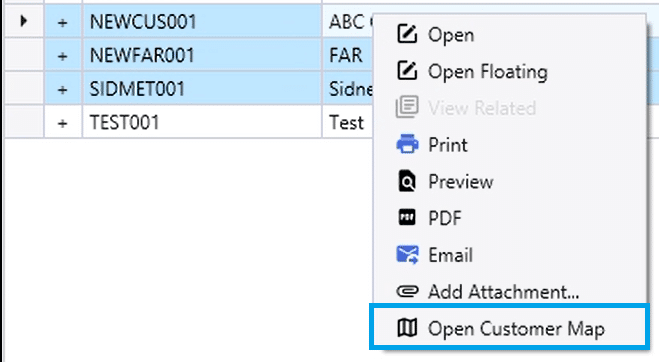
The map can be run for up to 500 customers at once.
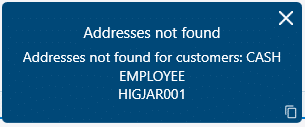
If a customer does not have a valid address, the following message will be shown: Addresses Not Found – Addresses not found for customers
Setting Latitude/Longitude
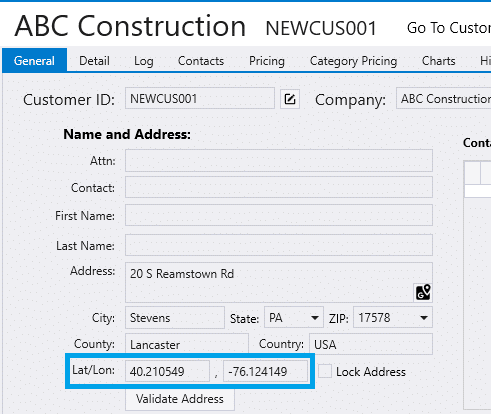
If a valid address is not being recognized, the latitude/longitude can be set manually on the customer.