
Edit Pricing
The Edit Pricing tool allows a user to edit costs and prices for items without having to open each item individually in Paradigm. This tool can be found in the footer of the Inventory List page. The tool for Editing Pricing Levels is covered in its own documentation article. An alternate way to update inventory item costs is using the feature Set Inventory Standard Cost in Purchase Invoices.
Video Tutorial
The Edit Pricing Levels form is also covered near the end of video below.
Access the Edit Pricing Tool

The Edit Pricing Tool can be accessed on the Inventory List tab in Paradigm. To use the Edit Pricing tool, click ‘Edit Pricing’ at the bottom of the screen to the right of the print buttons. This will bring up the Inventory Pricing Sheet.

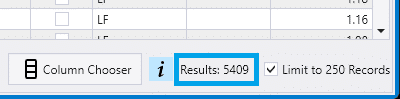
The Edit Pricing Tool will load into the Pricing Sheet all of the inventory items that were included in the Inventory List, and will apply all batch changes to these items. A helpful approach is to use the Inventory List filters to limit the number of the inventory items that will loaded into the Edit Pricing Tool. The number of inventory items that will be loaded is indicated by the Results: information in the footer of the Inventory List. This number is not affected by checking or unchecking the Limit to 250 Records option.
No changes will be made to the inventory items until the Save button is clicked in the Edit Pricing Tool.
Edit Pricing Tool Options
Show Original Pricing
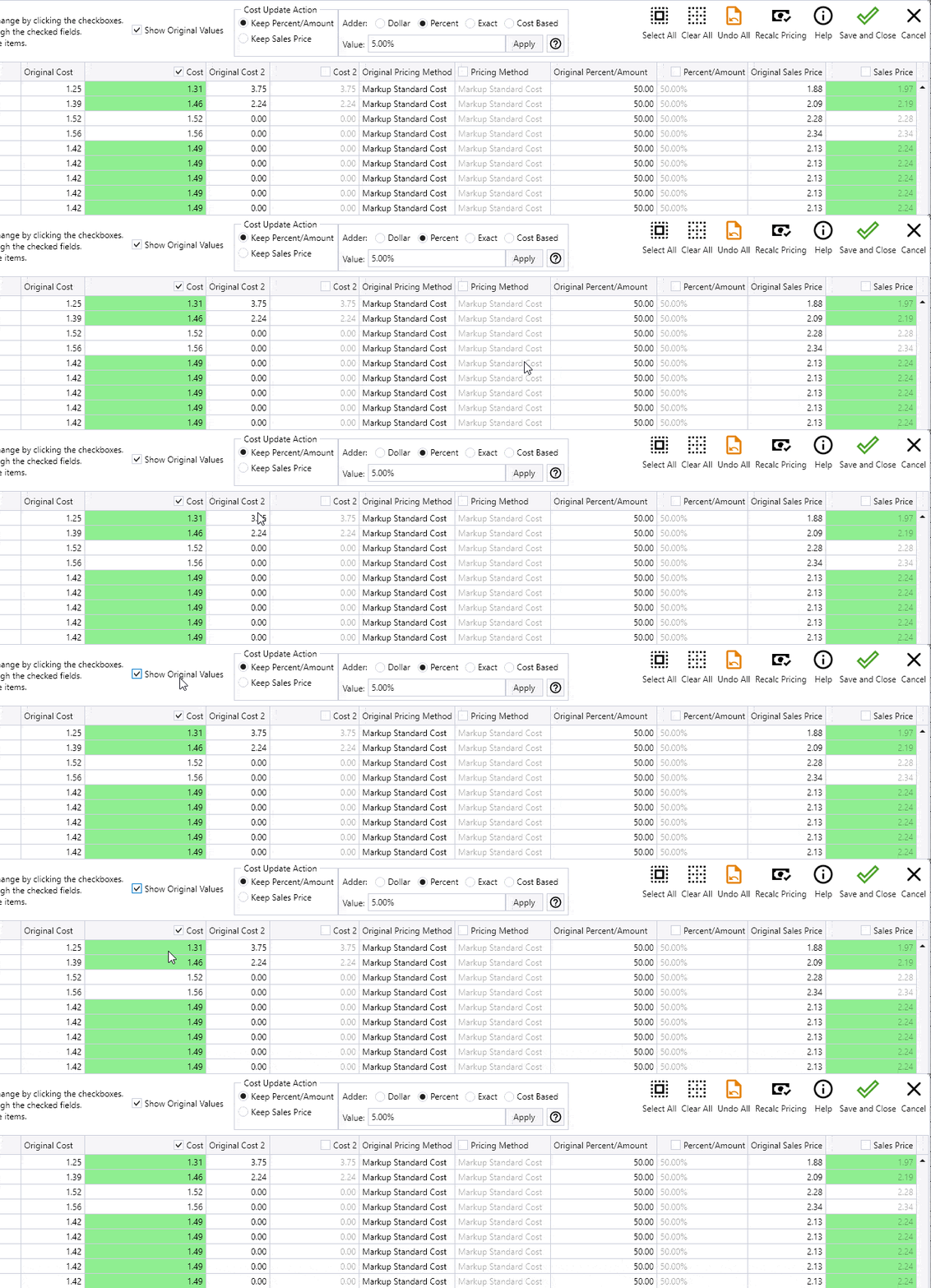
To show the original cost, percent, and price values alongside the adjusted values in the window, click on the Show Original Values checkbox. The columns showing the original values will appear alongside the editable columns. This option is helpful for seeing how much each price has changed during the edits that have been applied since the Edit Pricing Tool was opened.
Cost Update Options

When the Cost or Cost2 column is checked, an additional option box shows next to the update tools. For products that have a Pricing Method set, changing the Cost also causes the Pricing Percent/Amount or Sales Price to change. The additional options within the Cost Update Action box allow choosing between the two possible actions.
- To have adjustments to the Cost cause the Sales Price to change, select the first option, “Keep Percent/Amount.”
- To have adjustments to the Cost cause the Pricing Percent/Amount to change, select the option, “Keep Sales Price.”
Updating Individual Values
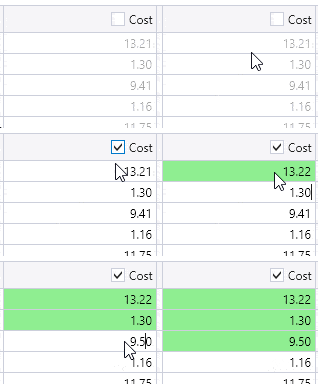
It is possible to change individual values for Cost, Cost 2, Pricing Method, Percent/Amount, or Sales Price.
- To manually edit the numbers, click on the check box for that column. Then click to select the value to be changed and type in the new value.
- Pressing Tab key or the Down Arrow key will select the next cell, and pressing the Up Arrow key will select the previous cell.
- Uncheck the columns that will not be edited to make them not be a tab stop when editing many rows.
Changing the amount in a given column will change any other columns that are affected or would have an affect on that column. For instance if the pricing method is Markup Standard Cost, then changing the Percent/Amount column will adjust the sales price.
Applying Batch Updates
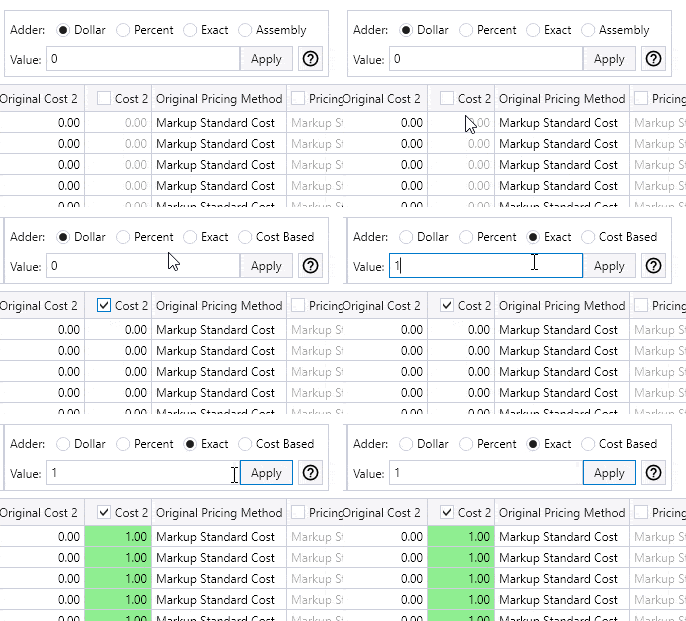
Using the update tools above the data grid allows applying changes to all checked items at once. To do this, check the box next to each item that is to be updated. If the items that have been filtered down into the list are all to be changed, the quickest way to select them all is to click the check mark right above the list.
- Once the items have been selected, there will be several different options of adjustments to be made.
- When changes are applied, the rows will turn green if the new value is above the original value, or red if it is below the original value.
- The “Show Original Values” checkbox can be used to compare the original numbers.
It is important select the check box in the header of the column to be edited to designate it as the column to be adjusted.
Options for Batch Updates
Note that for all of the “Adder” options, entering a positive number into the Value will increase all of the numbers in the active column each time the Apply button is clicked, and entering a negative number into the Value will decrease all of the numbers in the active column.
Adder Options
Adder: Dollar

This will add a fixed dollar amount to every selected item. So if the amount entered in the value field is 0.75, then every item will have $0.75 added to the price each time the Apply button is clicked.
Adder: Percent

Each time the Apply button is clicked, the amount in the value field of the selected column will increase any dollar amount by the percentage that is put in the Value field.
- Clicking the Apply button multiple times yields different results. Consider the example if the Cost is currently $1.00 and the Value is set to 50%.
- The first time the Apply button is clicked, the Cost is increased by $0.50 to $1.50.
- The second time the Apply button is clicked, the Cost is increased by $0.75 (50% of $1.50) to $2.25.
Adder: Exact

This option replaces all of the values in the selected column with the value in the Value field. Clicking the Apply button additional times has no effect.
Adder: Assembly

This option will only be shown if Sales Price is the currently active column. This calculates the price or cost based off of each inventory item’s assembly components.
- Assembly Price – The sales price of all the assembly components.
- Assembly Cost – The cost of all the assembly components.
- Assembly Cost2 – The cost 2 of all the assembly components.
Adder: Cost Based

This option will only be shown if Cost or Cost2 is the currently active column. This calculates the price or cost based off of each inventory item’s assembly components.
- Average Cost – The average cost of the product.
- Current Cost – The current cost of the product.
- Standard Cost – The standard cost of the product.
- Standard Cost2 – The standard cost 2 of the product.
- Assembly Cost – The cost of all the assembly components.
- Assembly Cost2 – The cost 2 of all the assembly components.
Example: Update Standard Cost to Assembly Cost
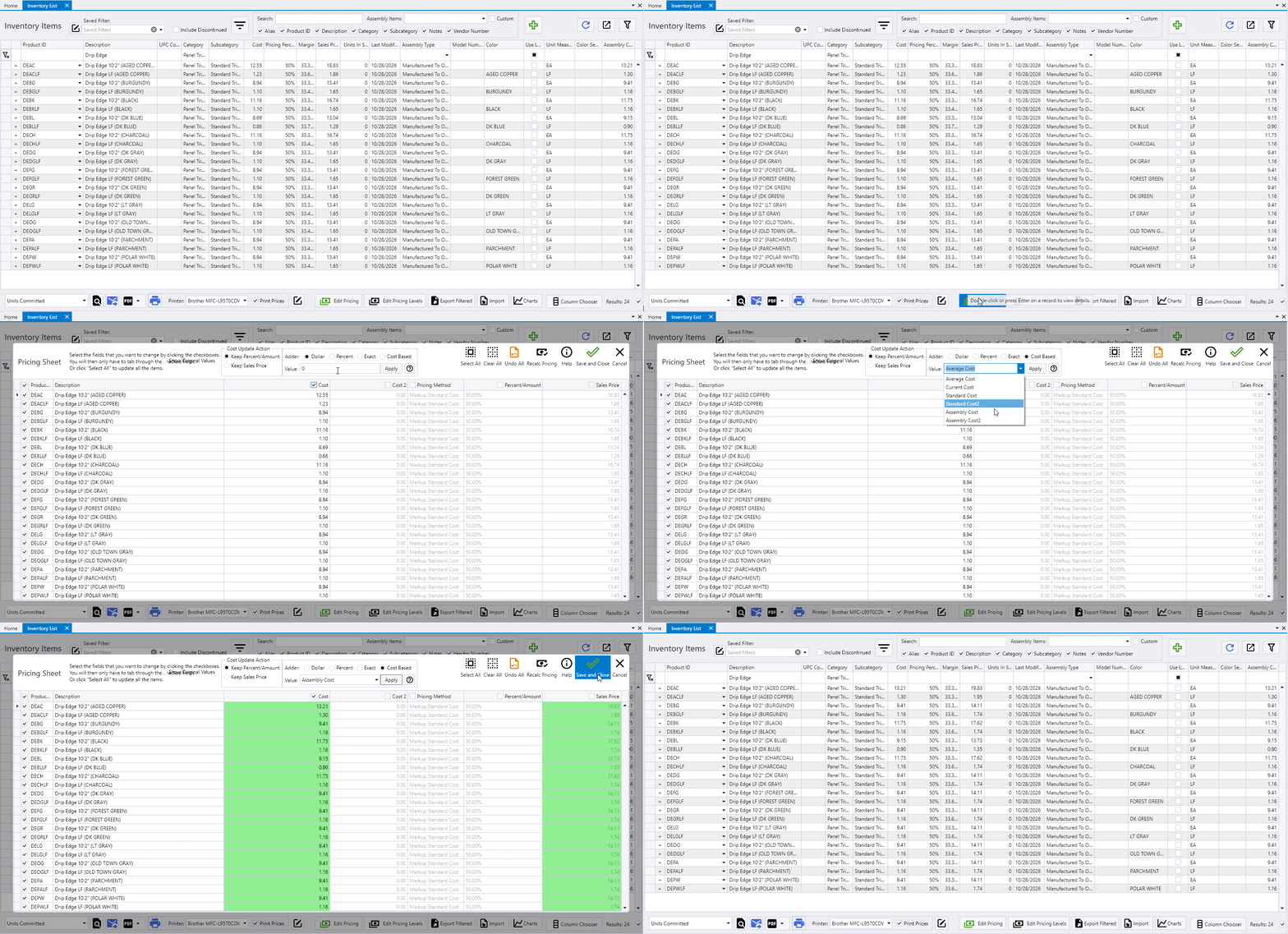
The animation illustrates how to set the Standard Cost of manufactured products using the Cost-Based option Assembly Cost.
Pricing Method Options

The pricing methods that Paradigm supports will show in the drop down when the Pricing Method column is checked. To apply the Pricing Method to all rows, select a value and click the Apply button.
Pricing Sheet Options

The buttons in the top right corner of the Edit Pricing Tool allow keeping or discarding the changes that have been made. The Help button opens a dialog that shares some information about how the Edit Pricing Tool works.
Recalculate Pricing
If changes have been made to inventory item costs, prices, assemblies, or assembly component values using other windows in Paradigm, the new values can be brought into the current window by clicking the Recalc Pricing button.
Discard All Changes
If there are any issues, clicking Undo All will revert the changes that have been made, and keep the Edit Pricing Tool open. To discard the changes and close the window, click Cancel.
Save and Close
To accept the changes that have been made using the Edit Pricing Tool and save all changes to the database, click the Save and Close button. The Pricing Sheet window will close, and the changes will be saved. Depending on how many rows are affected, this may take some time.