UPS Worldship Integration
This FAQ will go over the UPS Integration in Paradigm.
Usage
Start by pasting the order number into the import key. Note that if user has a printed order with a barcode on the order, simply scan the barcode into the field.
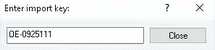
This will import the shipping information from the order.
Delivery/Package
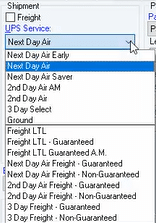
Select the UPS service, this is how the products will be delivered.
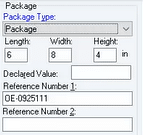
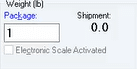
Fill out the packing information, this is what the product will be put in so the dimensions and weight must be accurate.
Shipment Process
After every field is filled out, go ahead and process the shipment (F10).

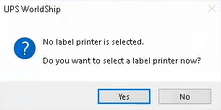
Users may get this message if a printer is not set up, more information on how to set up a printer can be found here: Printer Setup
If no printer is selected, the shipment will still process but labels will not be printed.
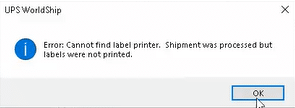
Paradigm ERP
Freight Markup
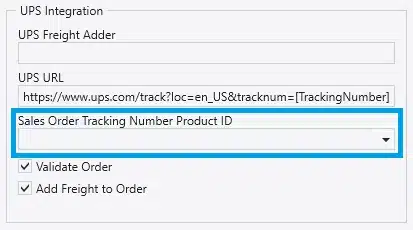
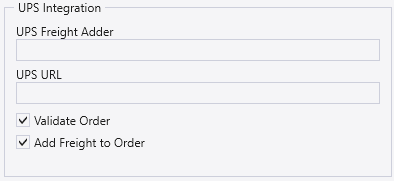
The integration can add the freight amount to the order. Users can set up a company preference to specify an additional amount that gets added to the UPS WorldShip Freight Charge.
This can be done from System > Company Preferences > Add-Ons > UPS Integration.
Tracking the Order
The integration will auto attach a link to the UPS tracking website and will also add an Order Attribute if the “DeliveryTrackingLink” attribute is set up in Company Preferences > Attributes Setup.


Using Product ID instead of Comment
In the “Sales Order Tracking Number Product ID” field, select a Product ID for shipment tracking instead of the default Comment (COM) on an Order.
This can be done from System > Company Preferences > Add-Ons > UPS Integration.