
Paradigm Mobile: Conversations
Conversations is available in the Paradigm Mobile App. The feature allows users to send and receive messages internally with other Paradigm users. In addition, the Mobile App users can take advantage of any external messaging Add-Ons that have been enabled, such as sending messages to external phone numbers or email addresses. This opens the ease of access of reviewing the business communications to all users as needed. More information on the app can be found in the article Paradigm Mobile: Overview and by searching the articles in the knowledgebase.
How to Use Conversations
Viewing Conversations
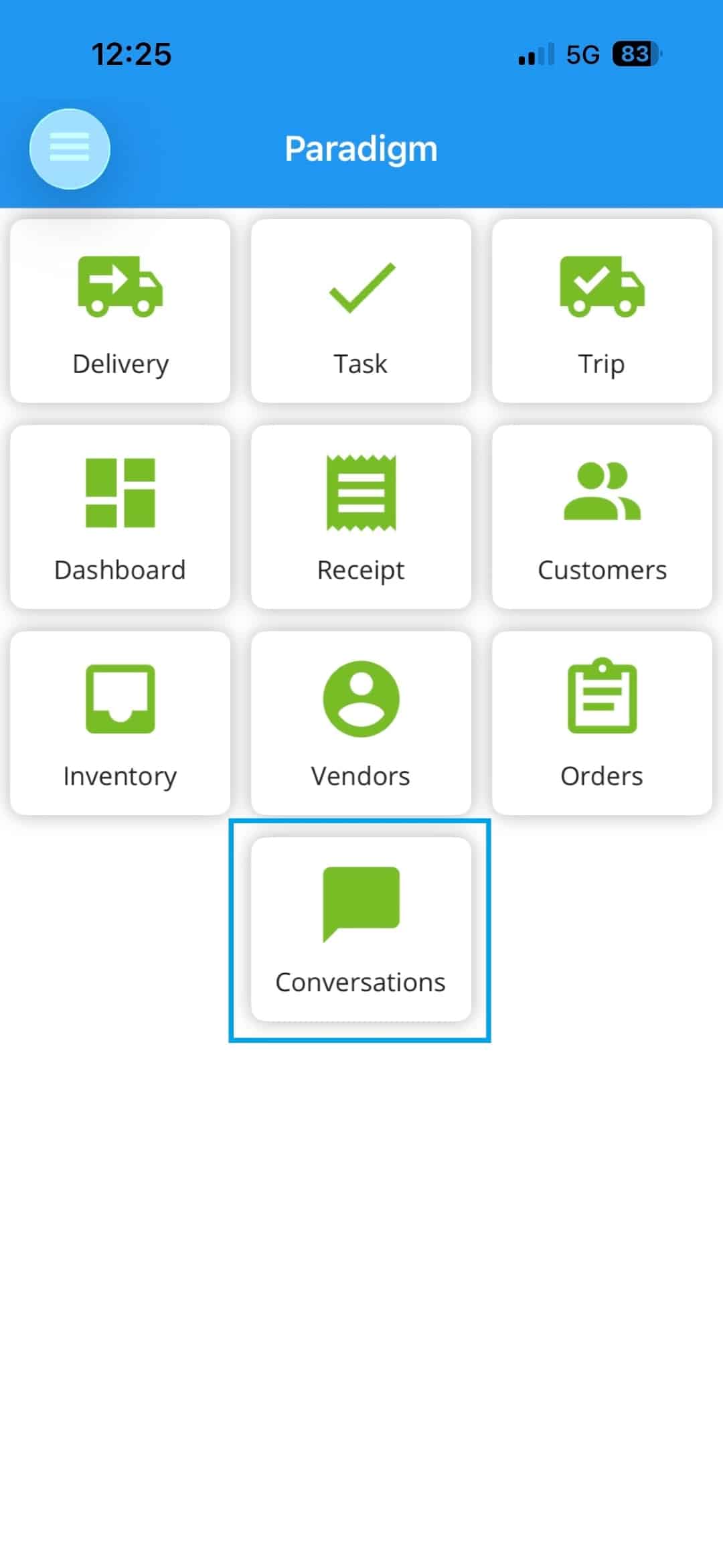
Home Page
- From the Paradigm Mobile App home page, tap the Conversations button to view the options.

Conversations Page
- The filters at the top of the Conversations page can be used to find a conversation.
- Search messages and people using the search bar at the top.
- Filter by All, Internal, or External conversations.
- Filter further by Conversation Type (No Type, Dispatching, Purchasing, etc.).
- Tap any conversation to open it and view the message history.
- Tap the green + button in the bottom corner to start a new conversation.
Creating Conversations

Starting a New Conversation
To start a new conversation, tap the green + button on the Conversations list.
- Optionally enter a Conversation name. If no conversation name is entered, the name will automatically be set to the current date and time.
- Select a Type for the conversation.
- Under To: choose how to add recipients:
- People – search and select Paradigm users to message internally.
- External number number – search for an opted-in phone number to text someone outside Paradigm.
- Tap Start in the top corner of the window to save the information and move to the messaging window. Note that the conversation is not created and saved until the first message has been sent.

Adding External Numbers
- To add external numbers to the conversation, toggle the contact type from People to External number.
- Only phone numbers that are confirmed as Opted In will appear.
- For more information on the setup required for using this feature, as well as technical details of functions and limitations, see the Integrated Messaging Addon – Texting article.
Message Options

Sending Messages
From the message window, there are three options for choosing what to send.
- To send a standard message with text in it, type the message.
- Tap the paperclip icon to attach a file.
- Tap the microphone icon to record an audio file.
Once the message text box has content, the microphone icon button will be replaced with the Send button. When the message is ready to send, press the Send button.

Message Attachments
- To attach a files to the message, tap the button with a paperclip icon.
- Choose Scan, Camera, Photos, Videos, or Files (up to 5 files per message; images/docs up to 10 MB, videos up to 100 MB). See the section on Attachments in the Conversations article for more details.
Additional Options

Conversation Info
Tap the Info button in the top right of any conversation to view additional information and options.
- The Conversation Type button located under the conversation name and participant count shows what type is currently selected. Tap it to select a new type.
- Tap Edit name to edit the conversation name.
- The list of participants currently included in the conversation is listed.
- To add more participants to the conversation, tap the Add people button.
- Tap the End conversation button to mark the conversation as ended. This ends the conversation for all participants.

Change the Conversation Type
- Tap the name of the conversation’s current type to open the dialog to change it.
- Select the new type and tap the Save, or tap Cancel to exit the Change Type dialog without saving.
- Note that everyone in the conversation will see the new conversation type.

Rename a Conversation
- Tap the Edit Name button in the conversation info to change the name.
- Enter the new name and tap Save name, or tap Cancel to exit the Conversation Name dialog without saving.
- Note that everyone in the conversation will see the new name.

Ending a Conversation
- The End conversation button in conversation info allows marking the conversation as ended.
- To end the conversation, tap the button and confirm.
- This will end the conversation for all Paradigm users. For more information on handling closed conversations and reopening them, see the section on Managing Conversations in the Conversations article.