Vendor Prepayments
Vendor prepayments are a way to record a deposit given to a vendor prior to receiving product from them. The funds are held in a “Vendor Deposits” asset account until they are later used to pay a purchase invoice for that vendor. Note that vendor prepayments are not linked to a specific PO, and need to be manually applied to purchase invoices with a payable to use the funds.
Creating Vendor Prepayments
Vendor prepayments can be created from purchase orders by clicking on the “Vendor Prepayments” on the header.

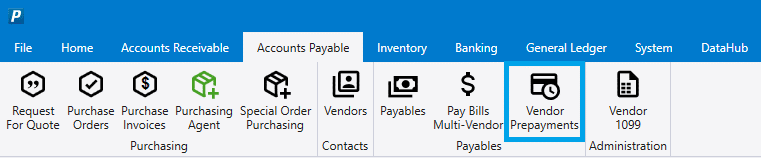
Another place these can be created is by going to Accounts Payable > Vendor Prepayments.
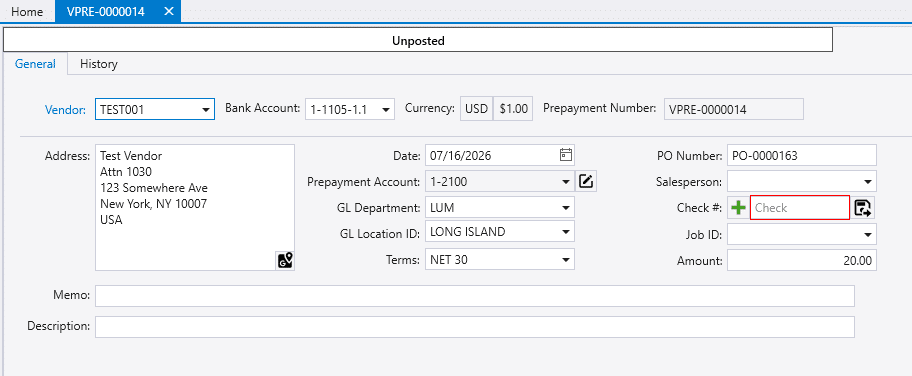
Then fill out the prepayment information and post/print it. Make sure to choose the correct bank account from which to pull the funds in the “Bank Account” field at the top of the form.
Applying Vendor Prepayments
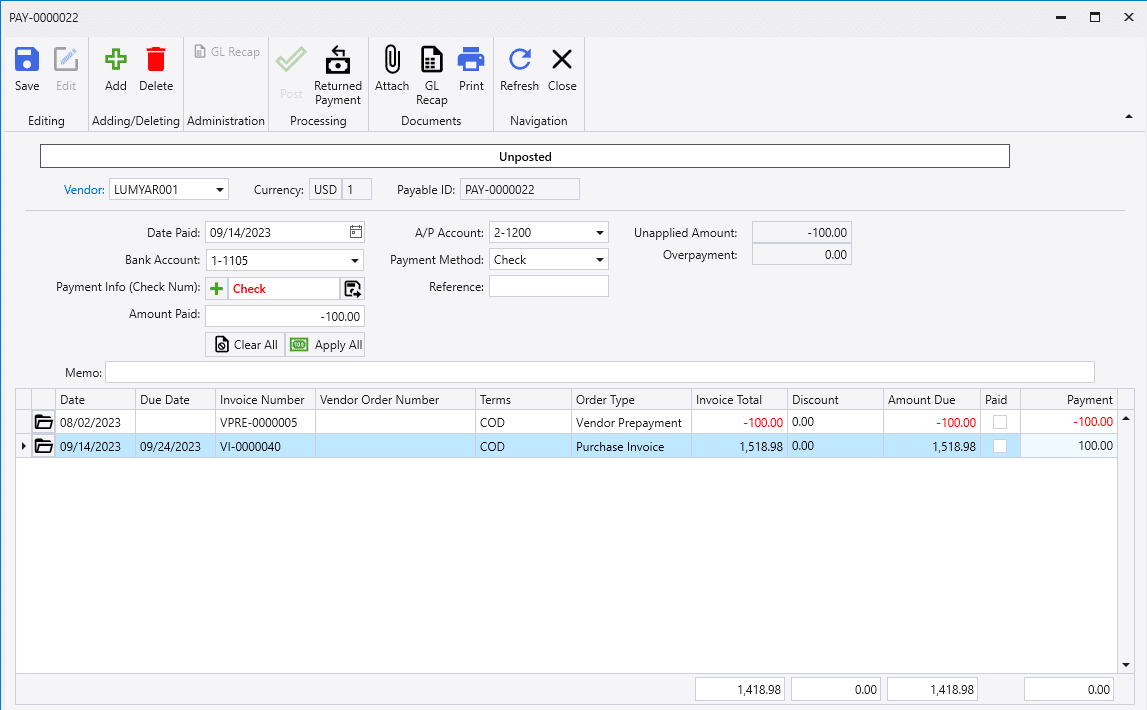
To apply a vendor prepayment, one way is start by clicking on the “Make Payment” button on the purchase invoice.

Another way to do this is from the “Pay Bills Multi-Vendor”, and follow the same process below.

Then select the credit line to pay by double clicking the payment column, and then enter the same amount paid on the bill that it is getting applied to. Or the rest of the bill balance can be left in the payment column to make a payment for it if the prepayment is less than the voucher total.