Adding A New Vendor
This FAQ will go over how to add a new vendor in Paradigm. Also see this FAQ for ACH Payments To Vendors and this FAQ for Vendor Preferred Payment Methods.
Adding a New Vendor
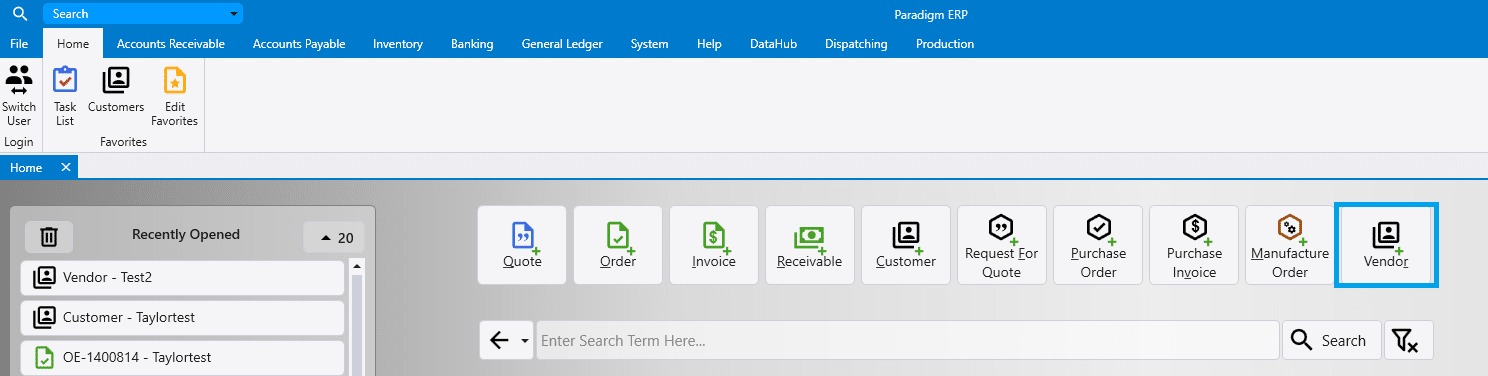
Vendors can be added from the home tab.
Vendors can also be added by going to Accounts Payable > Vendors.

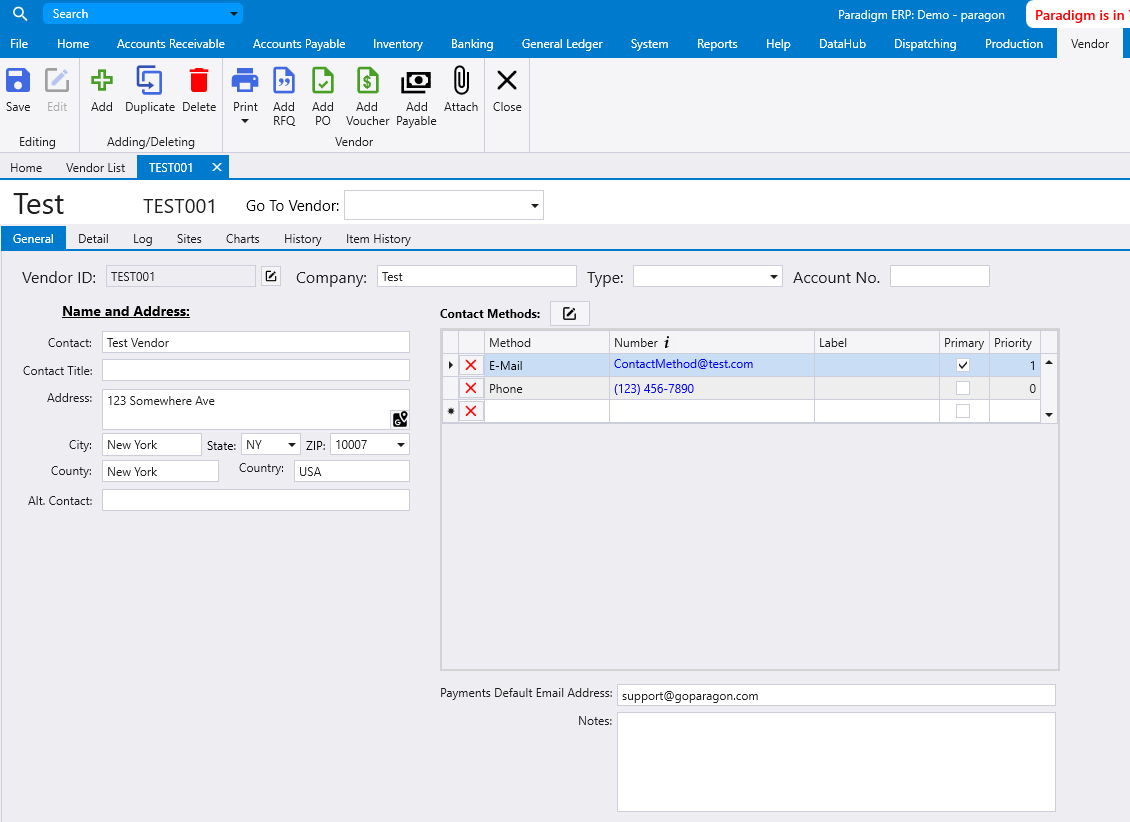
Enter the vendor information such as the address, contact method, company name, etc. Paradigm will auto generate a vendor ID using the company name.
Payments Default Email Address
The email set here will be the default email when emailing from a payable or the payables list and is primarily used as the ACH Remittance address.
For more information setting up vendors, see these FAQs: Inactive Vendors, Setting up Alternate Vendors, Merge Vendors/Customers.
Certificate of Insurance Expiry
The field “Certificate of Insurance Expiry” can be set on vendors.
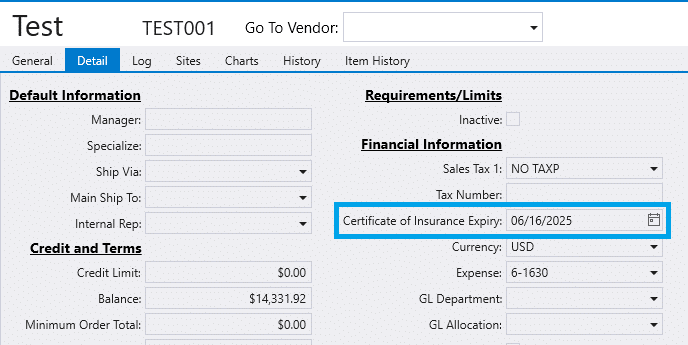
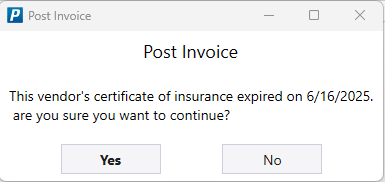
If the voucher being posted is dated later than the date set, it will give the following warning: This vendor’s certificate of insurance expired on [Expired Date]. Are you sure you want to continue?
Vendor Portal
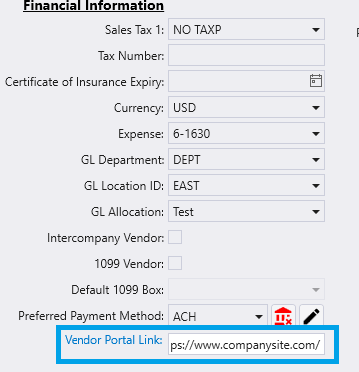
If the vendor has a website/portal to pay bills, the site can be filled in the Vendor Portal field in the vendor detail tab under Financial Information.
Then in the Pay Bills Multi-Vendor screen a vendor portal link is shown which will open the site in a new browser tab.

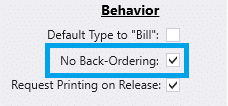
No Back-Ordering
In the vendor detail tab enabling No Back-Ordering will cause Purchase Orders to be completed when a purchase invoice is received for less than the full amount.