
SmartBuild Import On Quotes And Orders
This FAQ will go over the SmartBuild Integration Import feature. This allows access to a feature that imports from SmartBuild directly, without having to copy over the file. This is an efficient way to get all of the parts for a job, into an order or quote.
Paradigm Import Options
Direct Import From Smartbuild
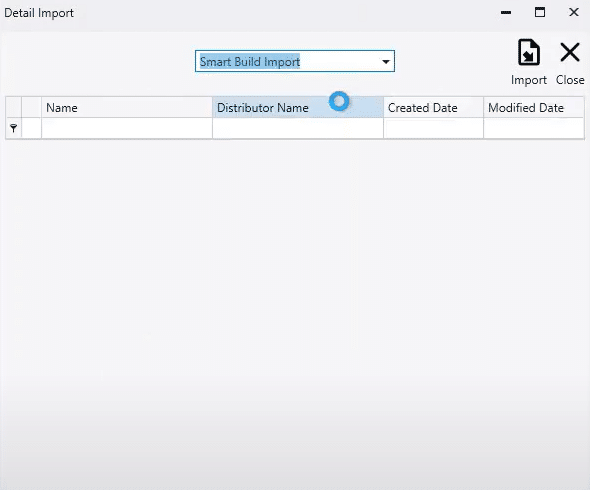
The “Smart Build Import” option in the dropdown will give a list of all the buildings that have been drawn, skipping the CSV file download step. The “Import Descriptions” option can be selected as well, to import descriptions from SmartBuild.
SmartBuild Viewer Link
Once imported, the SmartBuild link will be saved as an attachment and a SmartBuild button will be shown on the advanced tab. Opening the link or clicking the Smartbuild button will open a 3D viewer of the structure in a new browser tab.


Manual Import
This is the base version of this feature.
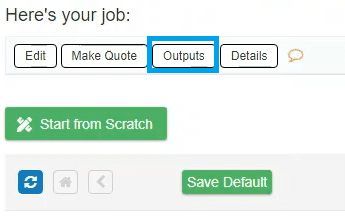
Go to Outputs.
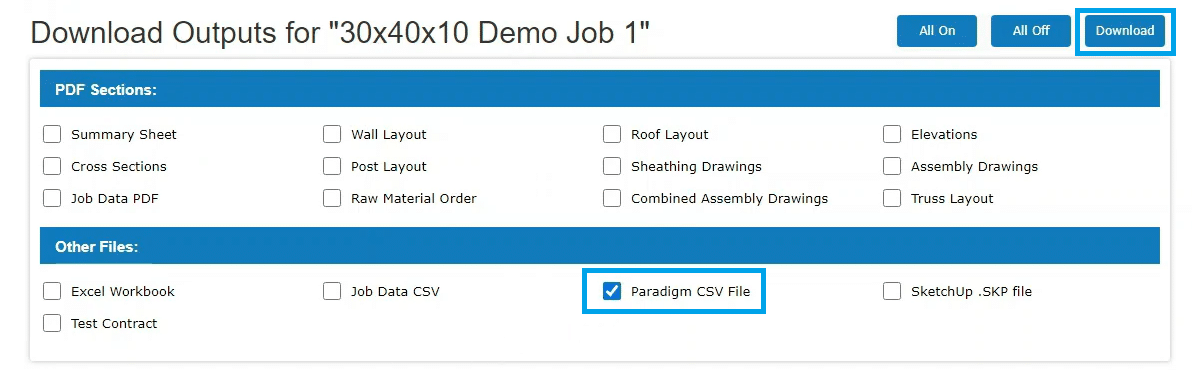
Download the CSV File. This CSV File will be directly importable into Paradigm.
From there, the file can be imported into a quote or an order. Information how to import an order from an excel file can be found here: Customer Portal: Importing An Order From An Excel File
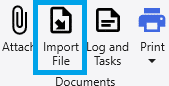
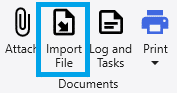
Go to the order screen in Paradigm and select “Import File”. Choose the CSV File.
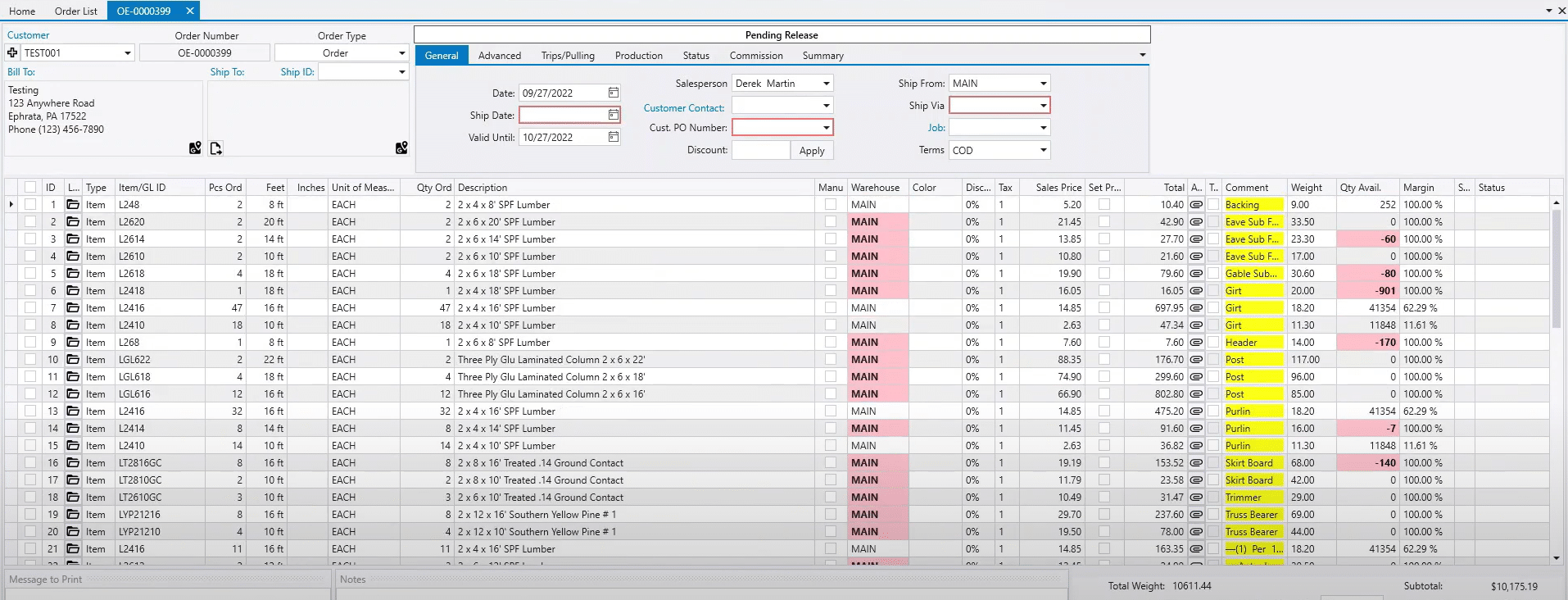
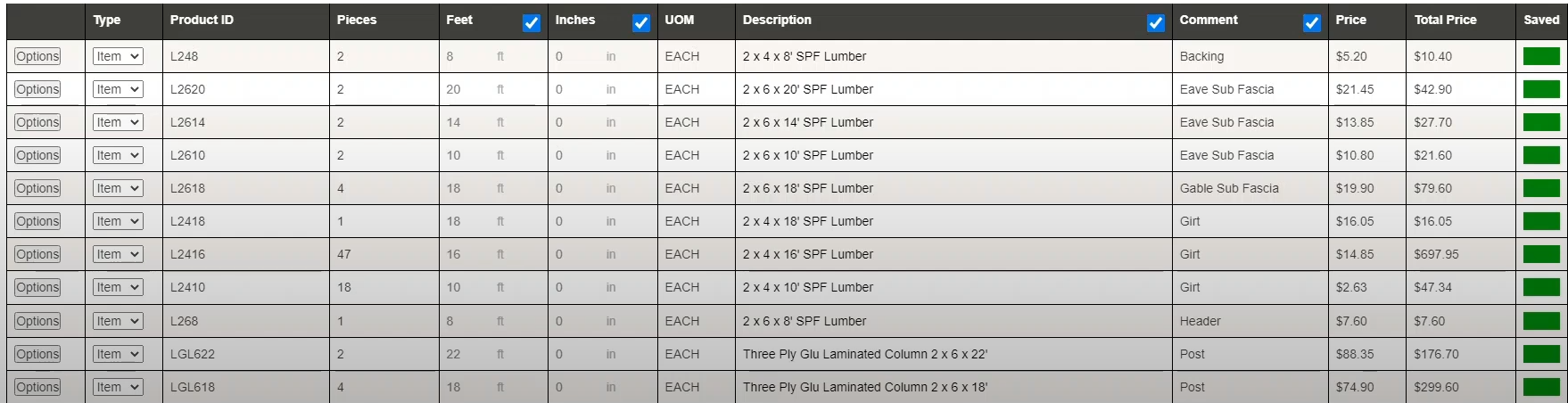
This will import the entire file into the order. If the imported SmartBuild SKU does not match an ID or alias in Paradigm, it will be imported as a comment line.
Customer Portal Import Options
Direct Import From SmartBuild
If the add on has been purchased, go to the quotes and click “SmartBuild Import”. After clicking this, the user may need to login if they have not previously.
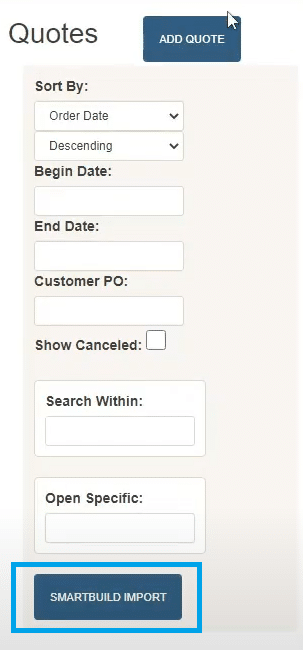
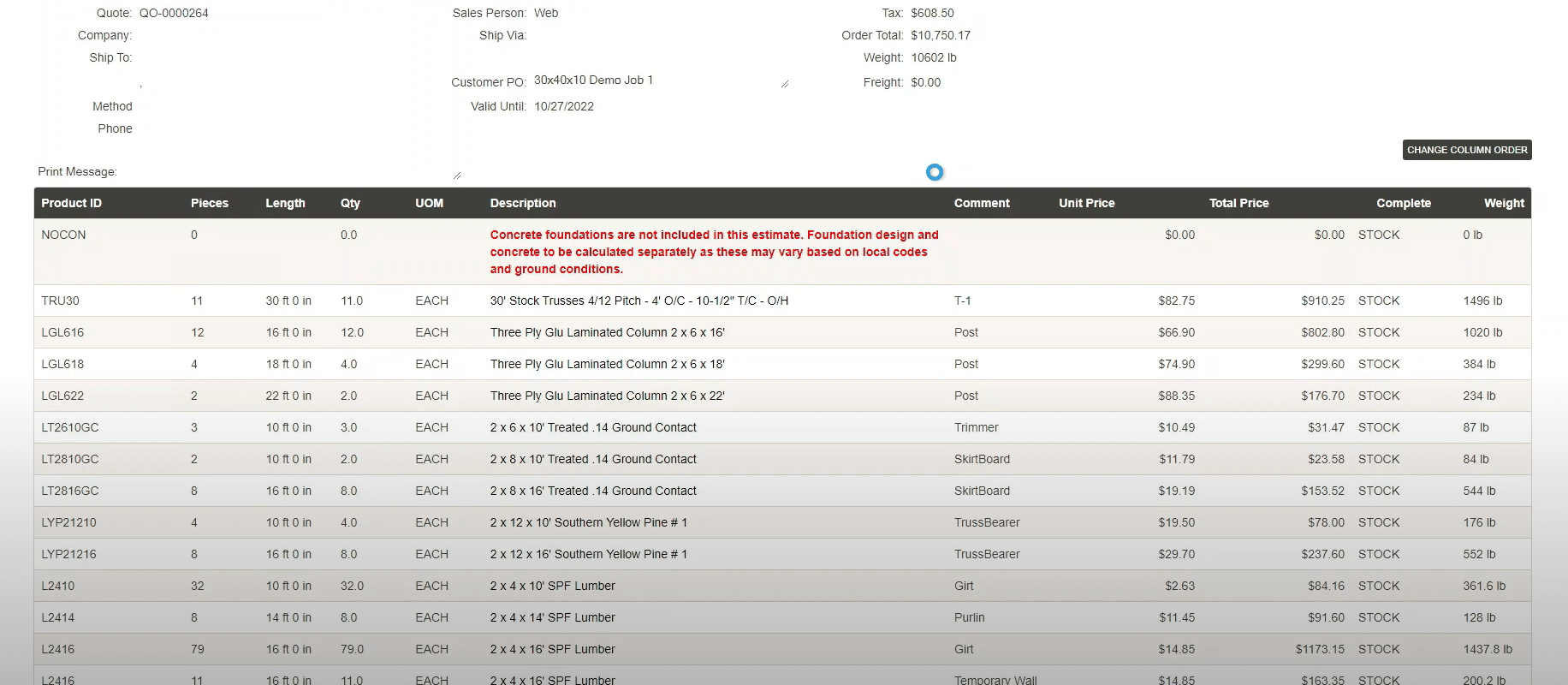
Select “Import To Quote”. This allows for the building to be quickly entered as a quote document in Paradigm instead of having to navigate to the file and reupload it.

Manual Import
Go to Outputs.
Download the CSV File.

Choose the CSV file.
SmartBuild Price
To indicate to Paradigm that it should use the price of a specific inventory item on the quote or order that is in the SmartBuild import rather than the price that is in Paradigm, add an attribute named SmartBuildImportPrice to the Inventory Item. Items without this attribute will be set to the price that is in Paradigm.