
Two-Factor Authentication (2FA)
This FAQ describes how to set up two-factor authentication (2FA) in Paradigm ERP.
How Trusted Devices and Authenticator Codes Work
Two-factor authentication is an optional feature that adds a layer of login security to Paradigm. It relies on trusted devices that only administrators can approve. Administrators use an authenticator app installed on a phone to generate the codes needed for approval. Administrators use the codes from the authenticator app to approve ‘devices’, turn enforcement off, resetting another user’s authenticator, and replacing or removing an authenticator.
Each code works only once, and a reused code is rejected with “The TOTP code is invalid." A user only has to ever login with a password, but will need to be approved by the administrator.
Note that a ‘device’ is a single Windows user account on a computer. Two people with different Windows logins on the same computer are counted as 2 devices.
Recommended Roll-Out Process
Roll 2FA out in this order. Users keep working normally the whole time: enforcement stays off until every computer in use has been approved.
Administrator Authentication Setup
(1) Install an authenticator app, such as Microsoft Authenticator, Google Authenticator, or Aegis, on a mobile phone.
(2) Open the User Security screen and select the “Trusted Devices” tab.
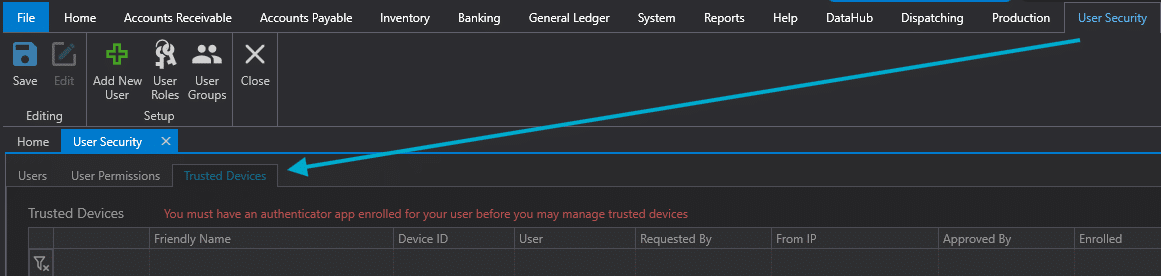
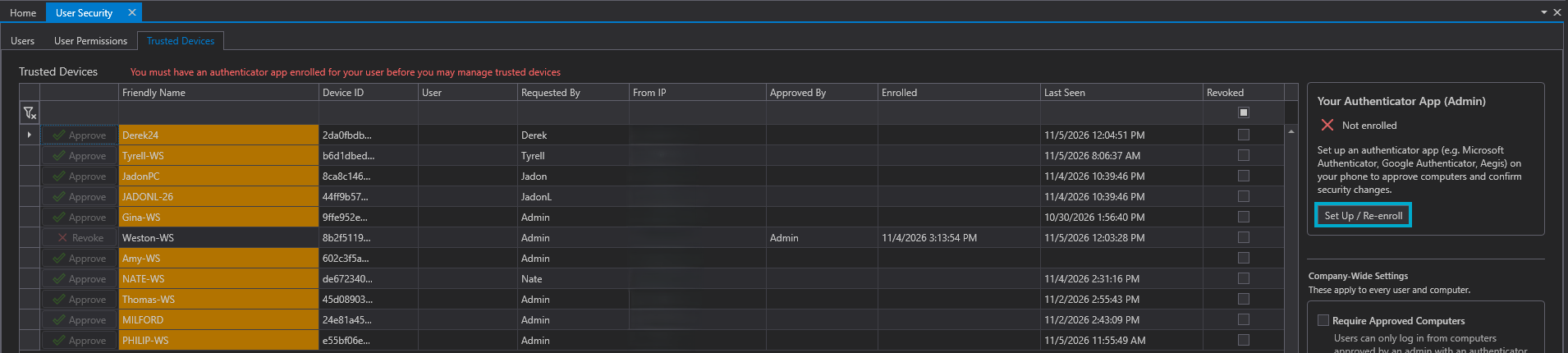
(3) In the Your Authenticator App panel, click Set Up/Re-enroll and a QR code will appear.
(4) In the authenticator app, add an account and scan the QR code. The account appears as ‘Paradigm’ with the administrator user name.
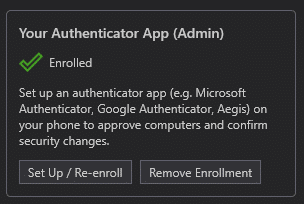
(5) Within 10 minutes of displaying the QR code, enter the six-digit code from the authenticator app in the confirmation box, and then click “Confirm”. The panel displays “Enrolled”.
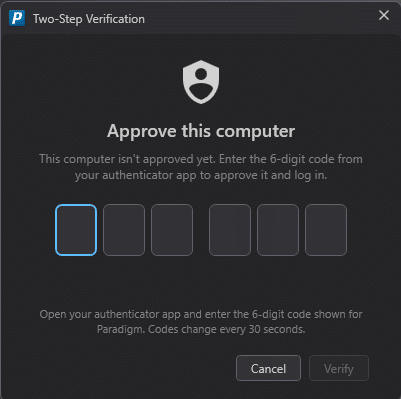
(6) Log out of Paradigm, log back in, and approve the computer with the 6-digit code when prompted with “This machine is not yet trusted."
Approve Computers
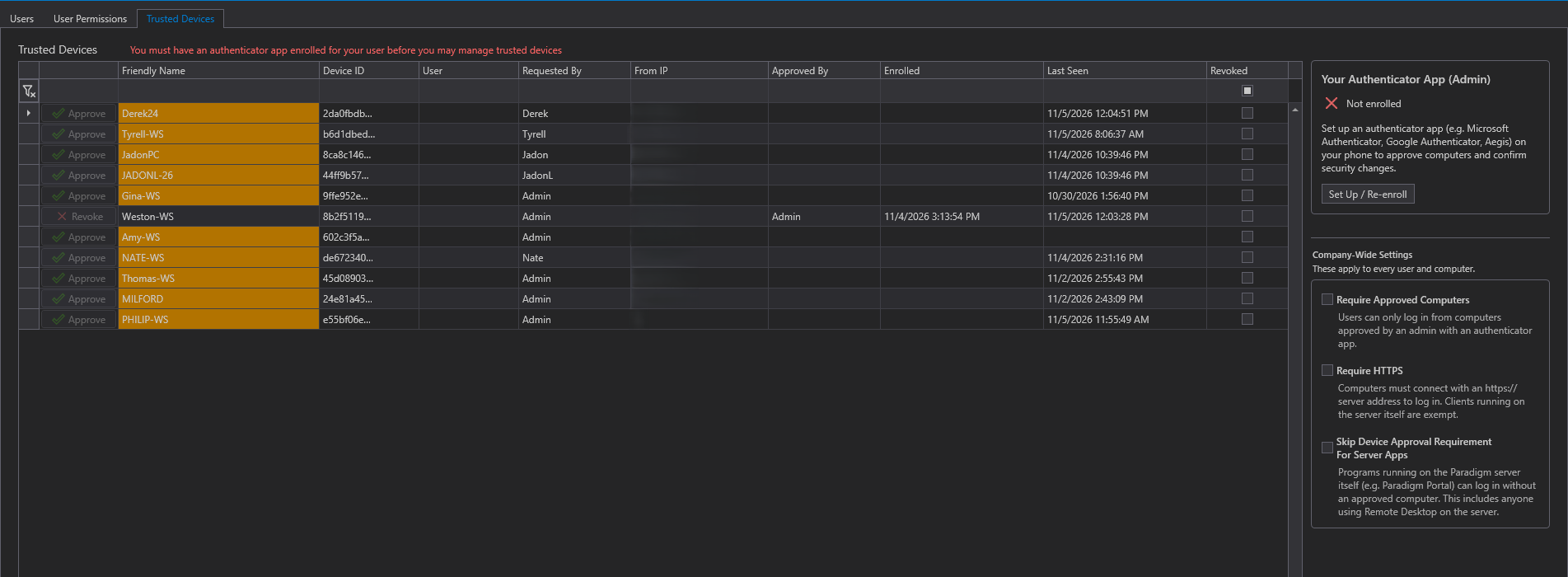
After the administrators have enrolled and approved their own computers, administrators can approve the computers of other users. With enforcement still off, users log in as normal, and each new computer appears in the Trusted Devices table as an orange Pending row under “User Security”
- Check the Friendly Name, Requested By, and From IP columns. The friendly name comes from the computer itself, so it cannot be trusted alone.
- Select the row and then click “Approve.”
- Enter the authenticator code if prompted.
After the device is approved, the user must log in again. At every login, Paradigm automatically generates a device code from the secret stored for that device, and the server checks the code. Users never see or enter the device code.
Administrator Actions
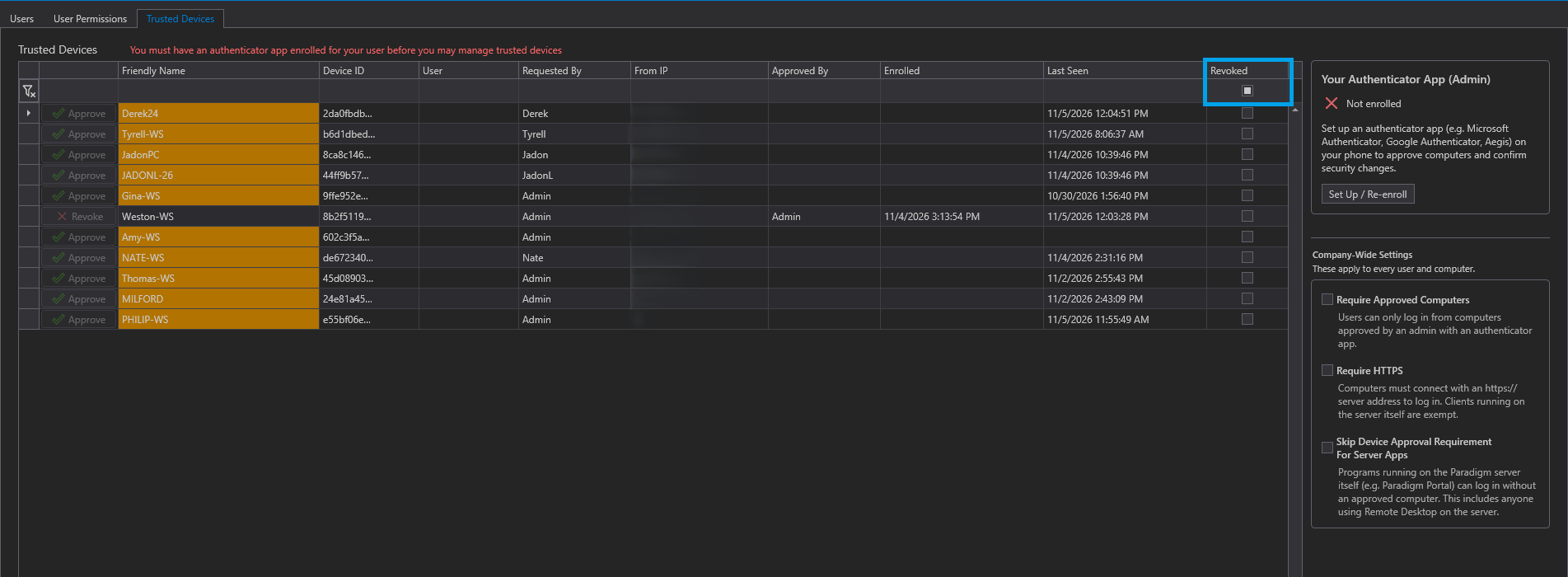
Revoke
Revoke blocks a computer from logging in to Paradigm. Everyone using Paradigm on that computer is signed out immediately, and the client closes with the message "Device Revoked” within about 30 seconds.
Lockouts and Alerts
- Every 5th incorrect device code entered within 24 hours triggers a lockout.
- Incorrect device codes can result from an inaccurate clock. Verify that the date, time, and time zone are correct on the computer.
- A locked computer displays
“Computer Temporarily Locked.”Wait for the lockout to end, or revoke and re-approve the computer to lift the lockout.
- After 15 incorrect device codes within 24 hours, Paradigm creates a task for administrators, as it does after five failed password attempts.
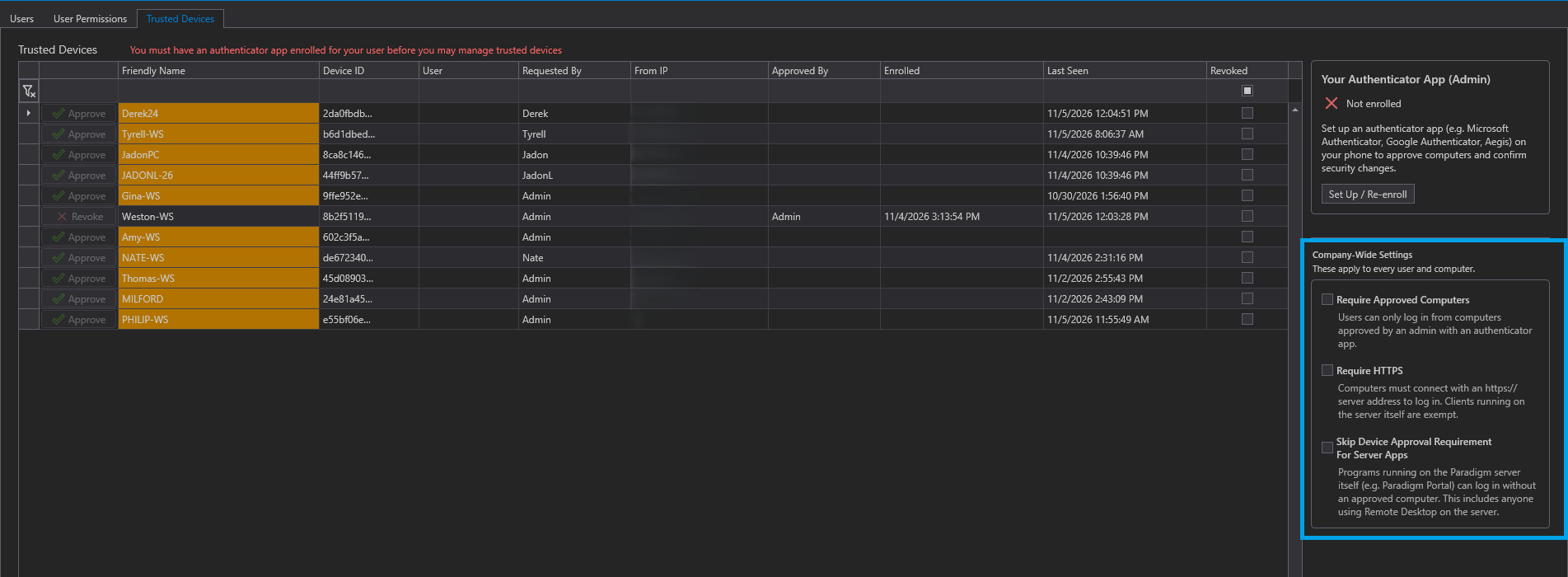
Company-Wide Settings
Require Approved Computers
When enabled, users can log in to Paradigm only from devices that an administrator has approved. Anyone using an unapproved device is signed out immediately and loses unsaved changes. The message “Device Not Approved” is displayed.
Require HTTPS
This option rejects device logins that do not use an https:// server address. Rejected logins display “Secure Connection Required.” Enable this option only after every client connects over HTTPS. The option can be enabled only from a computer connected over HTTPS. Without HTTPS, passwords and codes are transmitted unencrypted and is strongly recommended.
Skip Device Approval For Server Apps
This option allows allows programs running on the Paradigm server to log in without an approved computer such as Paradigm Portal. This also includes Remote Desktop sessions on the Paradigm server.
Known Limitations
- An administrator who has enrolled an authenticator cannot be reconnected automatically on an unapproved computer, even when Require Approved Computers is off.
- While enforcement is off, approving and revoking devices is advisory. Any computer can log in, and a revoked computer can register again as a new device.
- Enabling enforcement does not end sessions that were started without a device ID. These sessions expire within 12 hours.