Create Purchase Orders by Default
This FAQ will go over how to set up items to create purchase orders by default.
Create PO’s By Default
To set an item to create purchase orders by default, go the inventory item and select the Create PO's checkbox.
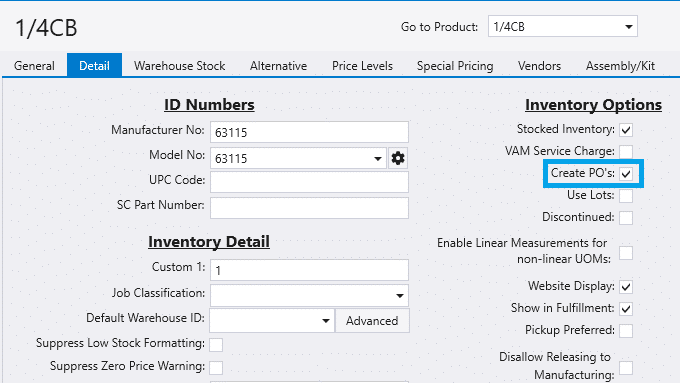
Now when this item is added to an order, it will be shown in a blue font to signify a PO will be created for it.
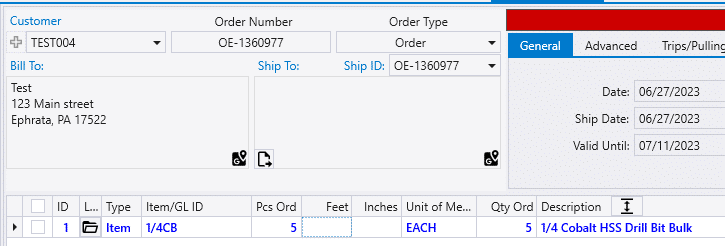
This can also be manually set in the order by selecting the Create PO checkbox on an order.
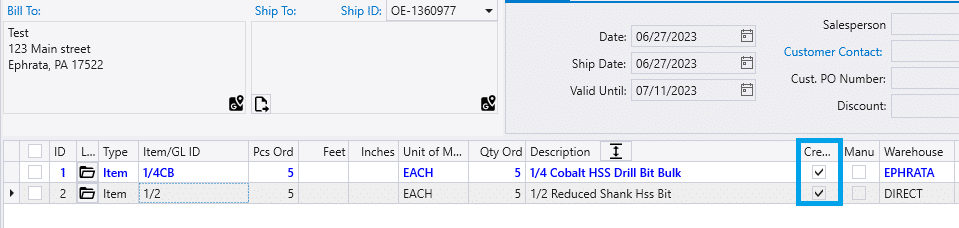
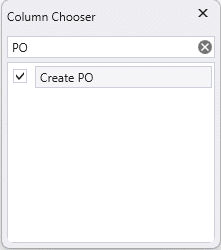
To show this, right click the order header and select the column chooser. Then select “Create PO”.
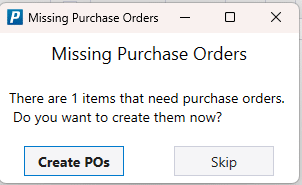
Once the order is released, the lines set to create POs will cause a prompt to give an option to create the POs.
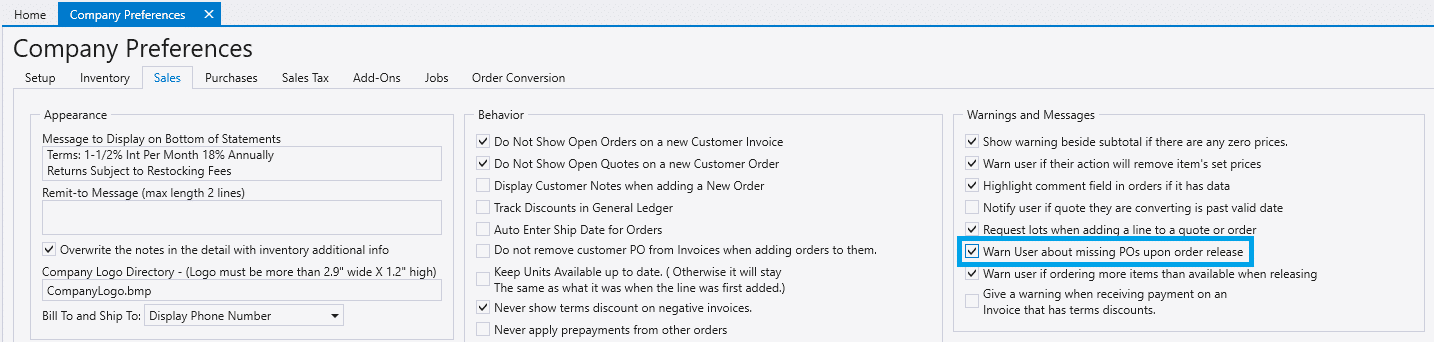
If this pop up does not appear, it can be enabled by going to System > Company Preferences > Sales > Warnings and Messages.
If the order is converted to a PO, this pop up below will appear. All items set to create POs will be selected by default.

If the line items don’t have POs created for them once the order is released, they will appear in the Special Orders Purchasing Screen. More info about that can be found in this FAQ: Special Order Purchasing Screen
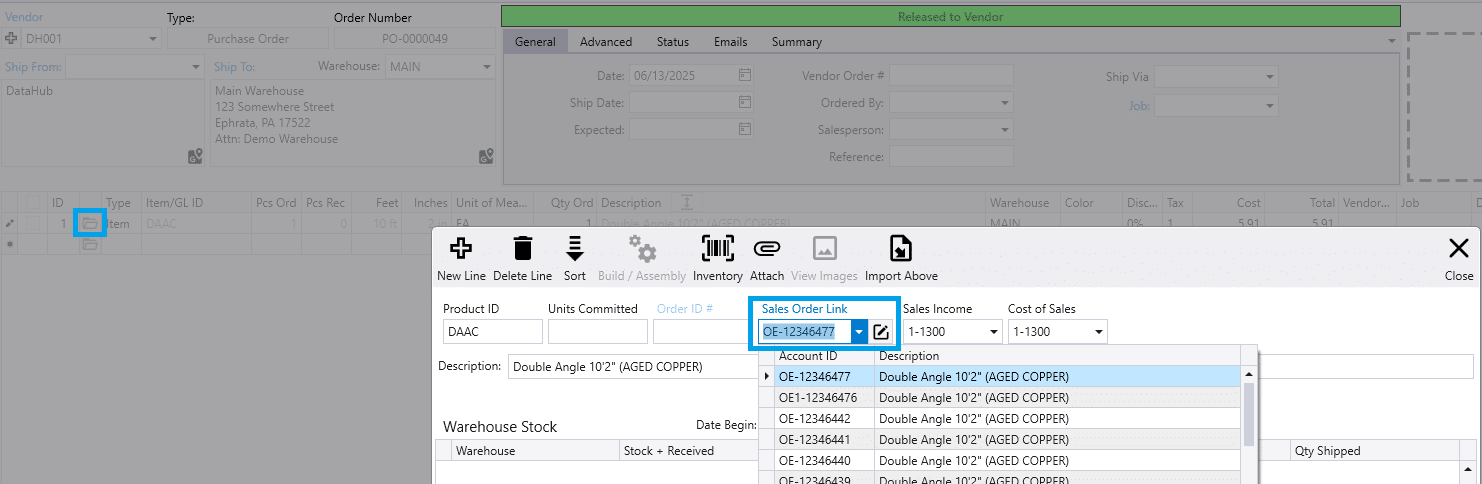
Manually Link PO Lines To Sales Order Lines
Purchase Order lines can be manually linked to a sales order line by going to the line item options on the PO and select the sales order from the dropdown.
Convert To Invoice and Pay Message
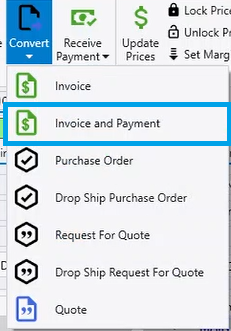
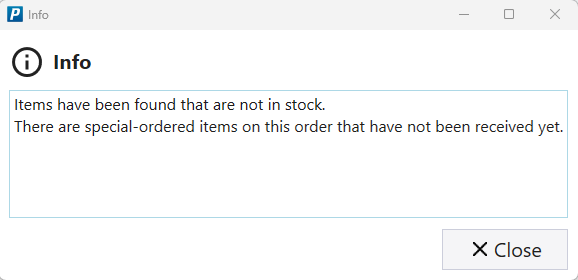
If lines on the order have a PO created for them, and those lines have not been received yet when using the Convert To Invoice and Payment button, the following message will be shown: Items have been found that are not in stock. There are special-ordered items on this order that have not been received yet.