Update/Install Paradigm
This FAQ will go over how to update or install Paradigm.
Updating Paradigm
For a Paradigm server update, Paragon will reach out and schedule a time for the server to get updated. After the server-side update is completed (typically after-hours), the workstations will automatically install the update the next time Paradigm is opened (typically the following morning).
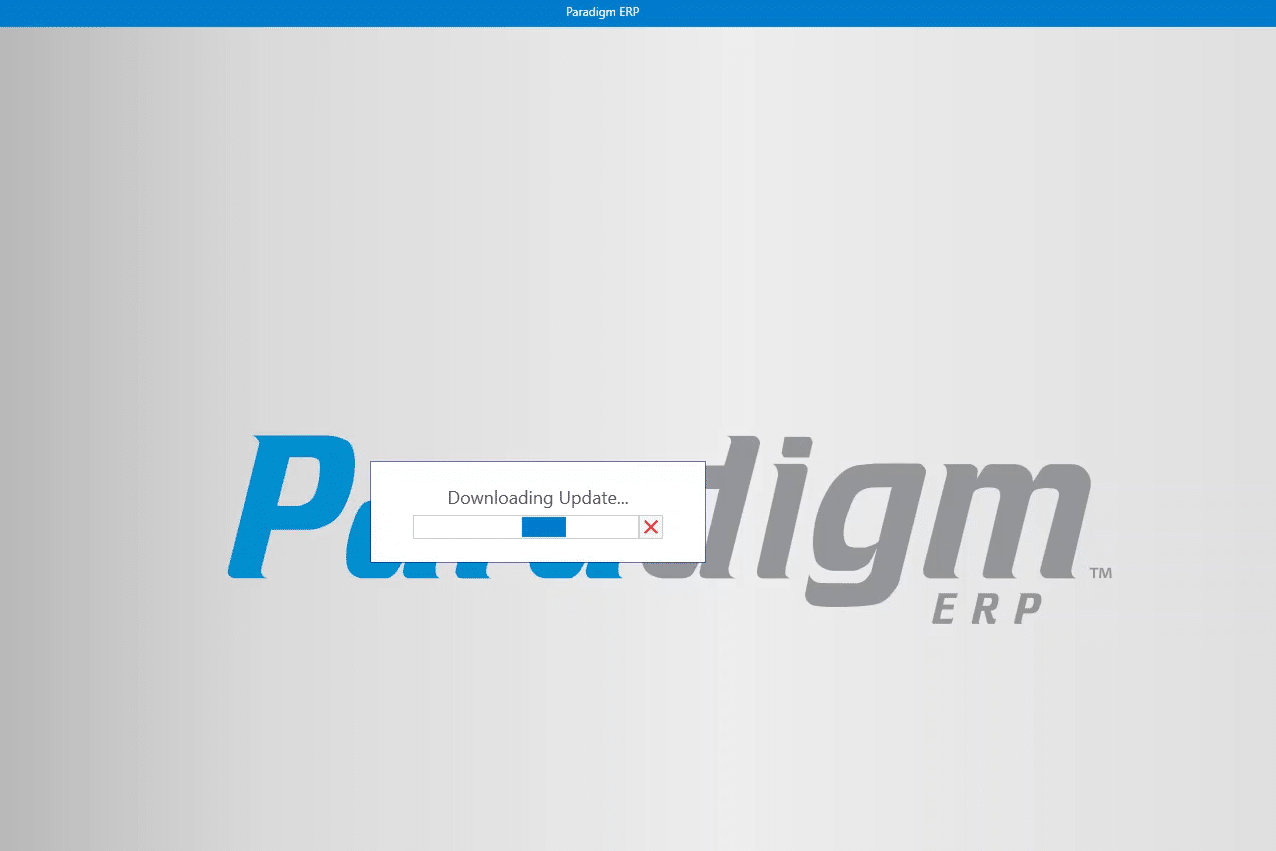
After that, Paradigm will then close and install the update without needing Windows administrative permissions.
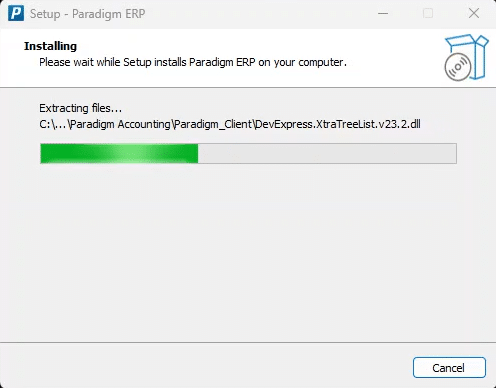
After the update is installed, Paradigm will reopen and will be ready for use.
Update Download Errors
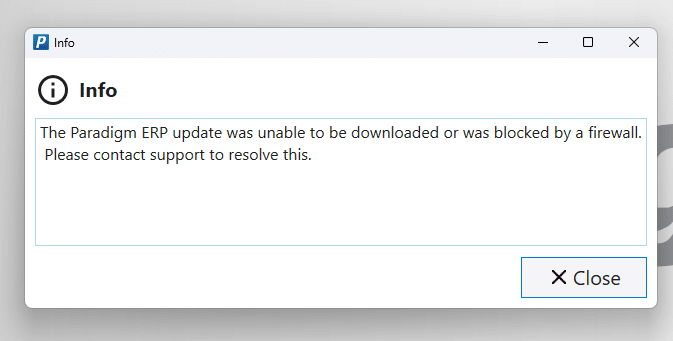
If Paradigm is unable to download the update, the following message will appear: The Paradigm ERP update was unable to be downloaded or was blocked by a firewall. Please contact support to resolve this.
Windows Defender Error
Another issue that can happen is Windows Defender blocking the install. More information on that can be found here: Paradigm Update Blocked
If the Paradigm updater runs into any errors when installing, try restarting the workstation and then running the installer again. If this does not resolve the issue, contact Paragon Support.
Installing Paradigm
For the installation of Paradigm on the first workstation, contact Paragon Computing Solutions. Once the very first installation has been completed on a workstation, the steps below can be followed to install Paradigm on other workstations.
1 – Go to a different Paradigm workstation that is signed in and working.
2 – Sign in, and go to Help > Get Installer Link and copy the URL.

3 – Send the URL to the workstation that needs Paradigm on it.
4 – Open that URL in a browser to download the Paradigm update file.
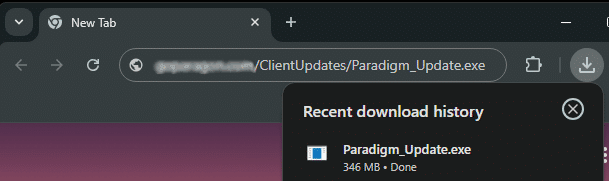
5 – Run the Paradigm update file to install Paradigm.
6 – After it is installed, a shortcut named “Paradigm ERP” will be placed on the desktop.
Server URL
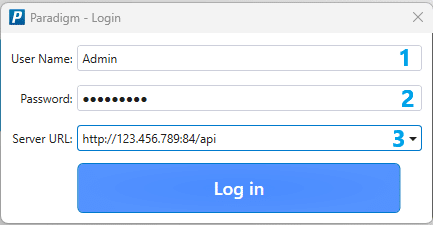
After Paradigm is open, the login screen will appear. Enter the user name [1], password [2], and server URL [3].
How to Find The Server URL
The server URL can be found in the login screen on an existing installation. See this FAQ for more information on setting up users in Paradigm: Creating Users and User Security
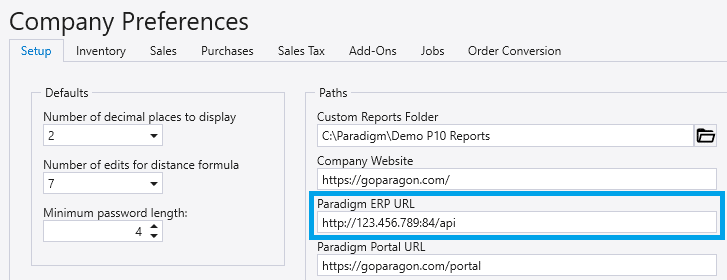
The server URL can also be found by going to System > Company Preferences > Paths