
Addon Product
This FAQ will go over how to set up and use the addon product feature in Paradigm. This feature only affects accounts receivable transactions (quote, order, invoice).
Setting Up An Addon Product
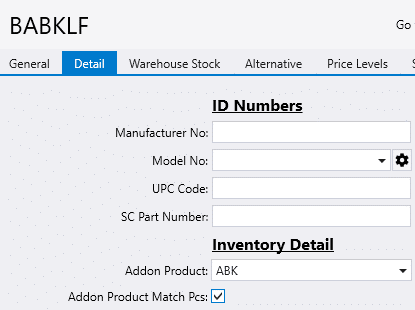
To set up an addon product, go to the inventory item’s detail tab. Select the addon product and whether or not to have the addon product match the Pcs entered for the parent product on the transaction by default.
Using An Addon Product
When the parent item is added to a transaction, a pop up will appear with the add on item. The item will be selected by default, and the space bar can be pressed to unselect it. The enter key can be pressed to save the form.
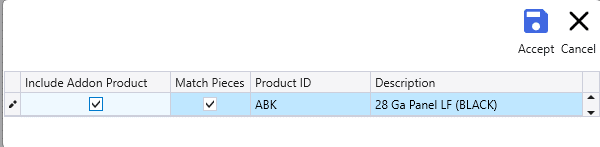
If the item is selected, it will be added as a separate line on the order. When the addon product is a kit item, the comment or bundle line for that kit product will not be added.
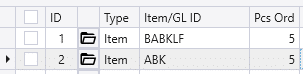
Scanning a product in the Point of Sale window that has an addon product associated with it. If the addon product is already included within the list, the quantity will be updated. Otherwise, the addon product will be added as a new line in the list.