AI Features In Paradigm ERP
This FAQ will go over how to enable the AI features in Paradigm ERP.
Enable AI Features
The AI setup requires an AI provider to be selected in the Default AI Provider field under Company Preferences > AI
- Contact Paragon to enable the AI Connector.
- Go to
System > Company Preferencesand select theAItab.- Check Enable AI features.
- In
Default AI Provider, selectAnthropic (Claude). - Under
Anthropic, checkActiveand paste the Claude API key into theAPI Keyfield.- See the
Setting Up a Claude API Keysection for instructions on creating an API key.
- See the
- Select a
Default Fallback Model.

Setting Up a Claude API Key
- Sign in to the Claude Console at platform.claude.com.
- Open the API keys page
- Click Create key
- If Create key is grayed out, the account role does not allow creating keys. An organization admin in the Claude Console must change the role or create the key.
- Enter a name for the key, such as
Paradigm, and select an expiration. - Set Linked account to a service account. A personal key stops working if that person leaves the organization.
- Copy the key and store it in a password manager.
- The key starts with
sk-ant-and is shown only once. - A lost key cannot be viewed again, so create a new key instead.
- The key starts with
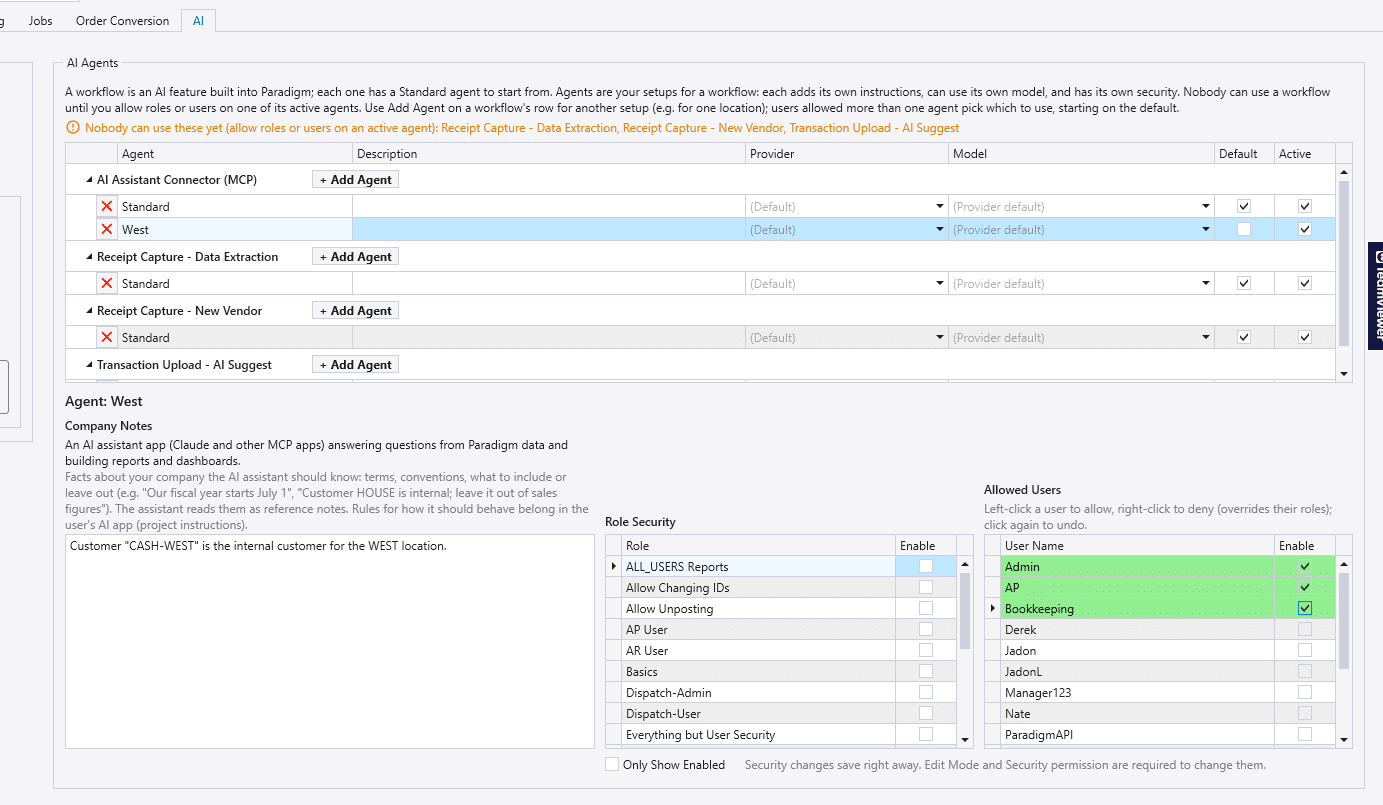
Set Up AI Agents and Workflows
Each AI feature in Paradigm is a workflow, such as Receipt Capture - New Vendor, and each workflow starts with a Standard agent. An agent holds the instructions, model and security for a workflow. Users cannot use a workflow until their role or user is allowed on one of its active agents.
Additional agents can be set up for each workflow. This is useful if a specific provider/model is needed for a certain workflow, or location specific instructions need to be added. Click + Add Agent on the workflow row, configure the notes and enabled it per role or use in the security menu.