
Enabling the Paradigm AI Connector
This FAQ goes over how to enable the Paradigm AI connector for Claude. Once set up, see this FAQ on how to use the connector: Paradigm AI Integration With Claude (MCP)
Important
The AI Connector gives the user access to all data in Paradigm through Claude. Only enable it for users who are allowed to view all company data.
Connecting Other AI Clients
This article covers the setup steps for Claude Desktop specifically. The Paradigm AI Connector is a standard Model Context Protocol (MCP) server (Paradigm.Mcp.exe), so any AI client that supports local MCP servers should be able to connect to it. For other clients, the install and restart steps will differ. Refer to that client’s documentation on adding a local MCP server.
Requirements for the AI Connector
- Enable AI features in Paradigm, full instructions here: Enable AI Features
- These steps will also go over how to set up the Claude API key, which is also needed.
- The workstation Paradigm version is
v822or later. - Install Claude Desktop for Windows, and get it signed in on that workstation.
- User Level Settings (screenshots below)
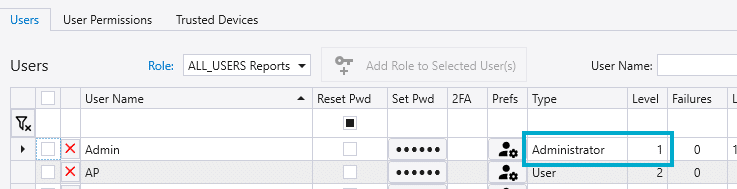
- The user needs to be a level
1Administrator - The user needs to be set as an allowed user on the
AI Assistant Connector (MCP)agent. - Confirm that
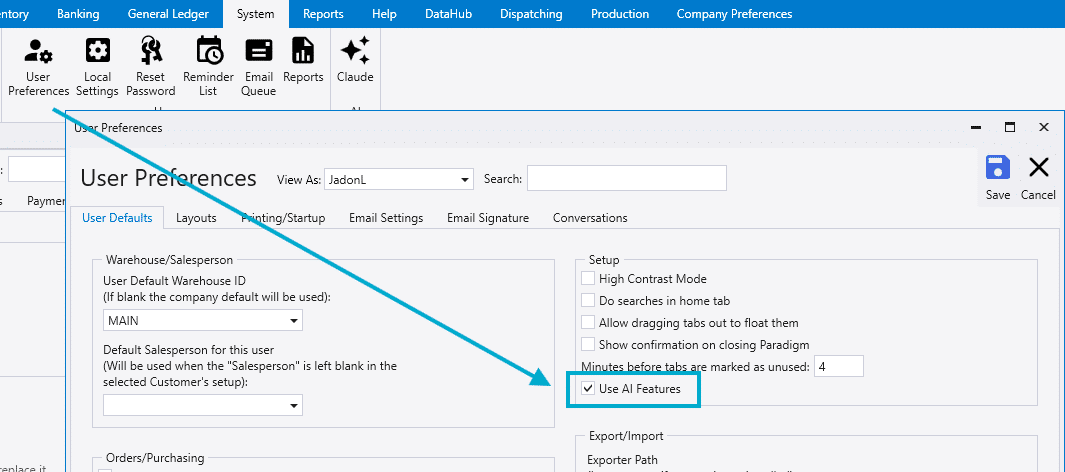
Use AI Featuresis checked under User Preferences. This setting is on by default.
- The user needs to be a level

Company Level Settings
To allow the Paradigm Connector to use “Always Allow”, enable the settings below in the Claude organization settings.

Installing the AI Connector
- After Requirements for the AI Connector are completed, have the user log out of Paradigm and log back in. Paradigm adds itself to the Claude configuration at login.
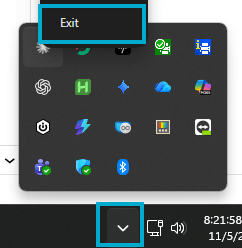
- Have the user force close Claude Desktop from the system tray, and verify in Task Manager that there are no background tasks for Claude still running.
- Then reopen Claude Desktop and verify that the
paradigmconnector is showing.

Troubleshoot AI Connector Problems
| Symptom | Fix |
|---|---|
| No AI icon in Paradigm | Check steps 1–6 under Enable the AI Connector and confirm the user is a level 1 Administrator, then log in again. |
| AI icon shows, but no Claude button | Claude is not installed, or was installed after login. Install Claude, then log in again. |
| Claude does not list Paradigm | Close Claude and reopen it. If that does not resolve it, go to Claude Desktop > Settings > Search "Developer" and click "Extensions"Under Local MCP Server > click “Edit config” > and have Claude add the text below the claude_desktop_config.json.{ |
| Claude says “Paradigm is not running” | Open Paradigm and log in. With several windows open, use the window showing the AI icon. |