Scan Items
This FAQ covers the Scan Items form which can be found in Quotes, Orders, and Invoices.
Location
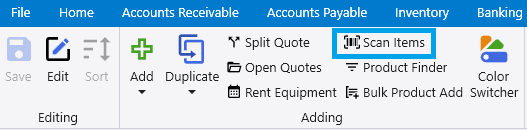
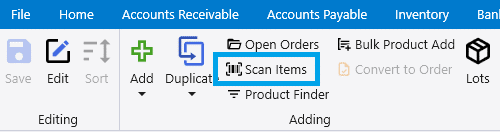
The scan items form and be found in the header of a transaction.
Scanning Items
After the Scan Items button is selected, a form similar to POS will open. Then product IDs, UPCs, and aliases can be entered/scanned. The quantity can be adjusted in the Quantity field on the line item or by scanning the same item twice. When an item is scanned twice it will appear as multiple line items in the scan items form, but once Accept is selected, it will be combined into one line with the correct quantity.
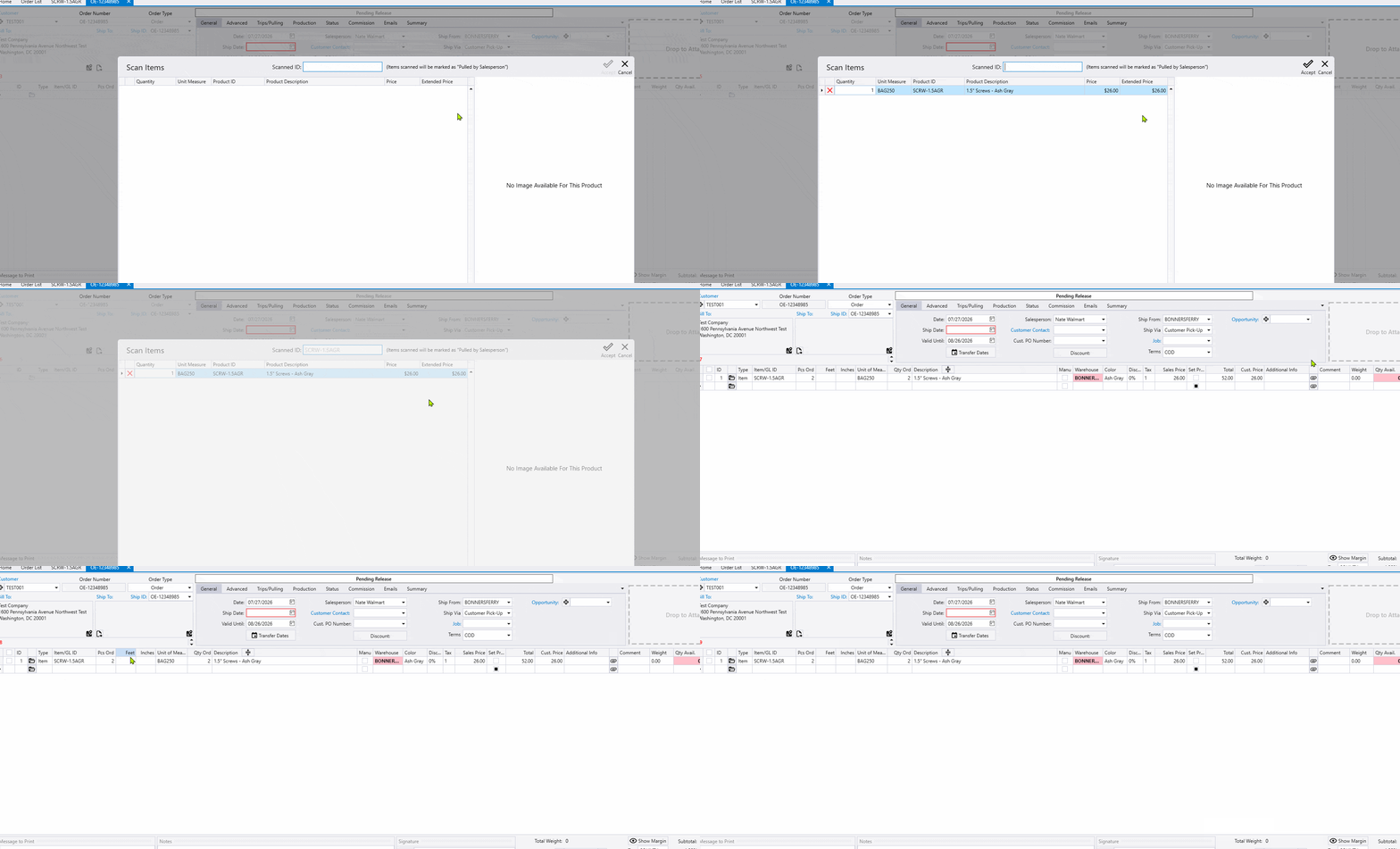
If an item has product images the first image will be shown on the right side of the Scan Items form. Any additional images can be viewed by selecting the View Images link at the bottom.
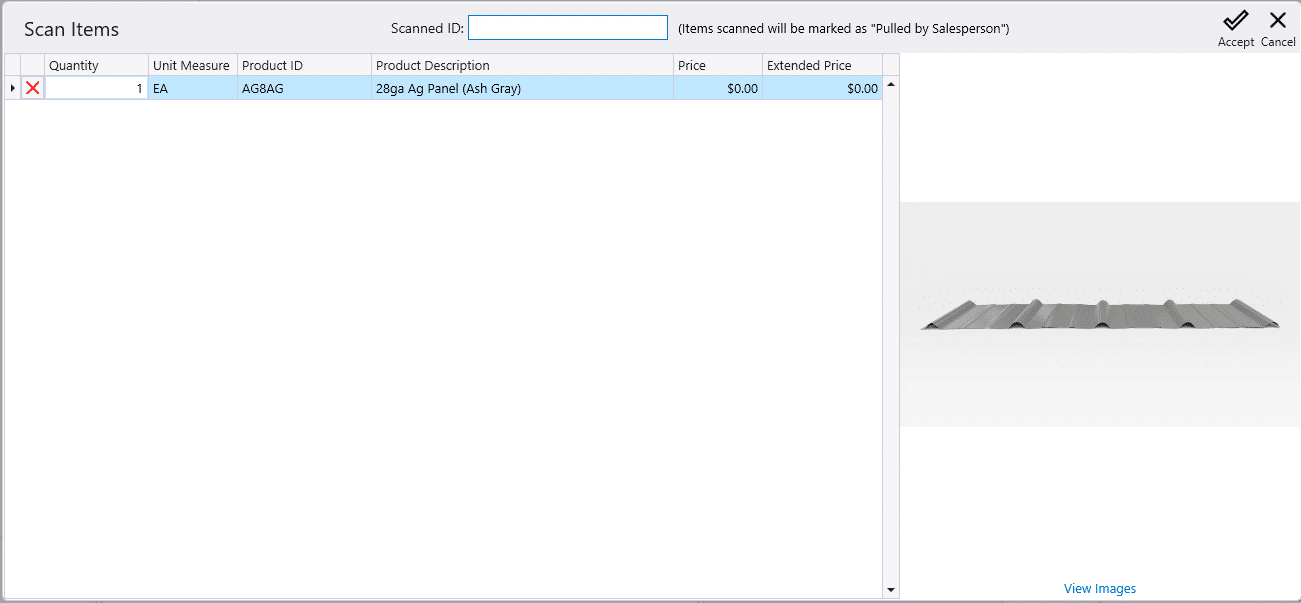
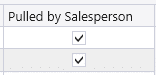
All items added to a transaction using this form will marked as Pulled by Salesperson. This can be manually changed if needed.