
Production Capacity and Burden
This article provides an overview of the Production Capacity and Burden feature. After setting up the Burden on manufactured products, and the Capacity on machines, the Production Capacity Dashboard provides an overview of how much work has been scheduled for the machines.
Machine Capacity Settings
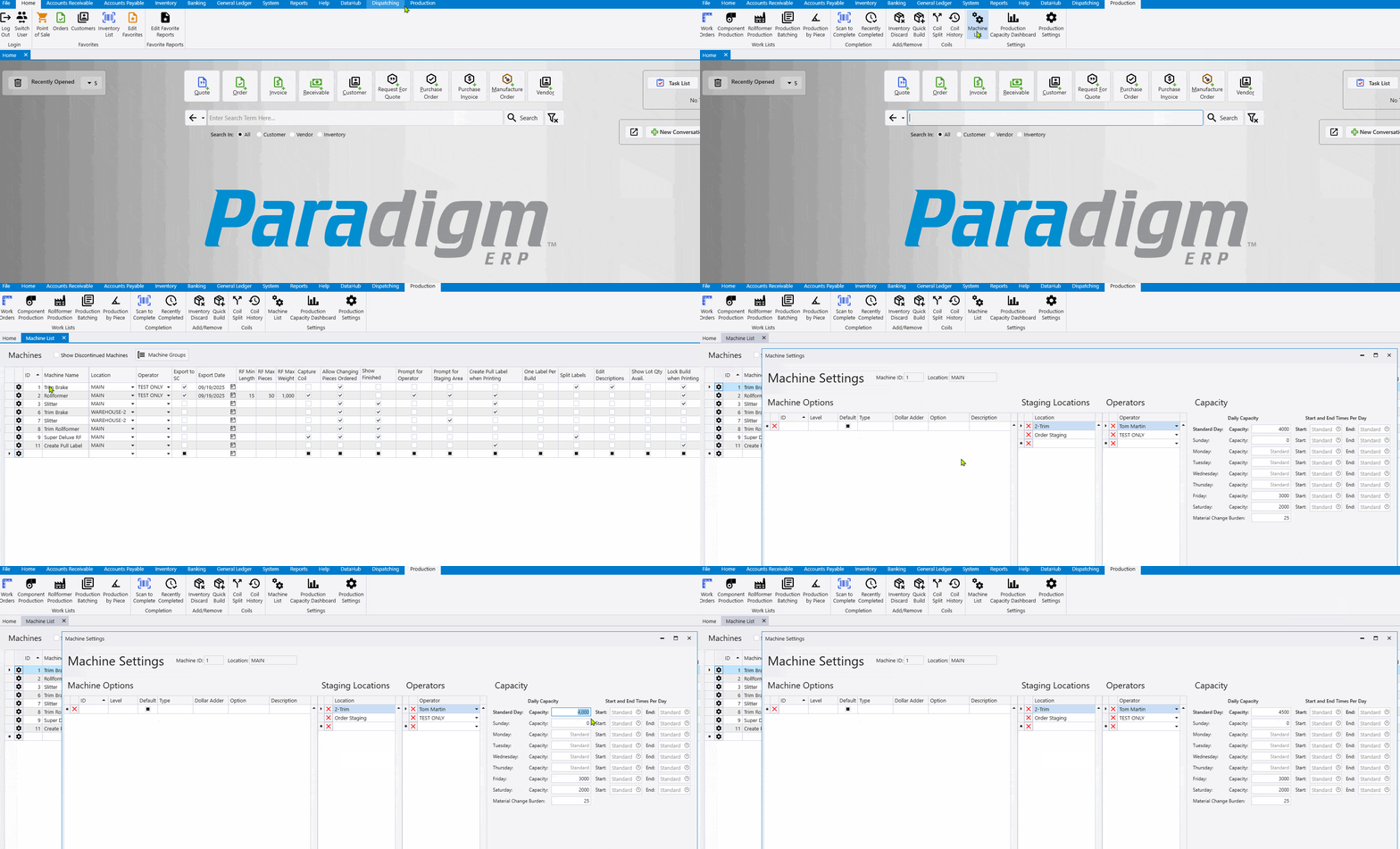
Machine capacity settings are configured within the Machine List, in Machine Settings. This screen allows the user to define capacity values, start and end times, and material change burden for each machine used in production.
- Standard Capacity defines the base daily capacity for the machine.
- Material Change Burden defines the additional capacity impact associated with material changes during production.
The Machine List also includes fields for each day of the week, allowing the user to enter override values for daily capacity. When a value is entered for a specific day, it replaces the Standard Capacity for that day. If no override is provided, the system uses the Standard Capacity value by default. These settings are used by Paradigm to calculate and track production capacity usage.
Inventory Production Details
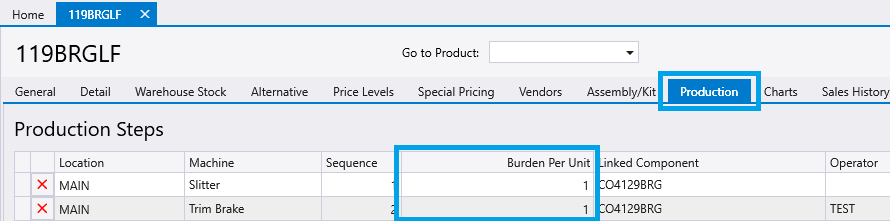
The Burden Per Unit field is located on each Inventory Item within the Production tab, in the Production Steps table under the column labeled Burden Per Unit. The values can be set for each production step, which adds that step’s value to each machine’s burden for the day for each unit of the product being produced.
Order Production Details
Setting Production Dates
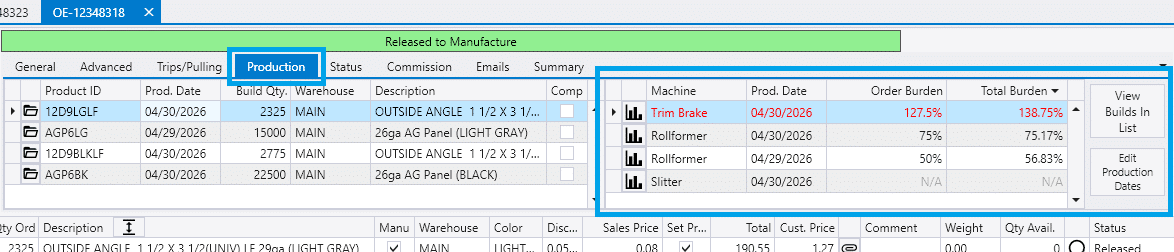
In the header of the Order window the Production tab has two tables that provide a read-only view of the manufactured products on the order. The table on the left shows a line for every manufactured product showing production dates, quantity, status, and other information. The table on the right shows all machines that will be affected by the manufactured products, the burden that the order will add, and the calculated total to which releasing the order will bring the machine. Any lines with red text indicate that the machine has exceeded 100% capacity for the selected production date.
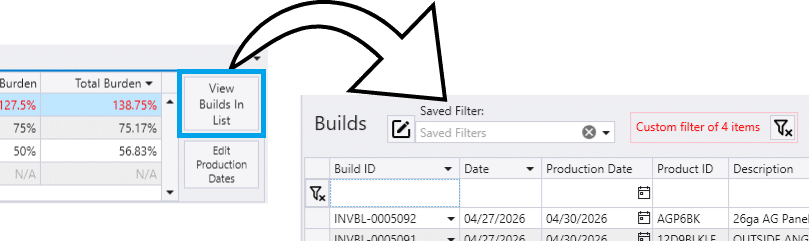
The first button to the right of the table, View Builds In List, opens Inventory Builds window and filters the contents to show the Inventory Builds for the current order. Editing the production date on a build controls the only the build that it currently selected, and does not affect other builds on the same order.
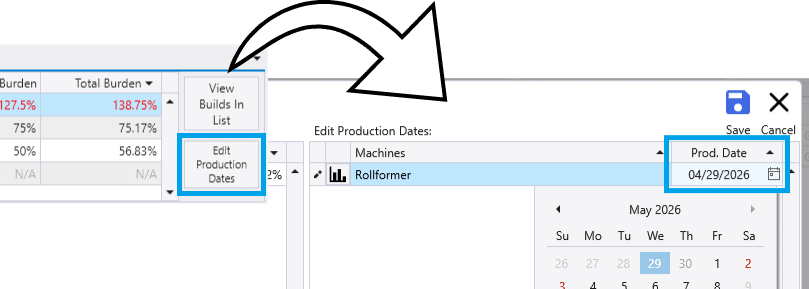
The second button, Edit Production Dates, opens the edit window that allows choosing new production dates for the manufactured products on the order. Using this options allows editing the production dates for all builds that are assigned to one machine at the same time. For more information about options and limitations with setting production dates, see the article Edit Production Dates.
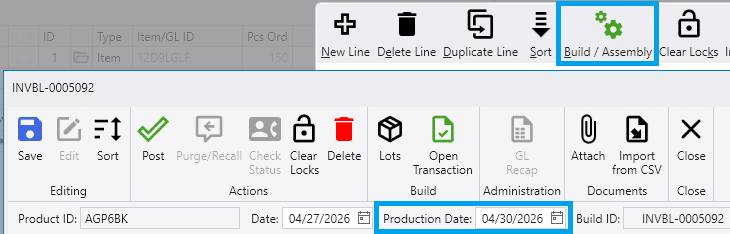
Alternatively, clicking the button to view the details for one of the order’s lines opens the Details Window. Within this window, clicking on the Build / Assembly button opens the build information for the selected line. Whether through the Inventory Builds window or through opening up the Build / Assembly window, this controls the Production Date for only the build that it currently selected.
Releasing the Order
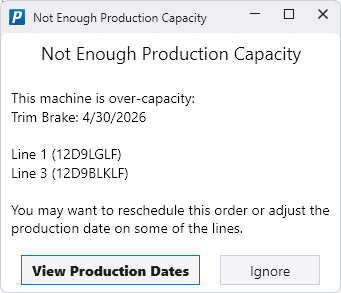
If releasing the order causes a machine to exceed 100% capacity, an error message warns the user. Clicking “View Production Dates” opens the Edit Production Dates, and clicking “Ignore” dismisses the warning.
Order List: Production Date
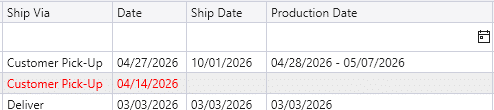
If the production dates within an order have been set to multiple days, the range of dates will show in the Production Date column in the Order List window. If this column is not showing, it can be added using the Column Chooser.
Build Options
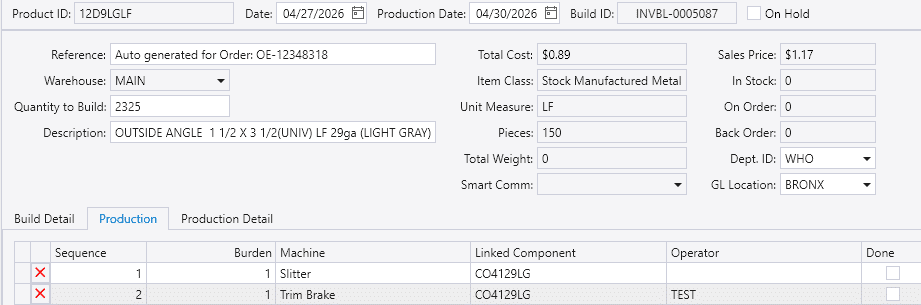
Within the Inventory Build window, users can view and override values the assigned machine and production date. This is also where a custom value can be chosen for the Burden. The values that were set on the inventory item’s Assembly are brought into the build by default. Adjusting the values here only affects the currently selected build for the inventory item.
Production Capacity Dashboard
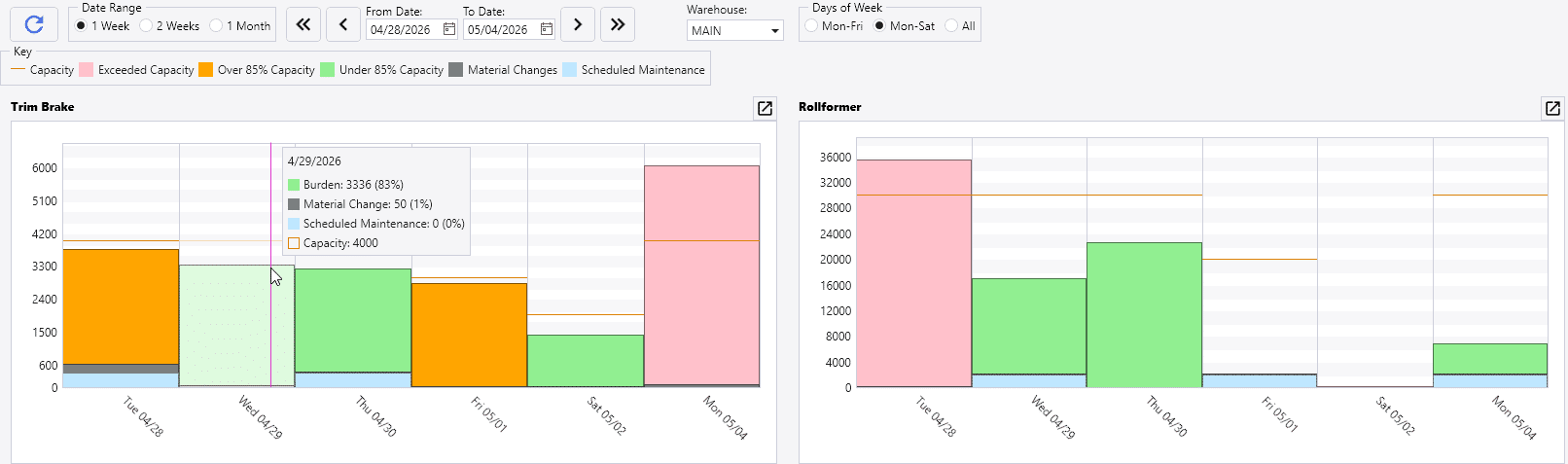
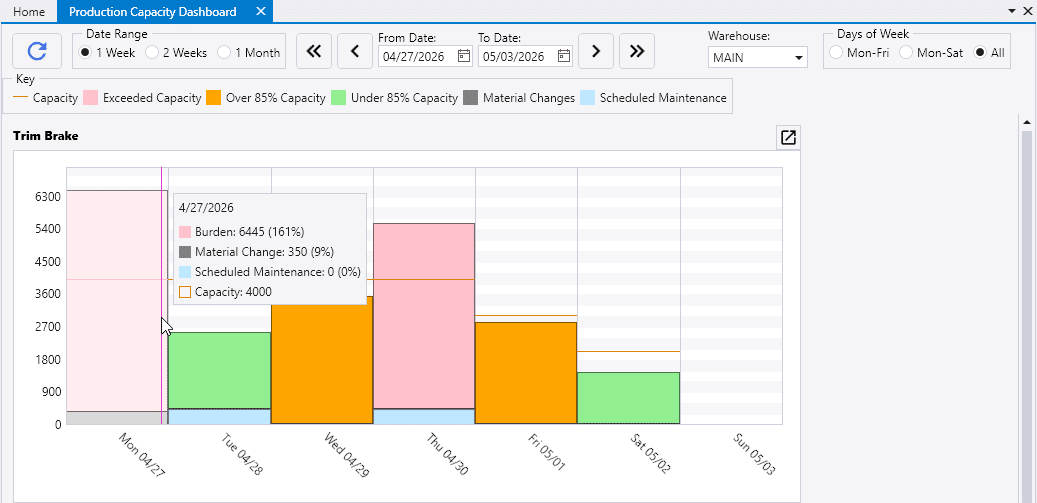
The Production Capacity Dashboard is accessible from the Production ribbon tab, if the user has the correct permissions to view it. It respects the same View / Edit permissions set in User Security as the Production windows. The Dashboard shows a visual summary of machine capacity vs. scheduled burden over a selected date range, with filters for date, warehouse, and days of the week. Each machine displays a daily bar chart where colors indicate capacity status and components like production burden and material changes. To see more details about a particular bar, hover the mouse pointer over it.
As the Key shows, the bar colors indicate capacity utilization levels.
- Green: Below 85% of capacity
- Orange: Between 85% and 100% of capacity
- Red: Above 100% of capacity
Current Day Graph
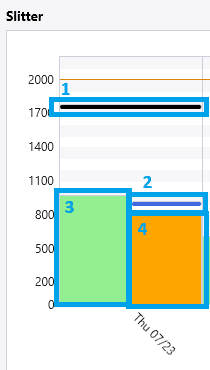
The section of the graph for “Today” has some extra information than other days on the graph.
- Section 1: The black line is the total scheduled production for the day, including complete and incomplete.
- Section 2: The blue line is the amount of capacity left or the amount that can still be scheduled for the current day above what is already scheduled.
- In the example above, the line is just above the section 4. The amount between the blue line (section 2) and section 4 is the amount that can be scheduled for the day before it is over burdened.
- Section 3: For the current day the bar is split. The first section on the left is the capacity that has been completed.
- In this example almost half has been completed.
- Section 4: This section on the right half is burden that has not been completed.
- In the example above it is orange because the machine is over 85% capacity for the day.
Show or Hide a Machine Graph
To show a machine’s graph in the dashboard, put a value into the machine’s Standard Capacity in the Machine List window. To hide a machine’s graph, delete the machine’s Standard Capacity value.
Material Changes
Paradigm adds in Material Change to the burden calculated for a specific date based on the components required for the builds that are scheduled for that date. If, for example, the Trims that are scheduled for the Trim Brake include 3 distinct Coils in the components across all the builds, 3 times the amount for Material Change will be added to the graph for that date.
Edit Daily Capacity
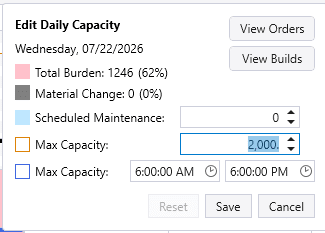
Clicking on a bar opens up a window titled Edit Daily Capacity. At the top, the View Orders and View Builds buttons allow viewing the orders or builds that are affecting the machine’s burden on the specified date. The two number editors allow adjusting maintenance and max capacity. Adjusting the time will proportionally change the max capacity. The options for Save and Cancel allow closing the window. If values have been saved that are different than the machine’s default, the reset button will be enabled.
Changing the value of Max Capacity will set the capacity for the selected machine on the specified date. Adding a value to the Scheduled Maintenance causes the machine’s graph to add a blue portion to the burden for the specified date.
Production Capacity Data Utilities
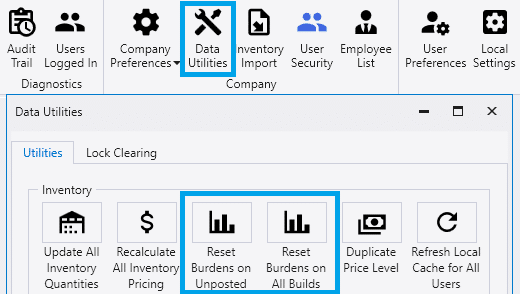
The Data Utilities section includes a button to Recalculate Unposted Builds, which updates burden values for builds that have not yet been completed by production. This utility is useful after making changes to Burden values on inventory item assemblies. It resets the values on builds that are not completed using the new values from the inventory items.
The Recalculate All Builds button applies the same reset process, but targets all builds, including those that have already been completed. This option is typically used less frequently, as it updates historical data as well. It can be helpful when reviewing or fine-tuning capacity planning by allowing users to see how updated settings affect past production days.