Vendor & Customer History
This FAQ will go over the vendor & customer history tabs in Paradigm ERP.
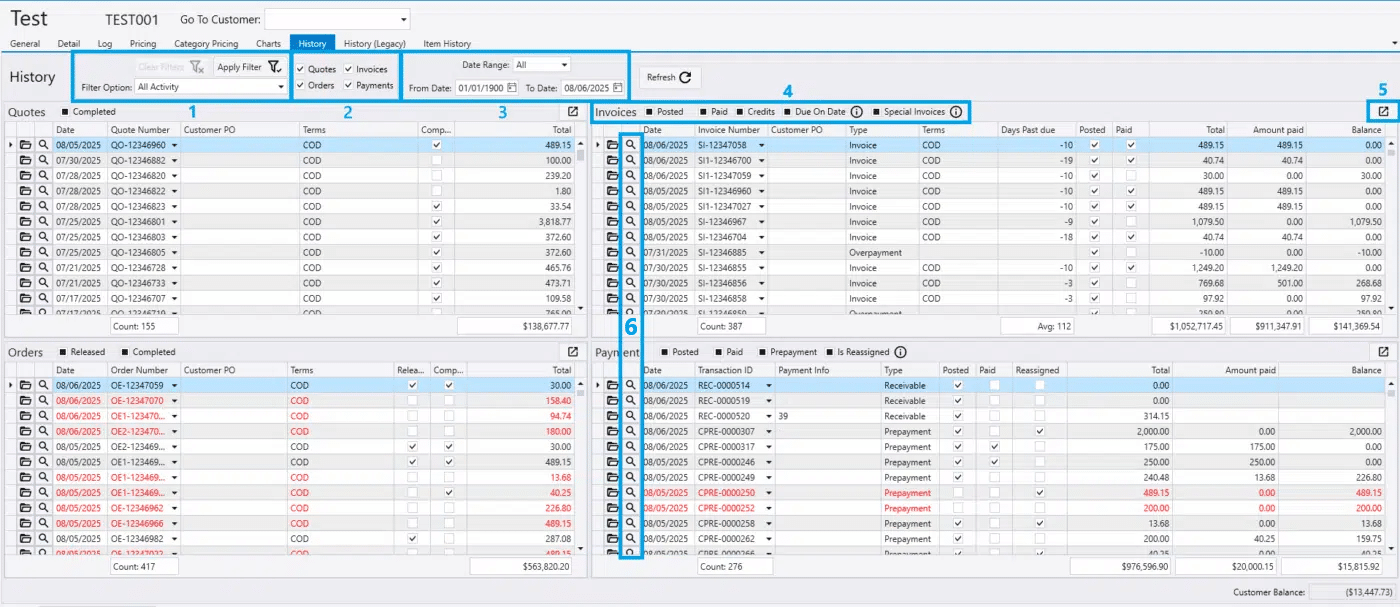
Customer History
- Apply and clear filters.
- Select which transaction lists should be shown.
- Select the date range.
- Choose additional filters on each transaction list.
- Click this to open a list filtered to those transactions.
- Clicking the magnifying glass will drill down to transactions related to that invoice or payment. (See “Drill Down” section below)
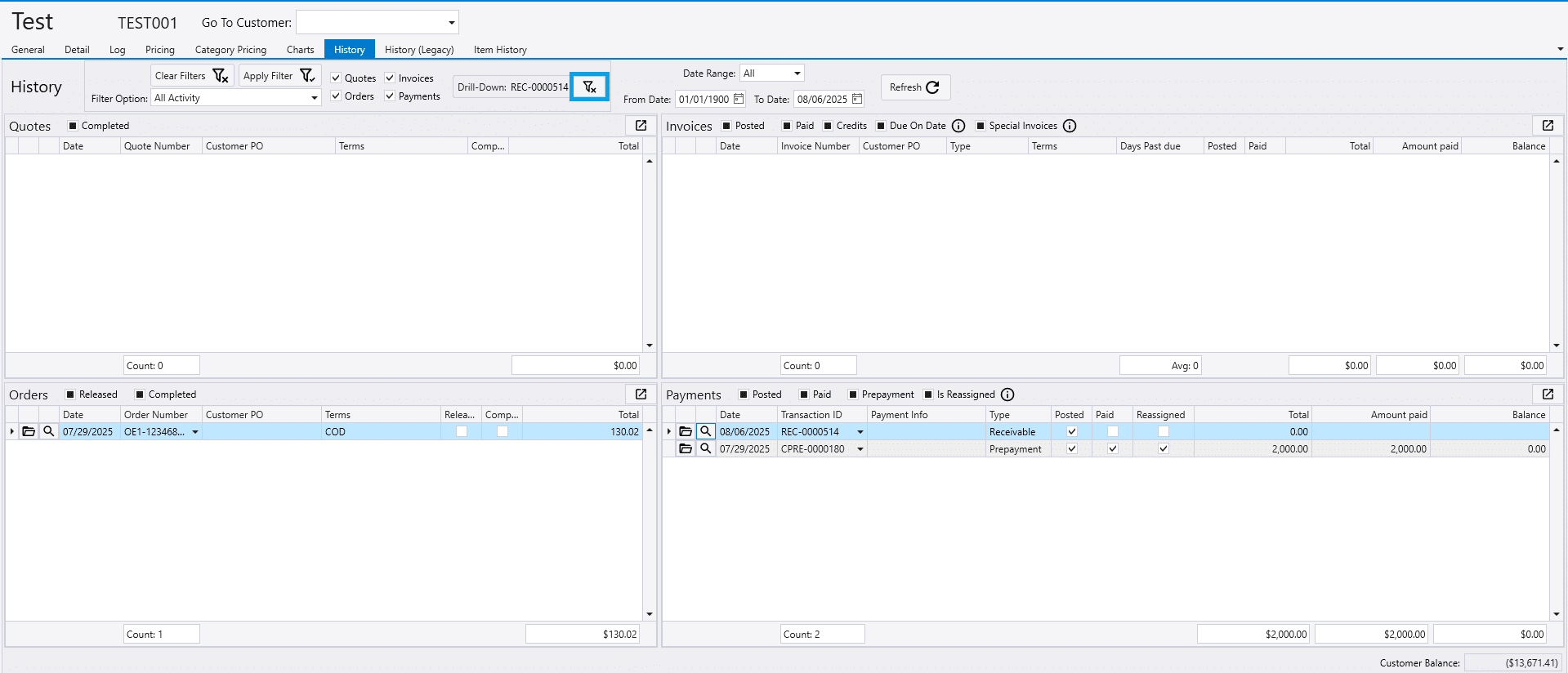
Drill Down
When the magnifying glass is selected, the history screen will be drilled down to only related transactions. Click the button highlighted below to clear this filter.
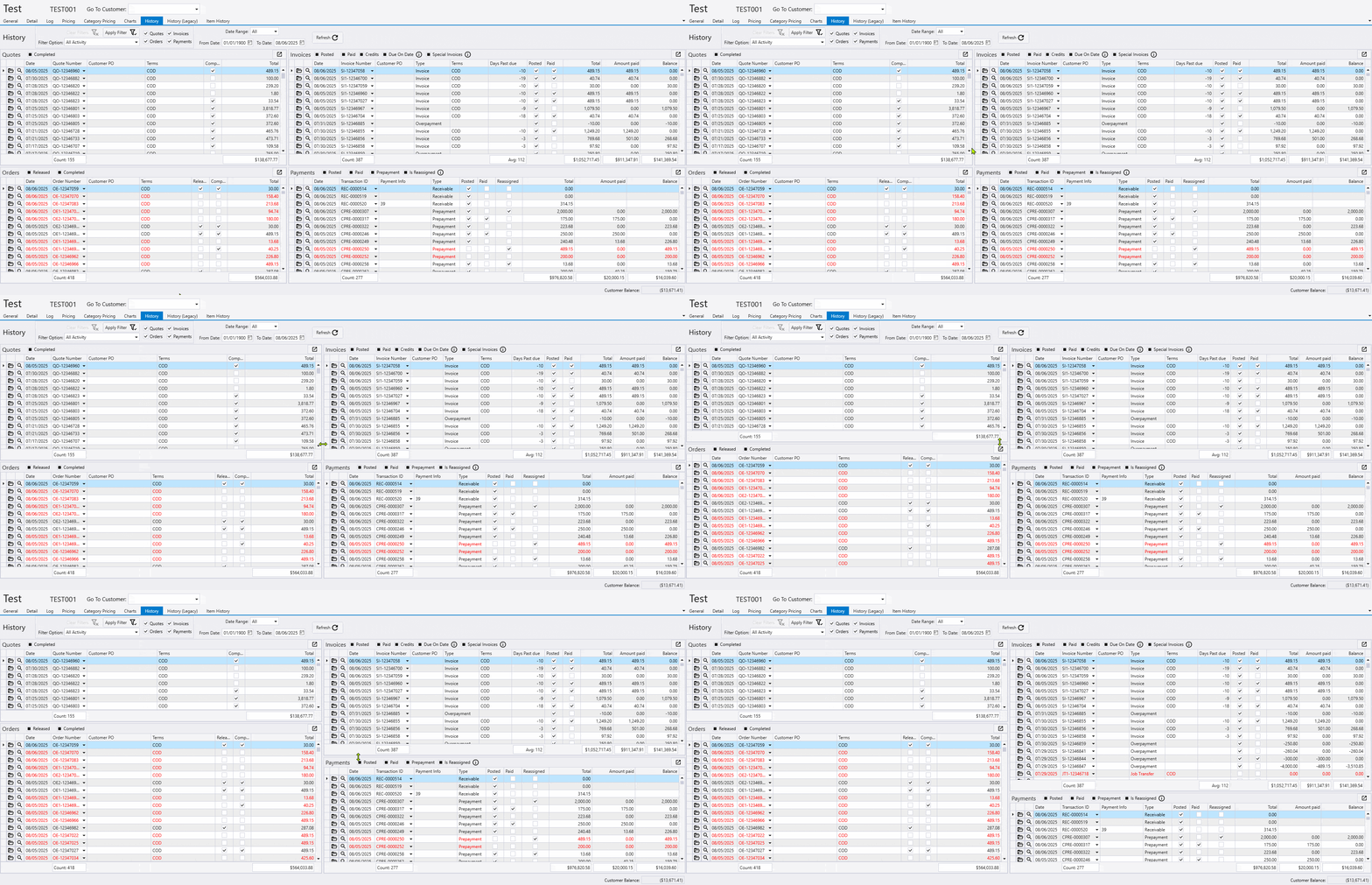
Resize
The size of each section can be resized as well.
Vendor History
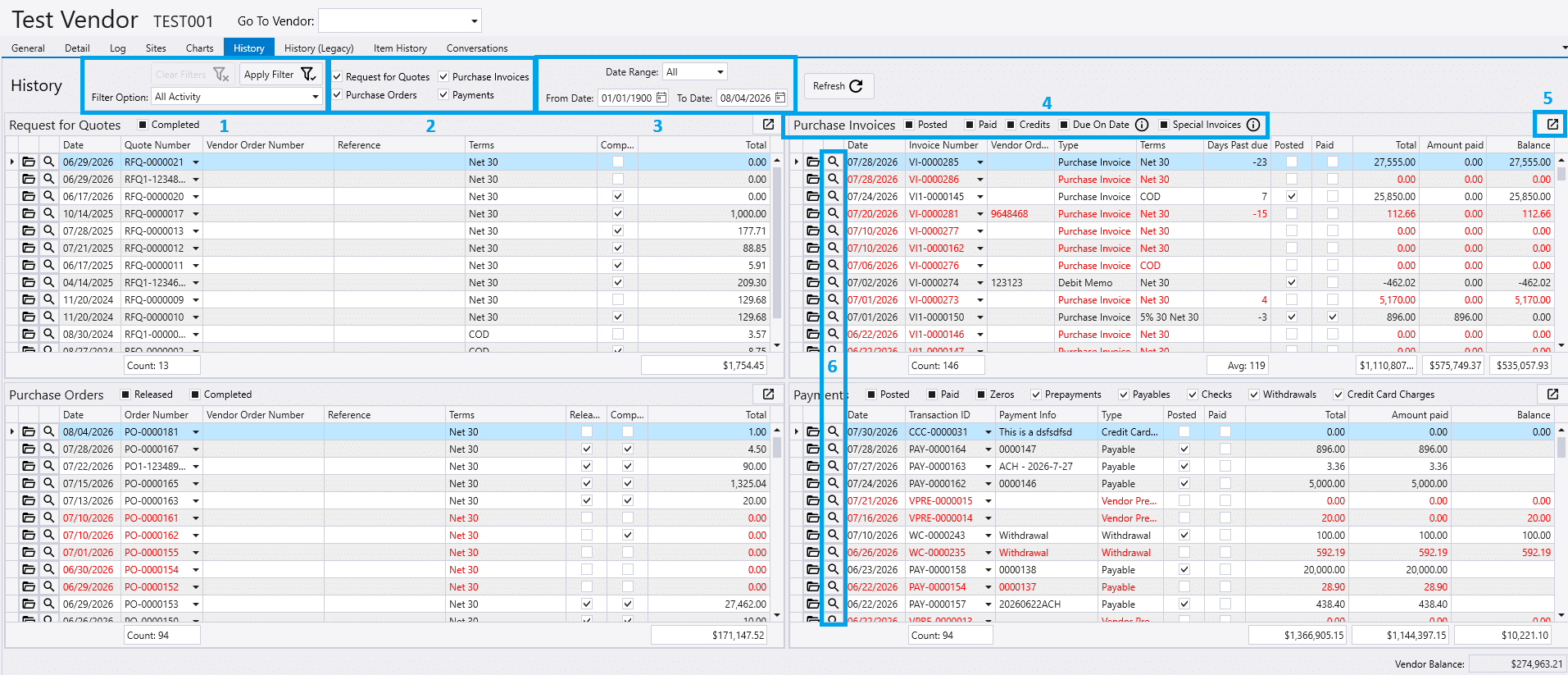
- Apply and clear filters.
- Select which transaction lists should be shown.
- Select the date range.
- Choose additional filters on each transaction list.
- Click this to open a list filtered to those transactions.
- Clicking the magnifying glass will drill down to transactions related to that invoice or payment. (See “Drill Down” section below)
Drill Down
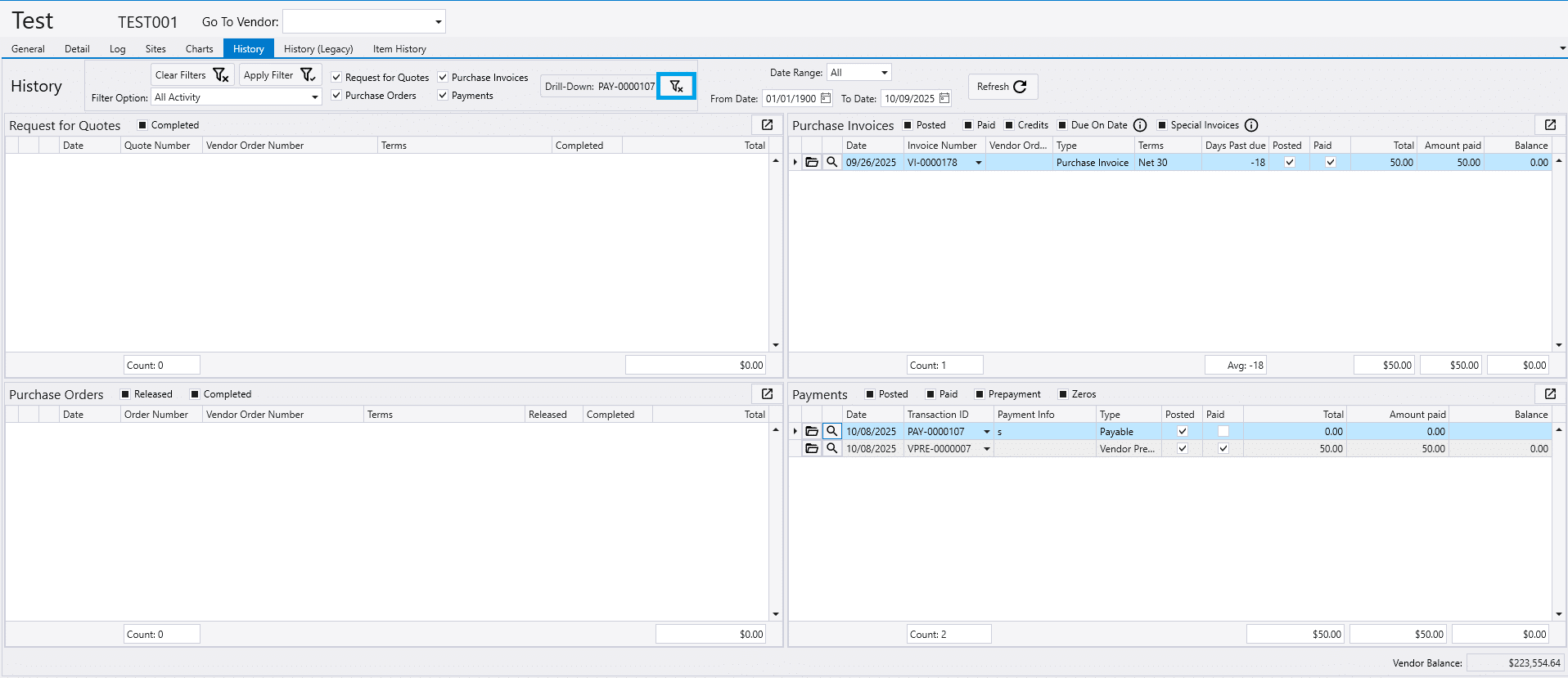
When the magnifying glass is selected, the history screen will be drilled down to only related transactions. Click the button highlighted below to clear this filter.
Resize
The size of each section can be resized as well.
Customer History (Legacy)
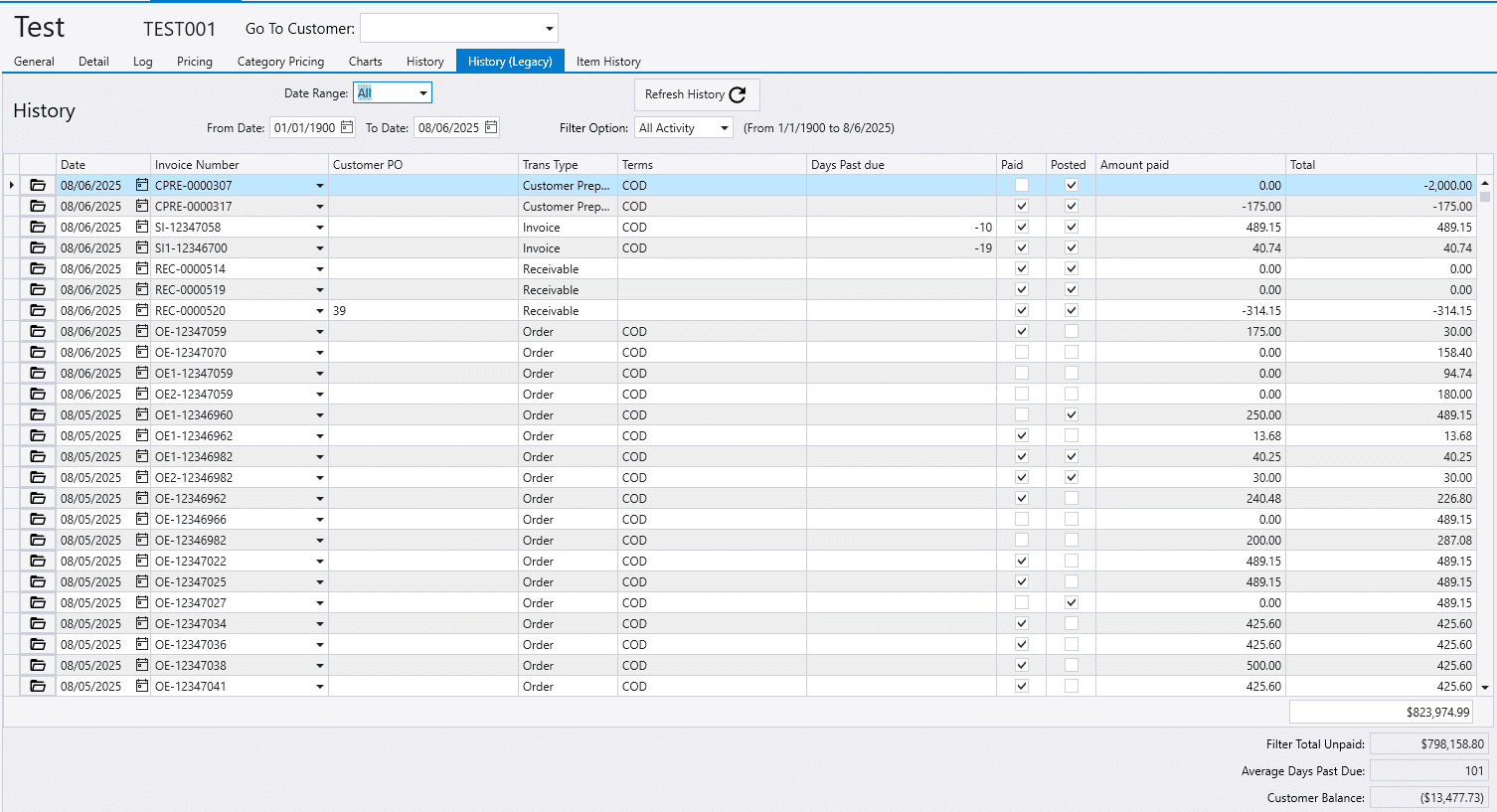
The previous version of the customer history tab is still available on the “Customer History (Legacy)” tab.
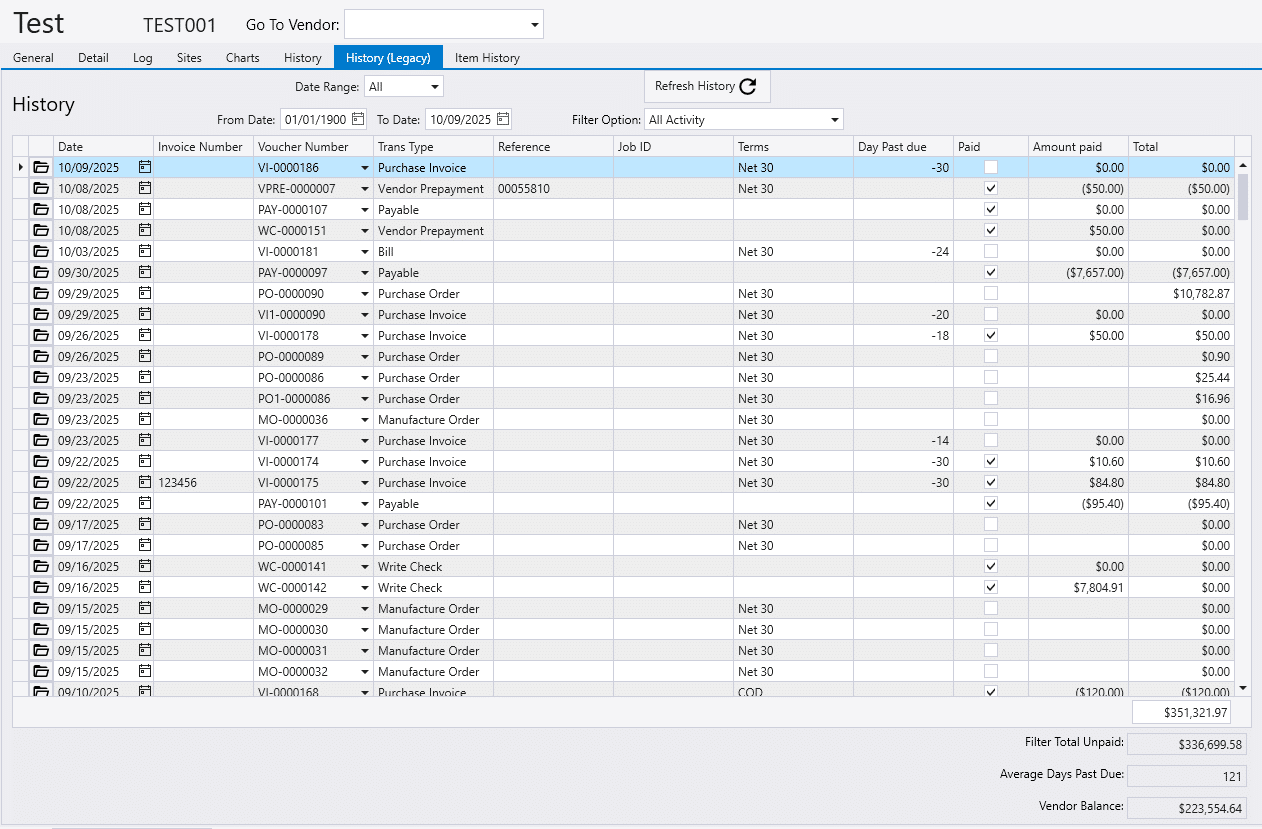
Vendor History (Legacy)
The previous version of the vendor history tab is still available on the “Vendor History (Legacy)” tab.