
Clear Locks and Purge Builds
This FAQ will go over how to use the Clear Locks and Purge Builds options in Paradigm. For more information, also see the articles Edit Locks and Purging a Job.
Clearing Locks Versus Purging Builds
It’s very important to understand the difference between clearing locks and purging builds.
When to Use Clear Locks
When Paradigm is being used as a standalone software to handle which orders and builds show in the Production windows, the correct tool to use is Clear Manufacturing Locks. In this situation, when an order is released, the status of the lines becomes “Released.” At the time that a production user marks the line as locked or prints the label, the line changes status to “Mfg Locked.” This indicates that the build is being worked on, and caution should be taken with releasing changes to the line in the order.
When to Use Purge Builds
In the situation that Paradigm is integrated with machine software, such as Beck/Connex or AMS/Eclipse, builds are immediately exported when the order is released, and are marked as manufacturing locked in Paradigm. In this case, the correct tool to use is Purge Build. The Clear Manufacturing Lock option should never be used for these jobs. Clearing the manufacturing lock without purging the job may leave the job active in the secondary machine software and cause production or synchronization issues. If the job cannot be purged because its status is At Machine, the job must remain locked and the issue must be escalated for resolution.
How to Clear Locks Or Purge Builds
From the Order Header

Open the Clear Locks window by clicking the button in the ribbon toolbar.
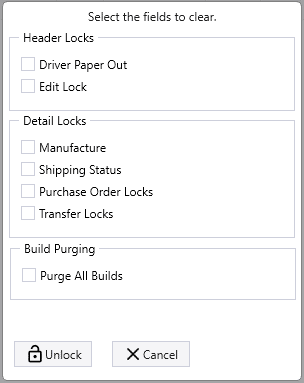
The options in the Clear Locks window include clearing locks from the order header, clearing locks from all of the order’s detail lines at once, or purging all builds from the order’s detail lines.
Header Locks
- Driver Paper Out – Clears the “Driver Paper Out” lock.
- This lock is set when the Driver paperwork is printed.
- Clearing this lock will allow changes to be made to the order that will make the driver’s paperwork be incorrect.
- Edit Lock – Clears the Edit Lock.
Detail Locks
- This is set when a user is editing the order. If this is cleared while another user is making changes, edits may be overwritten.
- Manufacture – Clears the manufacturing lock for all lines on the order.
- This lock is set when a build is locked in production.
- Clearing this lock allows changes to be made to products that production is already working on.
- Clearing manufacture locks should not be used on exported builds.
- Shipping Status – Clears the shipping status for all lines on the order.
- This is set when a product is marked as “Shipped”.
- Clearing this would allow for changes to be made on a line that may already be shipped and on the truck.
- Purchase Order Locks – Clears the “Purchase Order” lock.
- This is set when a PO is created for an order.
- Clearing this lock will allow for changes to be made that would result in linked Purchase Orders no longer being correct.
- Transfer Locks – Clears the transfer lock that is set after an item is transferred.
Purge All Builds
- Purge All Builds – Purges all builds on the order.
- This option is only shown if builds have been exported.
- Builds cannot be purged from the integrated software if the build’s status is “At Machine.”
- Purging builds also removes Manufacturing Locks.
From the Order Detail
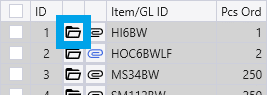
To open the details window for a line in an order, click the button to the far left that has a folder icon. This opens the details window and shows the information and options for the specified line in the order.
Clear Locks or Purge Build

From the options window, the available buttons include Clear Locks and Purge Build.
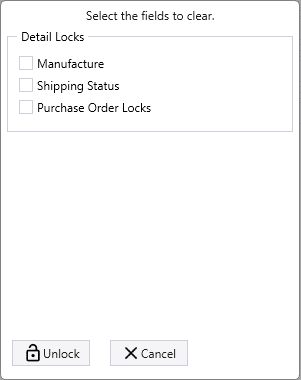
Clicking the Clear Locks button shows a window that is similar to the Clear Locks window that opens from the Order Header, but with fewer options. The available options only apply to the specified detail line, and do not affect any other lines in the order.
- Manufacture – Clears the manufacture lock for the line.
- Shipping Status – Clears the shipping status for the line.
- Purchase Order Locks – Clears the purchase order lock for the line.
The Purge Build button triggers Paradigm to attempt to remove the build that was exported to the secondary software.
Clear Locks – Build Detail
This form can be opened by clicking the folder icon on the line and then clicking the Build/Assembly button.

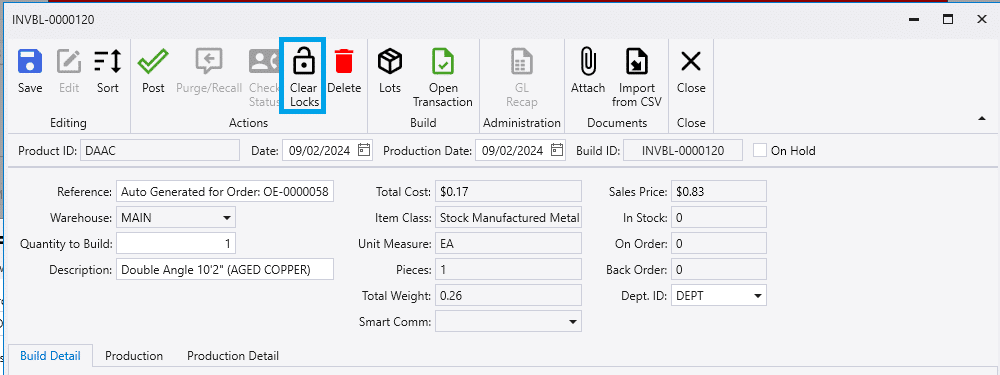
- Clear Locks – This clears the manufacturing lock for the build and unlocks the line on the order. This is the same as clearing the production lock from line item options on the order.