Paradigm Mobile: Overview
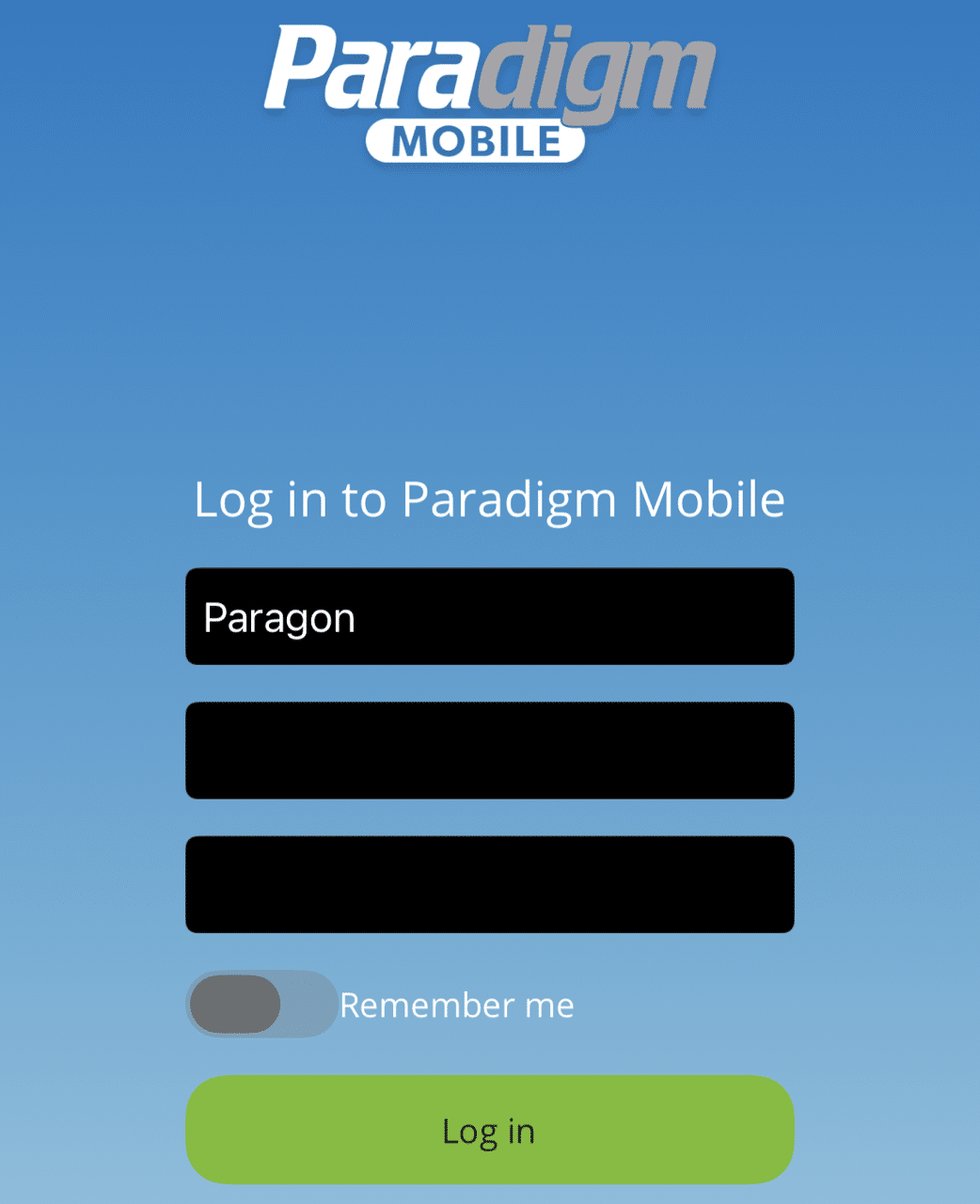
This FAQ will go over the Paradigm Mobile App. It can be downloaded from the Google Play Store or the App Store. More information on the app can be found in the FAQ Article Paradigm Mobile Add-On.
Setting Up Users in Paradigm Mobile
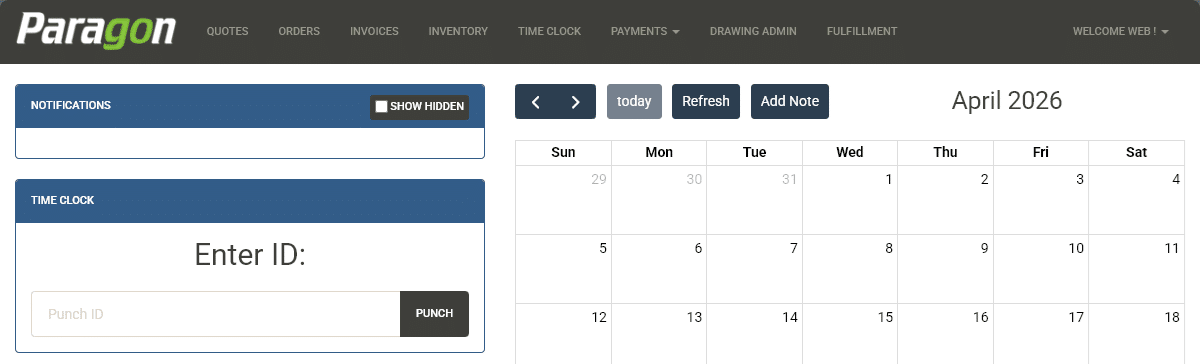
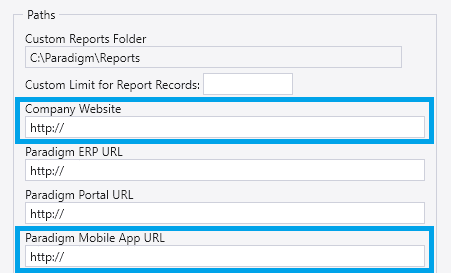
Paradigm Mobile supports two types of logins: Customer Portal users and Employee Web users. Each login type provides different levels of access within the app. To give access to the Mobile App, the correct entries will need to be created within the company website administration, and configured based on whether the user is a customer or an internal employee.
Customer Portal Login Access
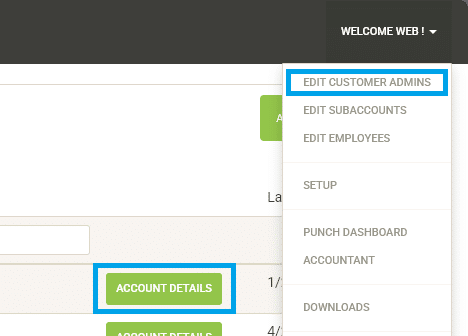
When signed in with a Customer Portal account, users can be set to enable viewing most information, but are not able to view tasks. For complete instructions on managing Customer Portal users, see the FAQ article Create Employee Web Logins.
Employee Web Login Access
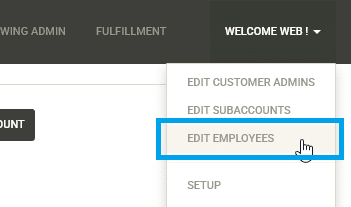
Employee Web Users can be created, updated, or removed through the Edit Employees window. Employees can view tasks within the mobile app, as well as be linked to a driver.
Selecting the Driver

If the user is a driver, select the corresponding driver from the drop down. If a driver is assigned, the user will have access to the delivery feature. More information on setting up Employee Web logins see the FAQ article Create Customer Web Logins.
Changing App Settings

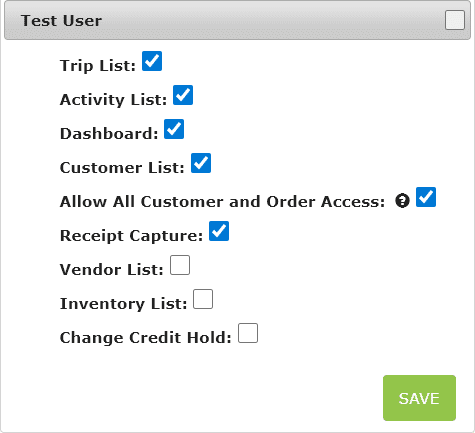
At the bottom of the Details window for Employee Web logins and Customer Portal logins, the App Settings button opens the window for adjusting the permissions that the login will have within the Mobile App. To change which parts of the app the user can access, click to open the window, and check or uncheck the box beside each feature as needed.
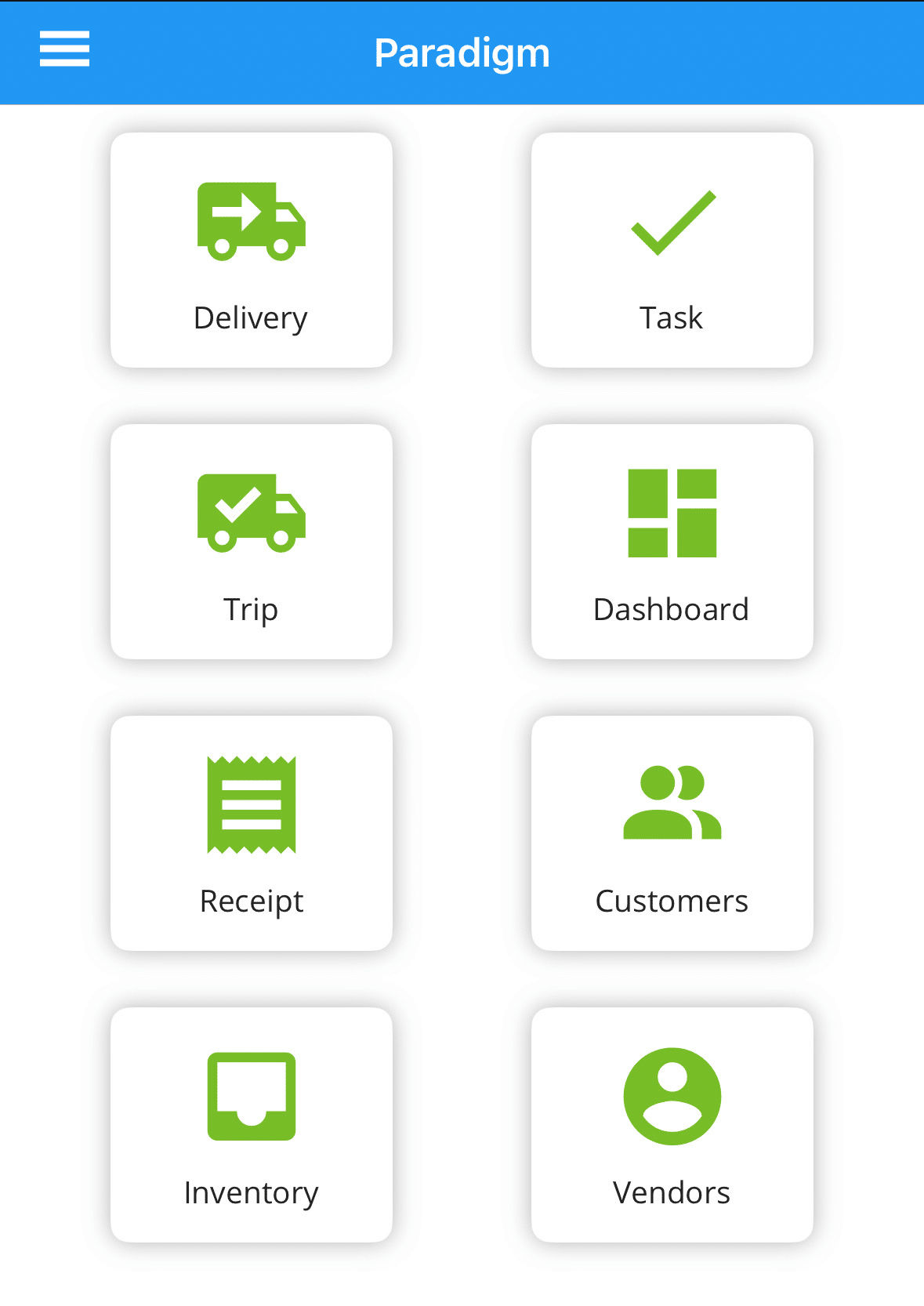
Paradigm Mobile
Dark Mode
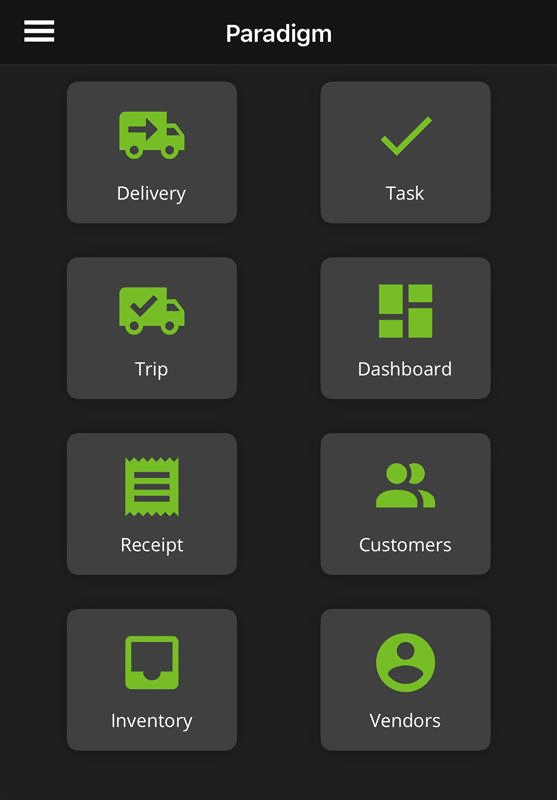
Dark mode will be enabled on devices that support light/dark mode.
Settings
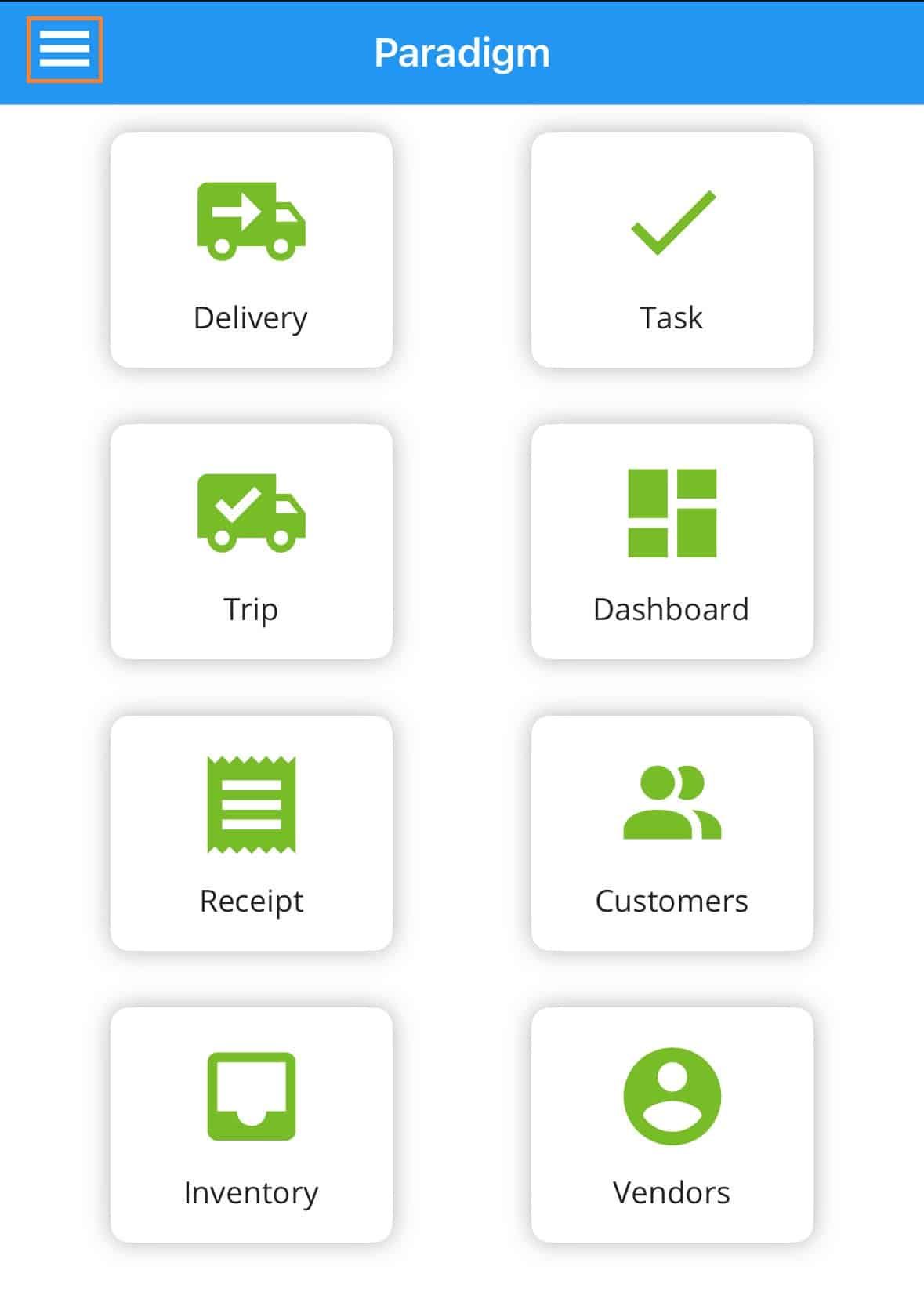
Clicking on the three lines in the top left corner will open up the side bar. More information on that can be found here: Paradigm Mobile: Settings
Delivery
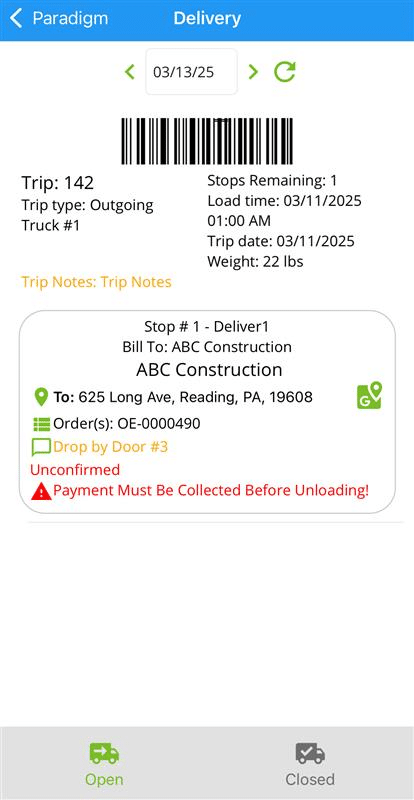
Deliveries for the given date and for the driver assigned to the user that is signed in will be shown here. More information on this can be found here: Paradigm Mobile: Delivery
Paradigm Mobile Driver App Video
Trip
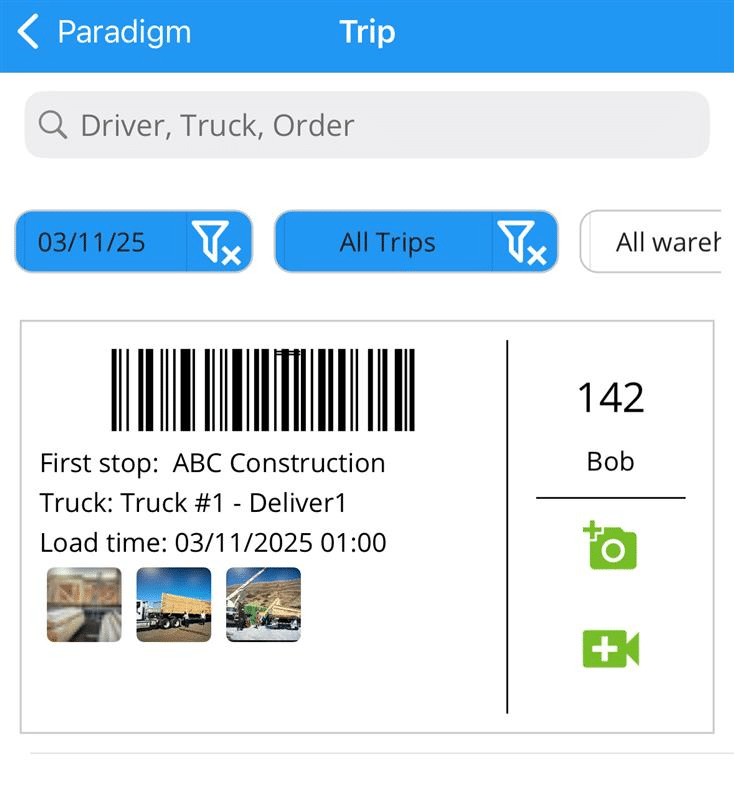
Choose a date, warehouse, and select whether or not to include completed trips. This will display all of the trips that are assigned to the driver. Tapping on a trip will display the deliveries for it. More information on that can be found here: Paradigm Mobile: Trips
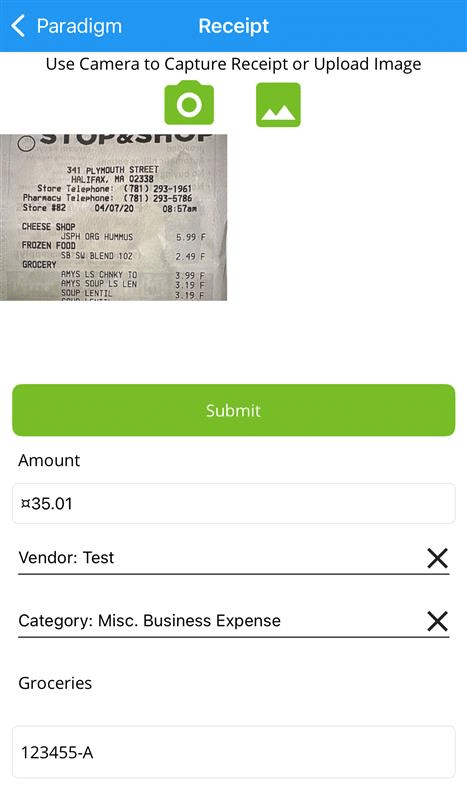
Receipt
This can be used to take a picture of a receipt for record. Once the picture is taken, fill out the rest of the information and click submit. More information on the receipt capture in Paradigm Mobile can be found here: Paradigm Mobile: Receipt Capture
It will then be shown in Paradigm in the receipt capture list. More information on that can be found here: Receipt Capture
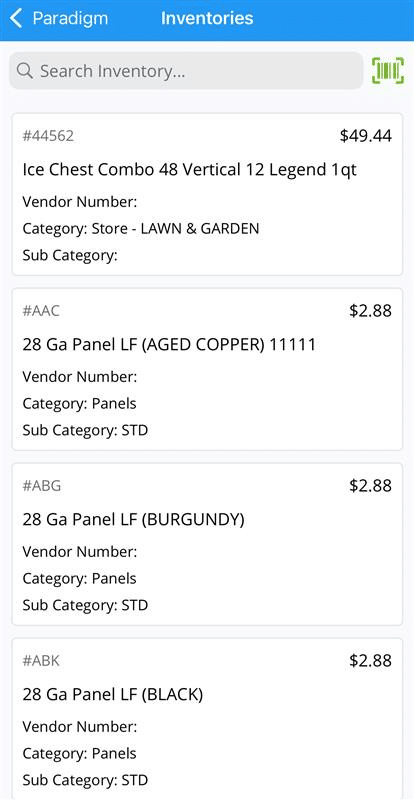
Inventory
This will display the inventory list and allow for barcodes to be scanned as well. More information on the inventory list in Paradigm Mobile can be found here: Paradigm Mobile: Inventory
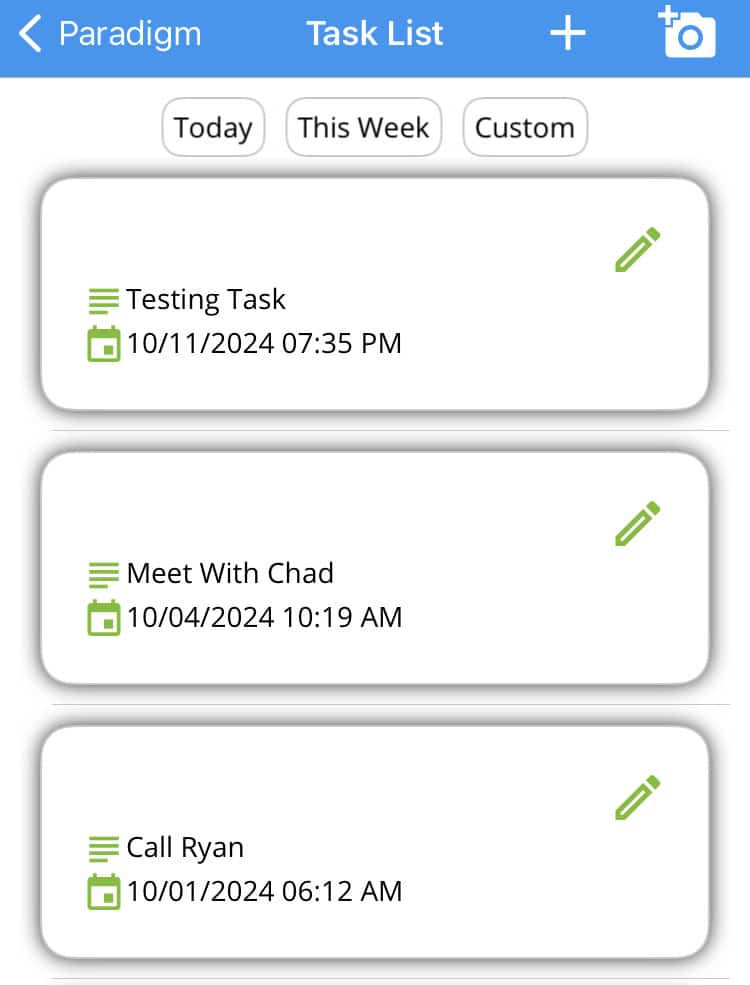
Task List
This will display the tasks for the user that is signed in. More information on that can be found here: Paradigm Mobile: Task List
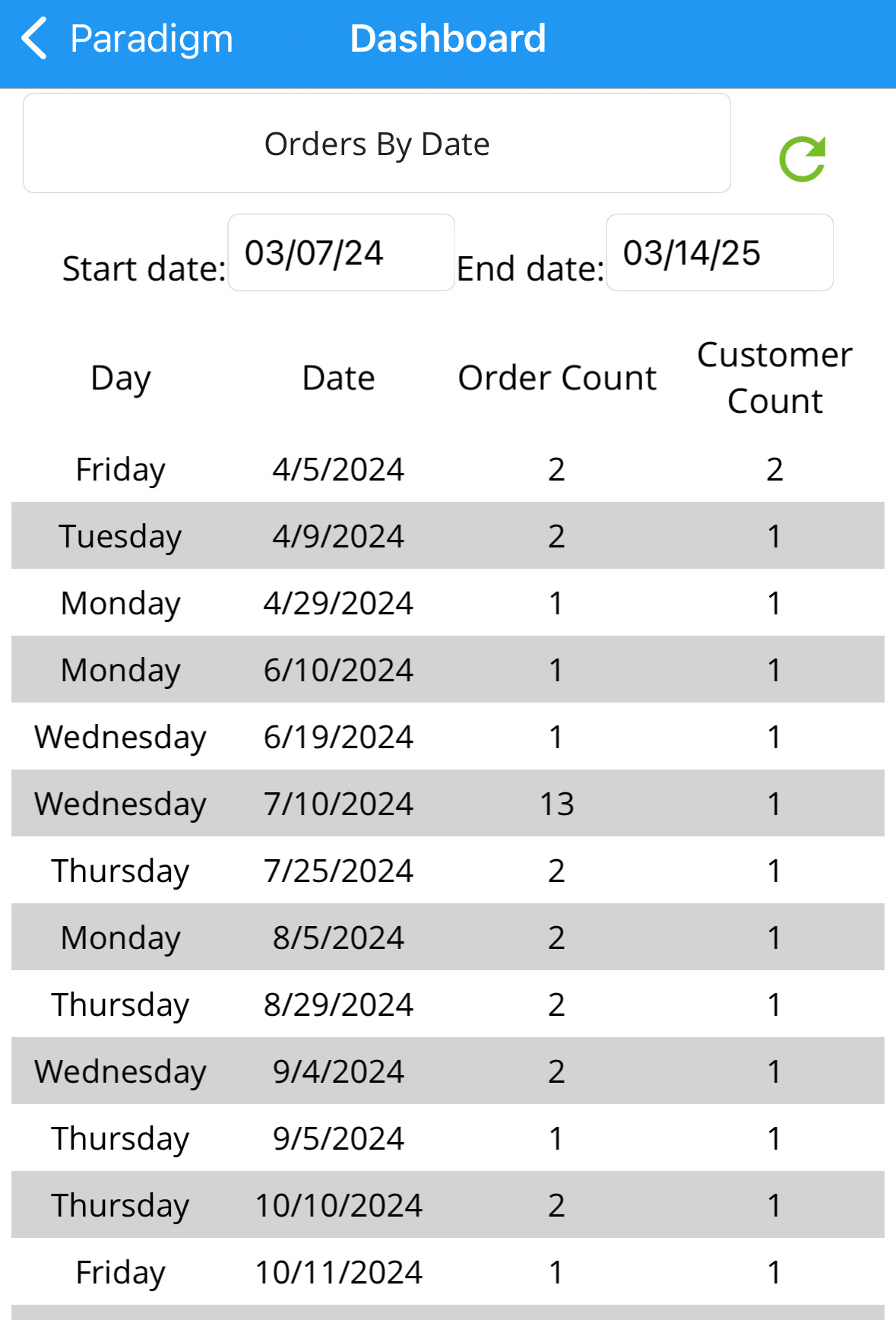
Dashboard
The dashboard here can be customized to track different things, such as “Daily Quote Count” or “Weekly Invoice Count”. More information this can be found here: Paradigm Mobile: Dashboard
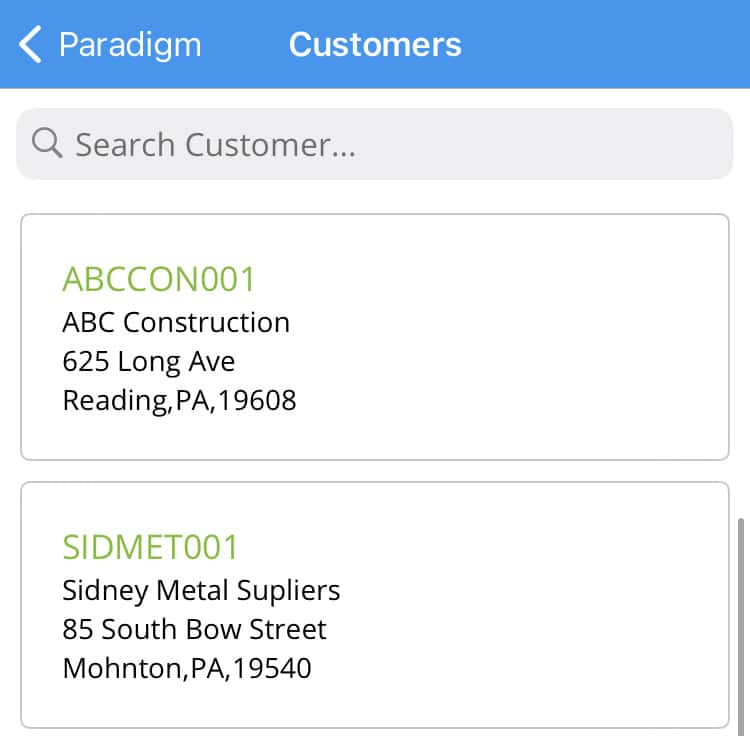
Customers
This will show the customer list. Tapping on a customer will display the rest of their information. More information about that can be found here: Paradigm Mobile: Customer List
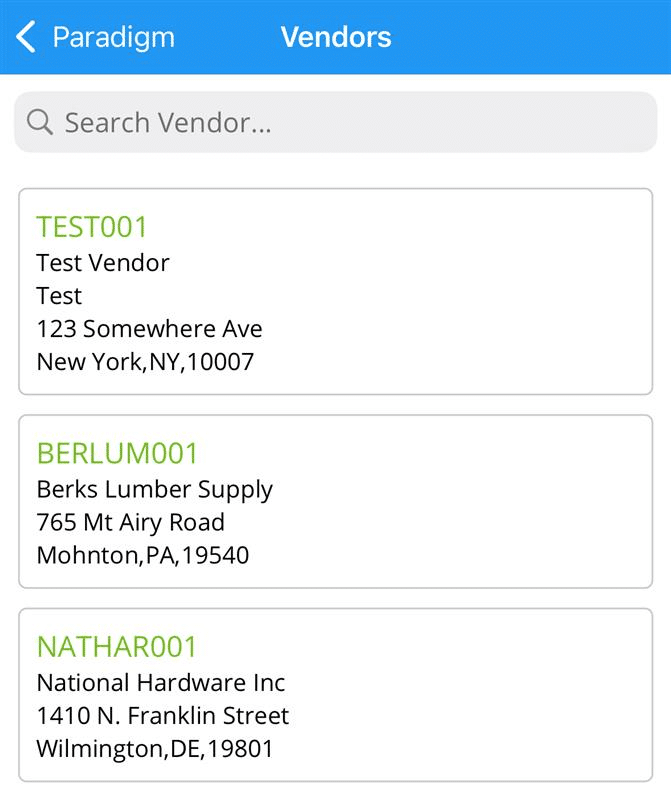
Vendors
This will show the vendor list. Tapping on a vendor will display the rest of their information and allow for a purchase order to be created. More information about that can be found here: Paradigm Mobile: Vendor List