Set up UPC Codes For Barcodes and Aliases
This FAQ will go over how to set up alias Product IDs for items, such as UPCs and SKUs.
Alias Set Up
- Go to Inventory > Inventory List
- Open the item that needs the Alias ID setup.
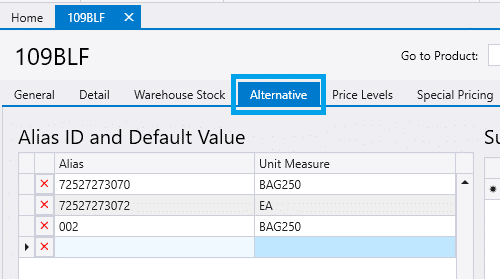
- Click on the Alternative tab and enter the aliases.
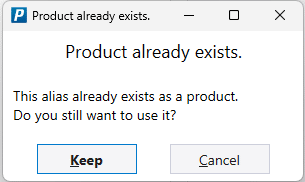
- If the entered alias already exists as a product, the following message will be shown: Product already exists. This alias already exists as a product. Do you still want to use it?
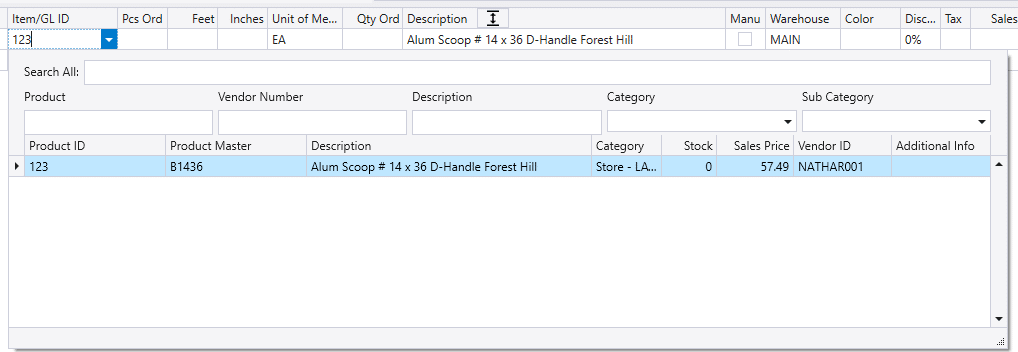
- Once the alias is set, it can be used in Product IDs throughout Paradigm, like the example below.
Alias Unit of Measure
- The unit of measure can be set along with it if need be.
- For example, if the UPC code is for a case of 10, selecting the “CASE10” unit of measure on the alias will cause that unit of measure to be selected when using the alias on a transaction.
- If the unit of measure is left blank, the item’s default unit of measure will be used.
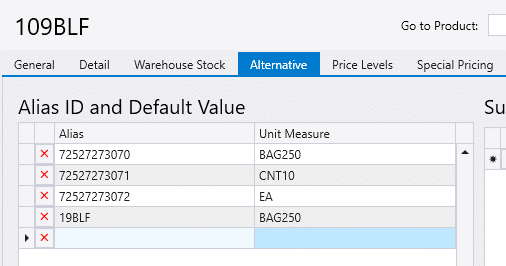
UPC Code
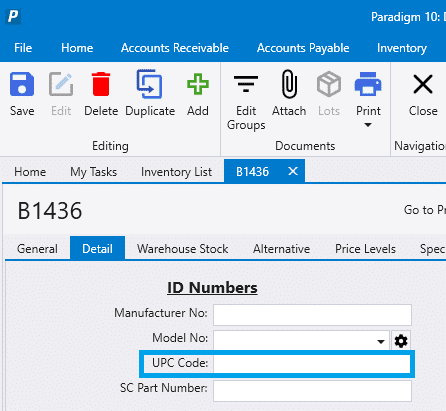
- Putting entering the UPC in the item “Detail” tab will not work to make the item’s barcode scannable, it must be added as an alias too. The UPC field is just for the UPC that gets printed on any shelf labels for that item.