
Zebra and SATO Label Printer Set up
To access the Windows Printer Settings, go to Start Menu > “Printers and Scanners” or however it is termed in your Operating System and find the label printer. Either “click > Manage” or click on the little arrow and it should take you to an option window where you can choose Printer Properties and Printer Preferences.
Zebra
Old Drivers (Version 5)
Open Printer Properties > Printer Settings and check Always use Driver Settings.
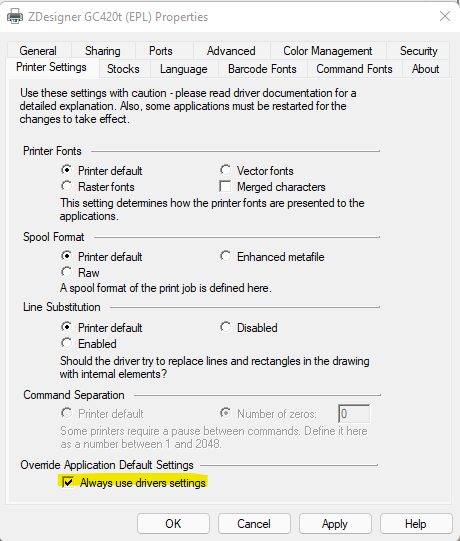
Also go to Printer Properties > Advanced > Printing Defaults – set your page size correctly.
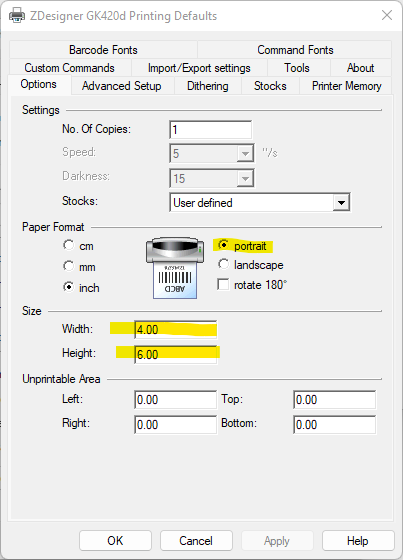
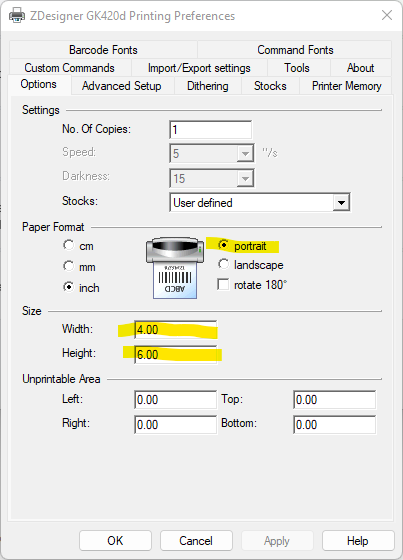
Make sure the Printing Preferences > Options matches the above Printing Defaults.
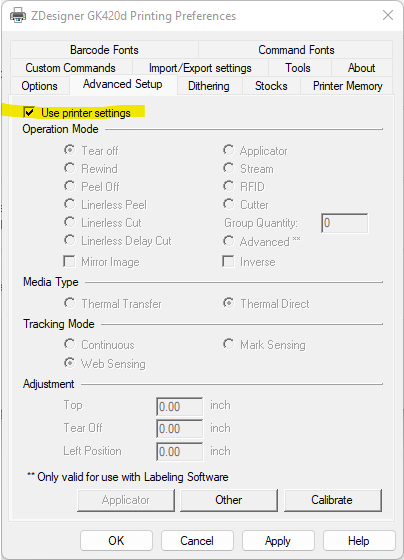
Open Printer Preferences > Advanced Setup and check Use Printer Settings.
New Drivers (Version 10)
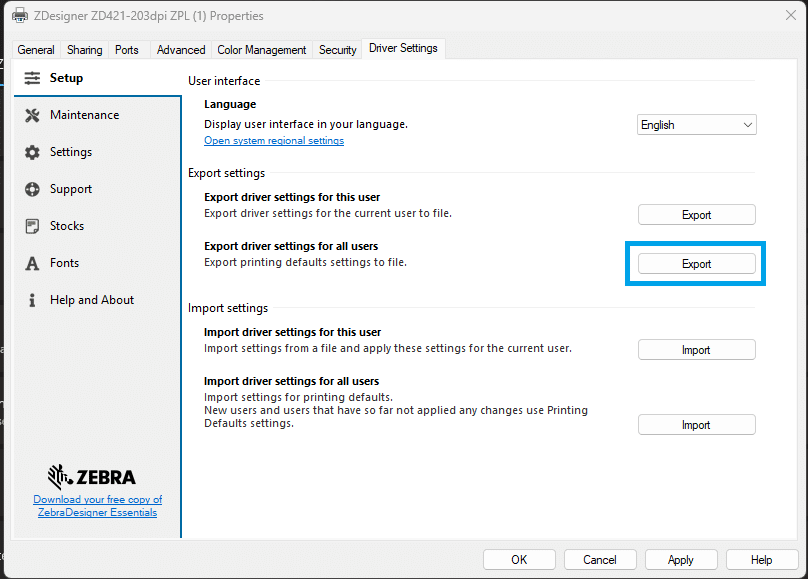
Open Printer Properties and go to the Driver Settings tab. Then Export driver settings for all users.
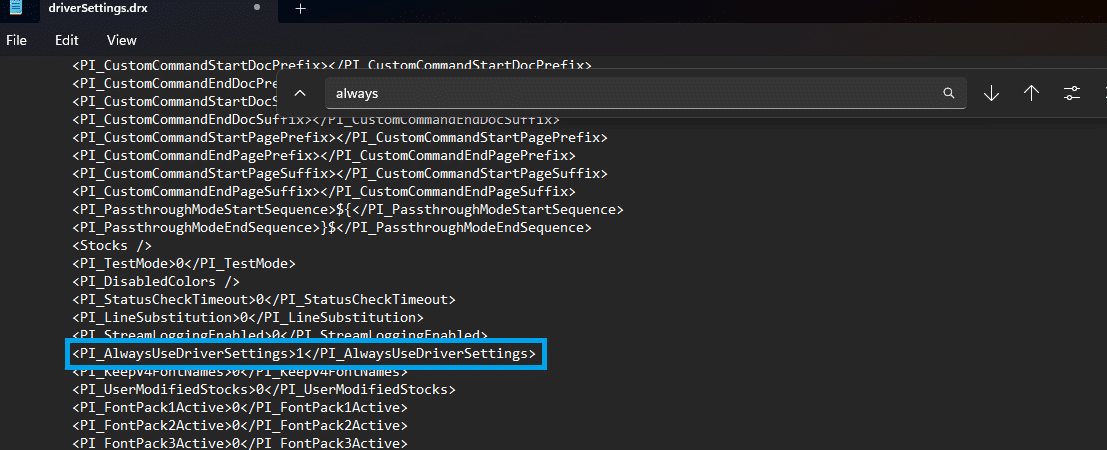
Name and save the file that is exported. Then open that file in a text editor. Windows usually has Notepad pre-installed, if it is not Notepad++ is another option for download. When the file is open in the editor use CTRL + F to open the “Find” feature. Find the line “AlwaysUseDriverSettings”. Change the value to 1 and then save the file.
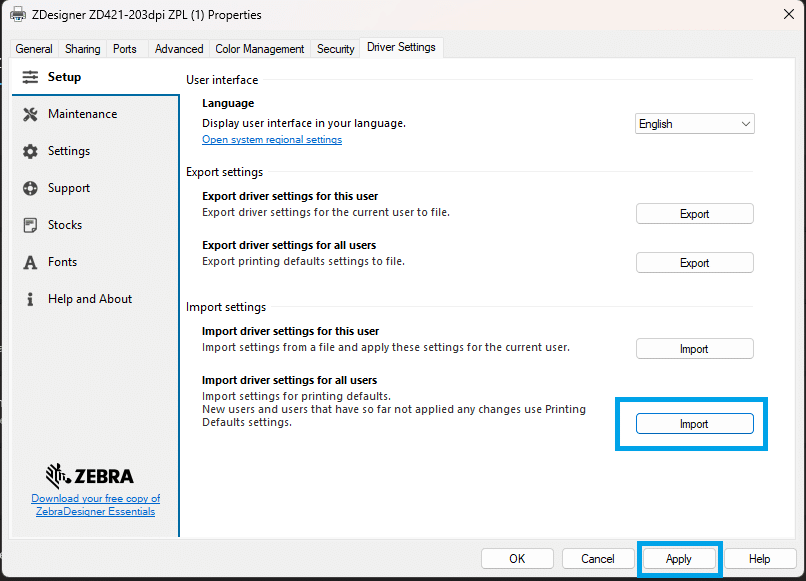
Go back to the Printer Properties > Driver Settings. This time select Import driver settings for all users. Select the edited file and then apply.
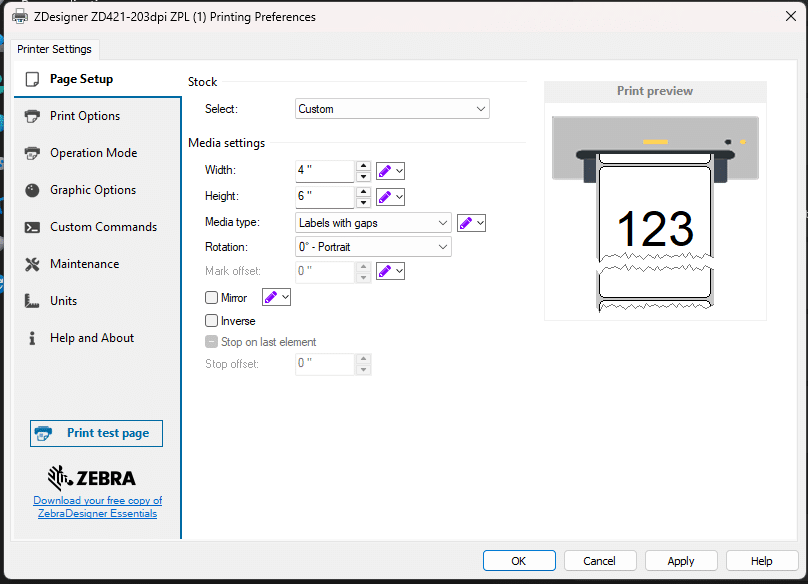
To set up the correct page size go to the general tab and select Preferences.
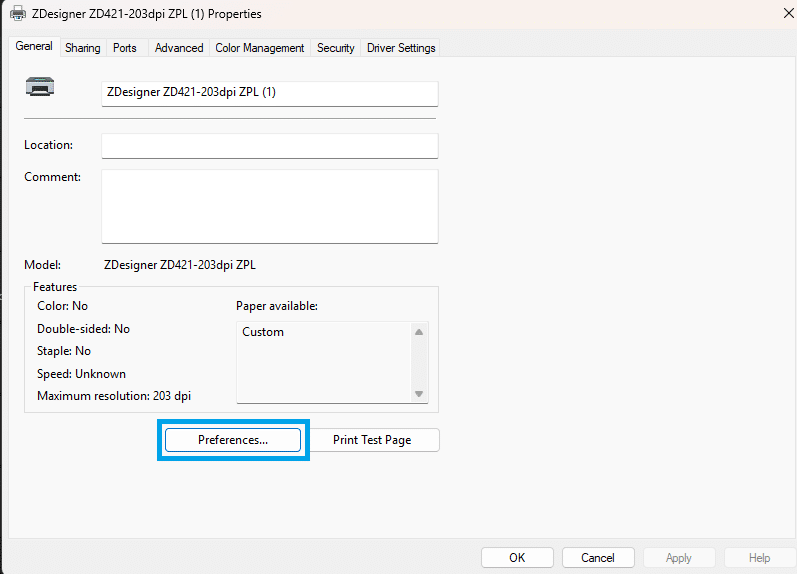
From this menu the correct page sizes can be configured.
SATO
Open Printer Properties > Driver Settings > Settings and check “Always use driver settings”.

Then go to Printer Properties > Driver Settings > Configure Printer and set the page size correctly.

Also make sure that Printing Preferences > Page Setup matches the Printing Defaults (also is Portrait).

Alternative Printing Method
If the steps above are followed for a SATO or Zebra printer and it is still not printing correctly, try enabling or disabling the “Use Alternative Printing Method” in the User Preferences.
