Inventory Import: Inventory Groups
This FAQ will go over importing and assigning inventory group data in Paradigm. The groups here are used in the Product Finder. More information on inventory import & export can be found here: Inventory Import & Export
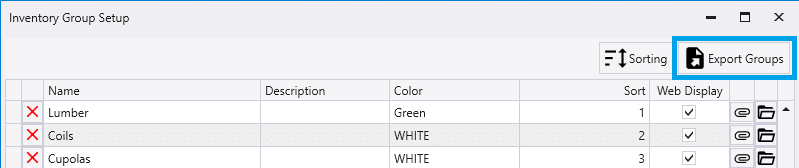
The inventory groups table contains the data that is shown here:
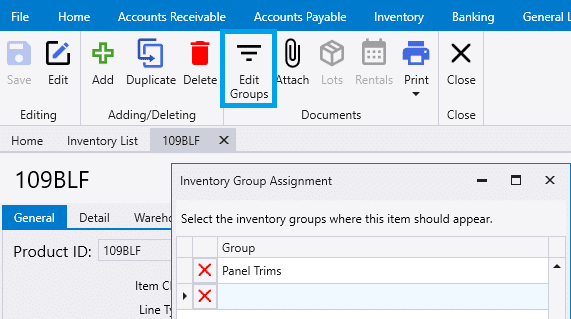
The assigned inventory groups table shows the data here:
More information on inventory groups can be found here: Product Finder
Importing New Group Assignments
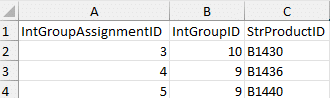
When importing new inventory group assignments, be sure to include the following columns: product ID (strProductID) and the group ID (intGroupID).
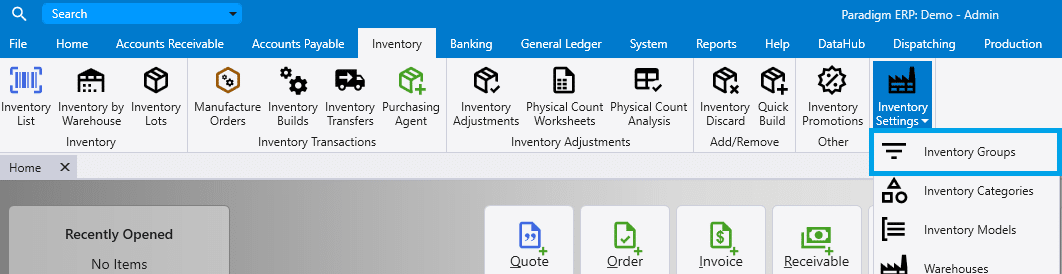
Group IDs can be found going to Inventory > Inventory Settings > Inventory Groups > Export Groups
When importing select the “Add new group assignments only.” to only add new records, or select “Update existing and add new group assignments.” to update existing and add new records.
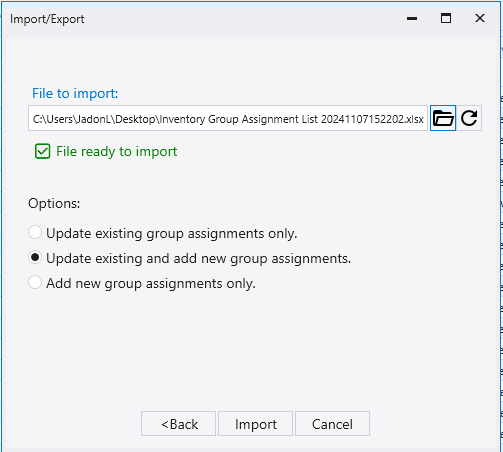
Be sure to not include the intGroupAssignmentID column when adding new data. Including the intGroupAssignmentID will update the existing record that has that ID, more information on that in the next section.
Updating Existing Group Assignment Data
The easiest way to set up an import sheet is to first export the product IDs you want to make changes to. Be sure to include the intGroupAssignmentID and product ID column.
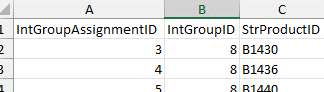
Then make the desired changes in the sheet and then import it back into Paradigm. Be sure to choose the “Update existing group assignments only.” option when importing.
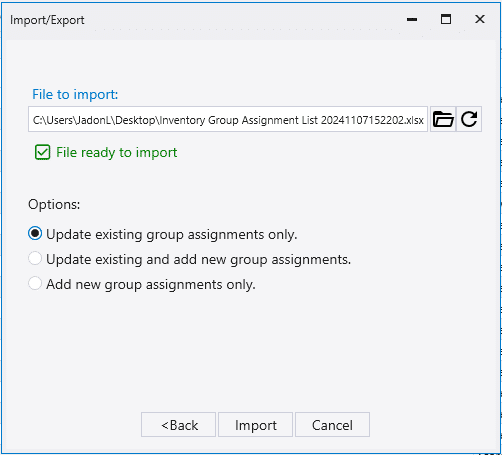
Example
A common use case for this is updating the assigned group.
First export the intGroupAssignmentID, intGroupID, and strProductID.
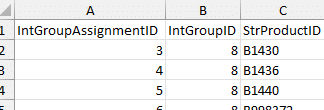
Change the group in the sheet and then import it into Paradigm.