
Paradigm Deep Links
Paradigm is able to take advantage of a feature that’s built into Windows – custom URI schemes. Uniform Resource Identifiers usually begin with http or https, but changing the beginning of the link tells the computer to open the link in a different app other than the browser. This allows links that begin with paradigmerp:// to allow users open specific records directly in Paradigm from links in emails, websites, intranet pages, or desktop shortcuts.
Overview
Create a Link Via Keyboard Shortcut
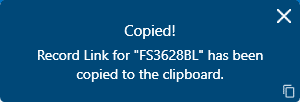
A keyboard shortcut allows quickly creating Paradigm Deep Links. Open the program to the desired transaction, inventory item, customer, or other document, and press Shift + F3 . This will create the deep link and place it onto the system clipboard, which allows pasting it into other programs.
The Parts of a Link
Open Existing Records
To use this link system to open existing records, the format is:
paradigmerp://open?DocType=<DocumentType>&ParadigmID=<RecordID>
paradigmerp:// This tells Windows what program to open.
open All the information after the slashes will be given to Paradigm to tell it what document to open.
DocType= The kind of document that is specified tells Paradigm which table in the database to search.
ParadigmID= Paradigm will use the Record ID information as its instruction of which transaction to open.
To create links, put values into the link following the “?” question mark that indicate the document type and document ID, separated by the “&” ampersand. Note that the document type and document ID parameters must match exactly, including that they are case sensitive.
Open A New Record
To use this link system to create new records, the format is:
paradigmerp://open?DocType=<DocumentType>&Action=Add&PhoneNumber=<Number>&DisplayName=<PersonName>
paradigmerp:// This tells Windows what program to open.
open All the information after the slashes will be given to Paradigm to tell it what document to open.
DocType= The kind of document that is specified tells Paradigm which table in the database to search. To create new records Customer and Vendor are the only supported DocTypes for Action=Add.
Action=Add Tells Paradigm to create a new record instead of searching for an existing one.
PhoneNumber Paradigm will use the number to add a contact to the new record.
DisplayName This will be the name added to the new record. This will also determine the ID of the new record.
Parameters
Document Type
Replace the value “<DocumentType>” with one of the possible options of documents from Paradigm. The acceptable values are listed below. Paradigm uses the value of DocType to know which database table to search in. For example, DocType=Invoice tells Paradigm to search the invoices table, which could return results for Invoices, Credit Memos, or Finance Charges. Setting the parameter to DocType=Customer indicates to the program to search the Customers table.
Record ID
Replace the value “<RecordID>” with the ID that the program should search for in the specified database table. This needs to match exactly the value from the document’s ID in Paradigm, including the case of the letters. The value of ParadigmID=OE-0001234 causes the program to look for a document with the ID “OE-0001234.” The two additional examples ParadigmID=SI-0010025 and ParadigmID=ABCCON001 show how to set the parameter for an invoice ID and customer ID.
Action=Add
Opens Paradigm and creates a new record instead of searching for an existing record. This currently is only supported for new Customers or Vendors so it must be paired with a Customer or Vendor DocType.
Phone Number
Replace the “<Number>” with the contact phone number for a new record. When paired with the Action=Add parameter, the phone number parameter will add the number as a Contact Method to the new customer or vendor.
Display Name
Replace “<PersonName>” with the name for the new Customer or Vendor. This goes with the Action=Add parameter to fill in a name for the new record. This name will be used in the creation of the ID for customer or vendor. Spaces are not supported for the Display Name attribute. The Display Name parameter is case-sensetive.
Examples
Click on this link to open Paradigm and search for an Order with the ID OE-0001234:
paradigmerp://open?DocType=Order&ParadigmID=OE-0001234
Click on this link to open Paradigm and search for a customer with the ID TEST001:
paradigmerp://open?DocType=Customer&ParadigmID=TEST001
Click on this link to open Paradigm and search for an Inventory Adjustment with an ID of IADJ-0000006:
paradigmerp://open?DocType=InventoryAdjustment&ParadigmID=IADJ-0000006
Click on this link to open Paradigm with a new Customer Record with the name John and a phone number of 123-456-7890:
paradigmerp://open?DocType=Customer&Action=Add&PhoneNumber=1234567890&DisplayName=John
Click on this link to open Paradigm with a new Vendor record with the name MetalCo and a phone number of 111-222-3333:
paradigmerp://open?DocType=Vendor&Action=Add&PhoneNumber=1112223333&DisplayName=MetalCo
Valid DocType Values
A large number of document types from Paradigm are supported within the link feature.
| Category | Documents Supported | Example |
|---|---|---|
| Sales | Order, Quote, Invoice, Trip | paradigmerp://open?DocType=Invoice&ParadigmID=SI-0001234 |
| Accounts Receivable | Receivable, Customer, Customer Prepayment, Finance Charge | paradigmerp://open?DocType=Customer&ParadigmID=ABCCON001 |
| Accounts Payable | Request for Quote, Purchase Order, Purchase Invoice, Payable, Vendor, Vendor Prepayment | paradigmerp://open?DocType=VendorInvoice&ParadigmID=VI-0003344 |
| Inventory | Product, Inventory Adjustment, Inventory Transfer, Inventory Build, Manufacture Order | paradigmerp://open?DocType=Product&ParadigmID=CO4226BLK |
| General Ledger | General Journal, GL Account, GL Detail | paradigmerp://open?DocType=GeneralJournal&ParadigmID=GJ-0002045 |
| Banking | Write Check, Withdrawal, Make Deposit, Reconciliation | paradigmerp://open?DocType=WriteCheck&ParadigmID=WC-0003456 |
Suggestions for Using Deep Links
Open a Record from an Email: Click on a paradigmerp:// link in an email to open Paradigm and see the document.
Add a Link to an Intranet Page: Clicking on paradigmerp:// links on internal web pages to open records directly in Paradigm.
Create a Desktop Shortcut: A shortcut on the Windows desktop using a paradigmerp:// link will also take advantage of this feature. Double-clicking this shortcut will open the specific record.
Be aware that some programs, such as Microsoft Teams, treat URIs that don’t begin with http or https as invalid. At this time, sending Deep Links via Microsoft Teams doesn’t work.
Application Behavior
Paradigm does not need to be open for links to work. If the program is not open, the computer will try to open it and give it the link to guide it to the correct document type. If Paradigm is open already, it will bring the window to the front, and the document will open in that window, rather than opening a second instance of Paradigm. If the system setup includes multiple company files, the deep link will trigger the search to run in the company file that is currently logged in.