Paradigm Mobile: User Set-up
This FAQ will cover how to set up users for Paradigm Mobile. More information on Paradigm Mobile can be found here.
Setting Up Users in Paradigm Mobile
Paradigm Mobile supports two types of logins: Customer Portal users and Employee Web users. Each login type provides different levels of access within the app. To give access to the Mobile App, the correct entries will need to be created within the company website administration, and configured based on whether the user is a customer or an internal employee.
Employee Access
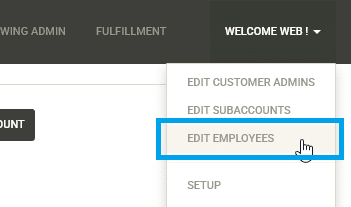
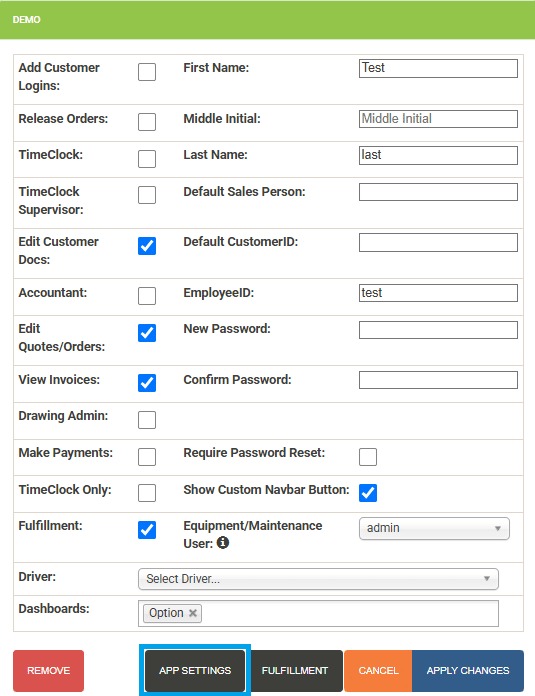
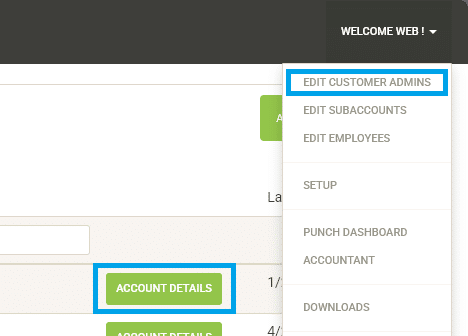
Employee Web Users can be created, updated, or removed through the Edit Employees window. Employees can view tasks within the mobile app, as well as be linked to a driver. Mobile access is controlled in the App Settings menu (see below).
Selecting the Driver
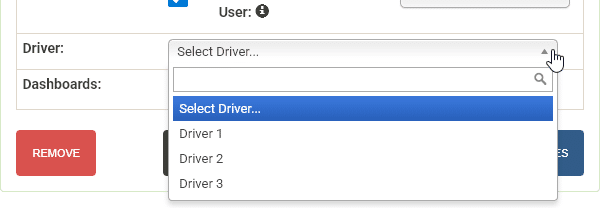
If the user is a driver, select the corresponding driver from the drop down. If a driver is assigned, the user will have access to the delivery feature. For more information on setting up Employee Web logins see the FAQ article Create Employee Web Logins.
Customer Access
Similar to employee accounts, customer logins to Paradigm Mobile can be managed in App Settings. Customers do not have access to the tasks feature in Paradigm Mobile. For instructions on managing Customer Portal users, see the FAQ article Create Customer Web Logins.
App Settings

At the bottom of the Details window for Employee Web logins and Customer logins, the App Settings button opens the window for adjusting the permissions that the user will have within the Mobile App. To change which parts of the app the user can access, click to open the window, and check or uncheck the box beside each feature as needed.
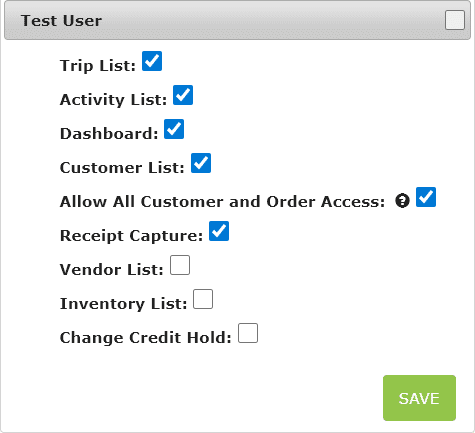
- Trip List
- Allows user to view trips
- Activity List
- Allows user to view the Activity List (also called Task list) and add tasks.
- This feature is not available to customers and will not appear on customer accounts even if it is enabled.
- Dashboard
- Allows user to view custom dashboards.
- Customer List
- Allows user to view the list of customers
- Allow all Customer and Order Access
- This allows the user to view all customer and order records. Otherwise the user will only be able to view records that they are marked as the salesperson
- Receipt Capture
- Allows access to receipt capture feature on mobile.
- Vendor List
- Allows user to view the list of all vendors
- Inventory List
- Allows user to view the inventory list and the inventory data.
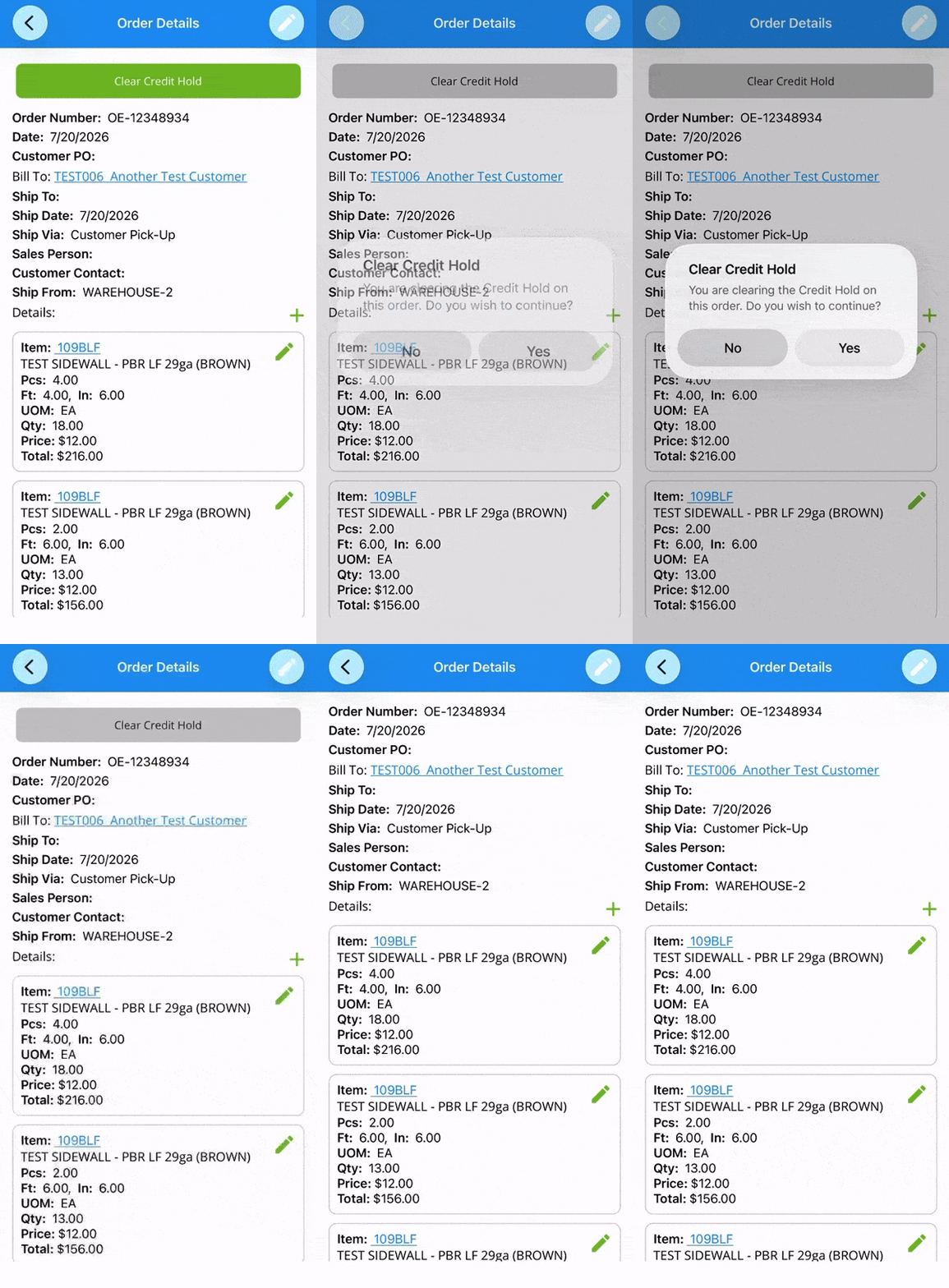
- Change Credit Hold
- Allows the user to clear credit holds on orders by selecting the green
Clear Credit Holdbutton.
- Allows the user to clear credit holds on orders by selecting the green