Customer Notes
This FAQ describes how to set up customer messages and notes.
Message Setup
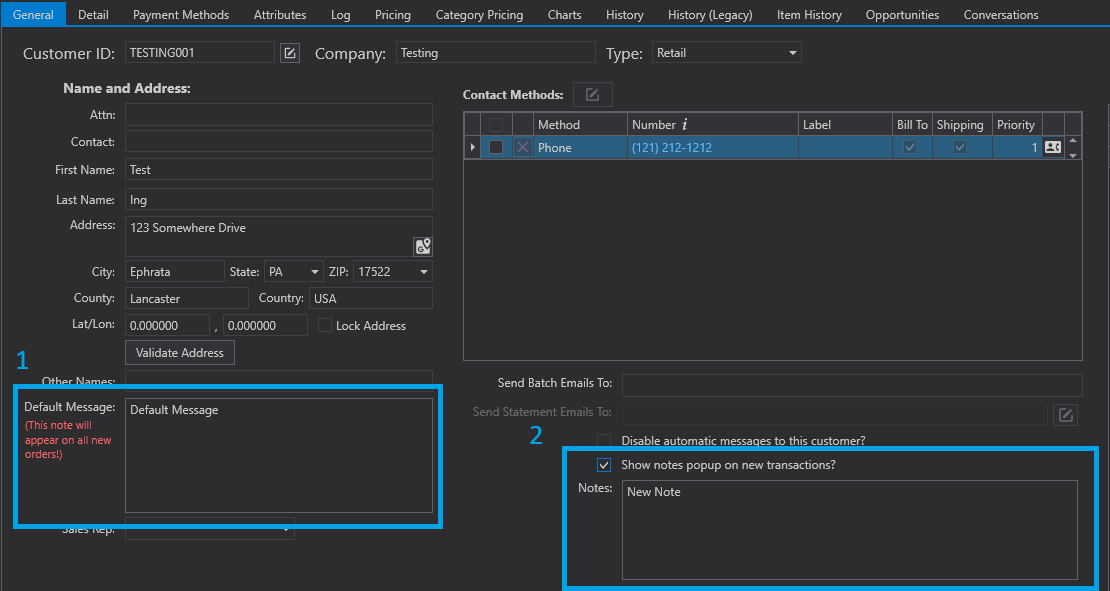
- To display a default message or custom note, navigate to
Accounts Receivable > Customers, and select a customer. - The Default Message will insert the text into any new orders.
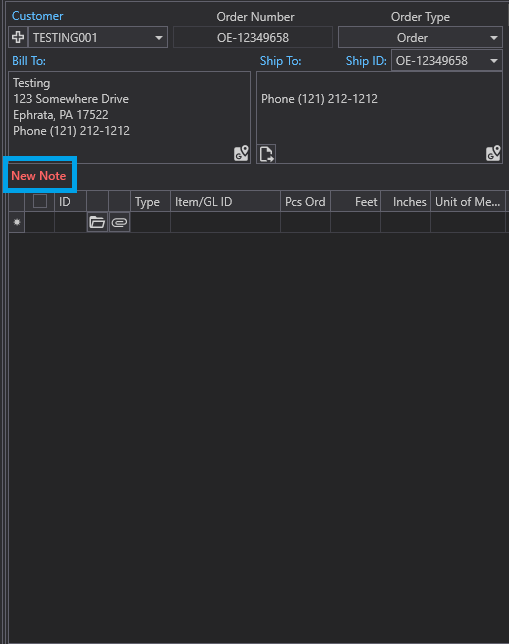
- The Note appears in red directly above the item list.
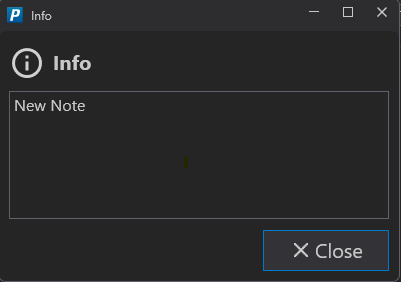
- The note appears as a pop-up warning if the
Show Notes Popupcheckbox is selected.
- The note appears as a pop-up warning if the
Default Messages
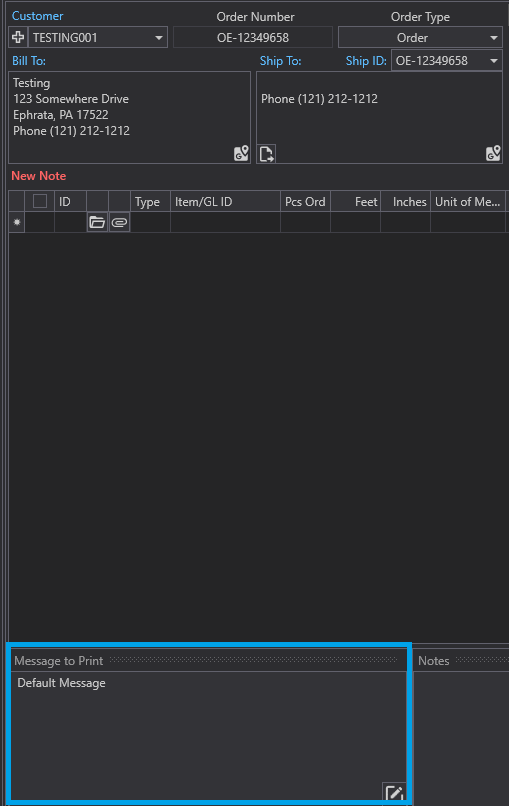
Paradigm displays the default message on all new orders, located in the Message to Print section. The default message does not appear as a pop-up warning when the order is created.
Notes
Use notes only for individual customers with unique requirements. When enabled, a note appears as a pop-up warning whenever a new order is created for that customer. The note also appears in red directly above the item list. Each note must be entered separately for the customer it applies to.