
Creating A Job
This FAQ will go over how to create a job in Paradigm.
Video Overview
Creating Jobs
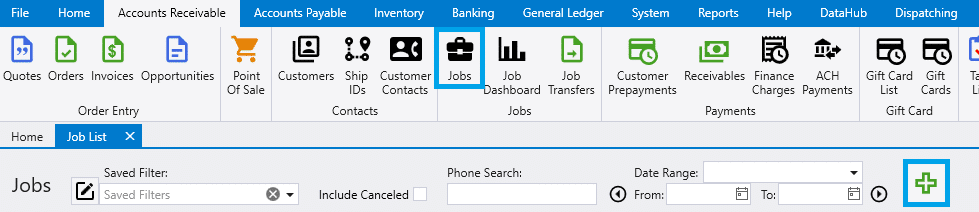
To start, go to Accounts Receivable > Jobs and click the add button.
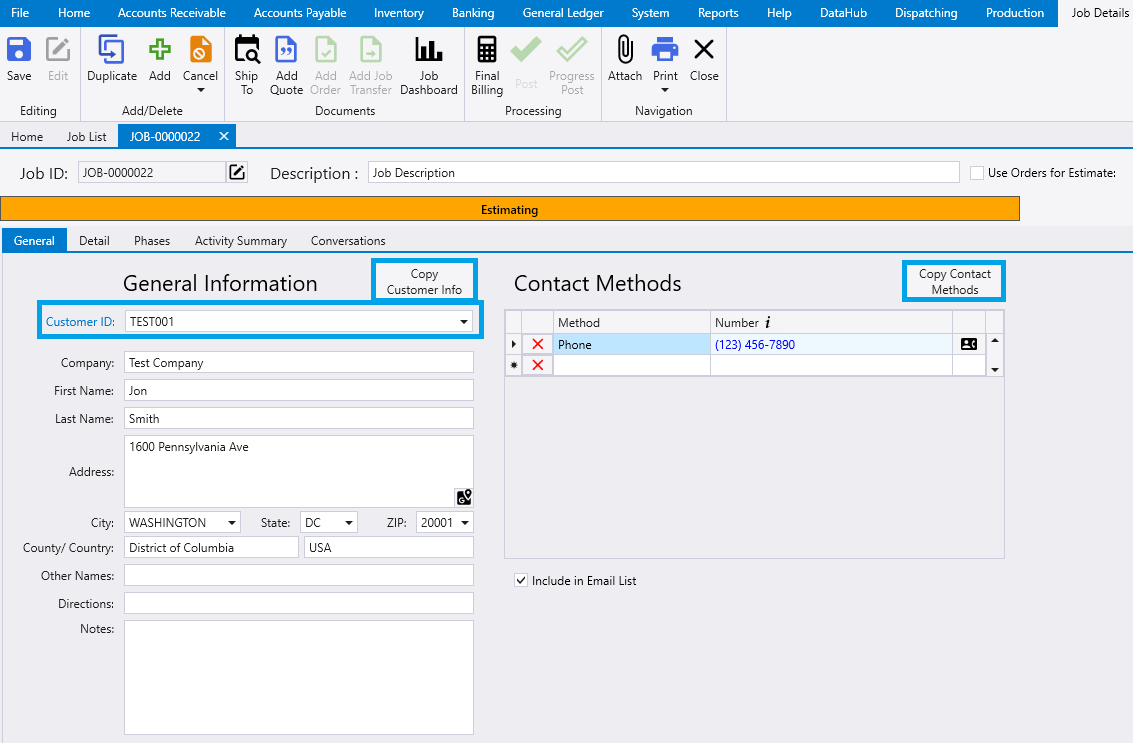
Enter the customer ID and copy in the customer info and contact methods if needed.
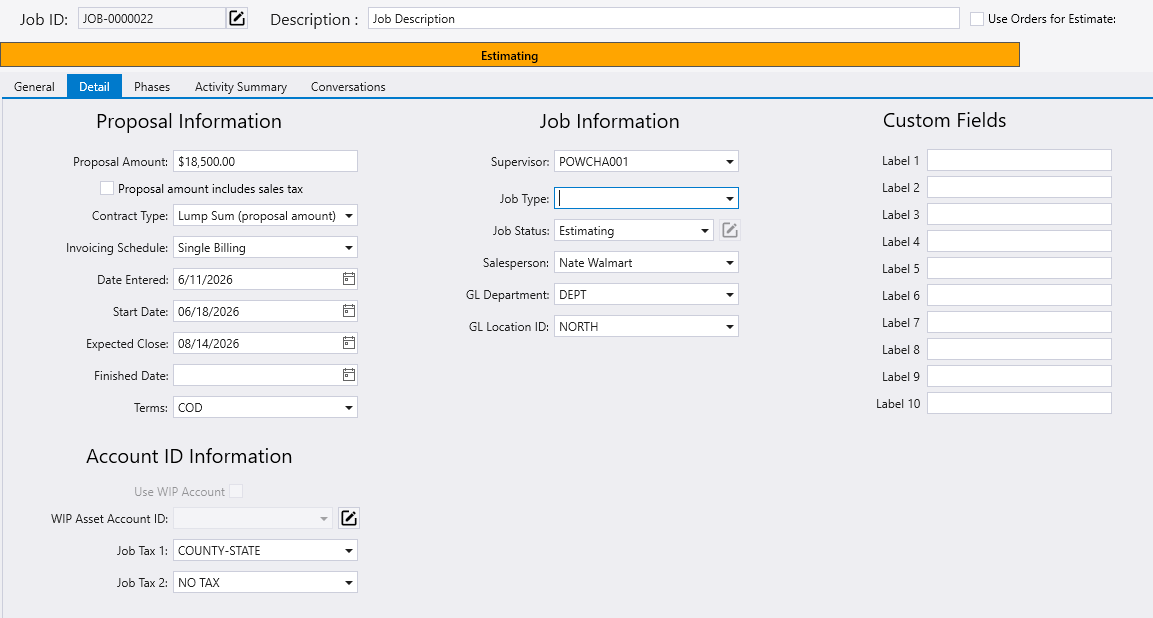
Then, go to the Detail tab and fill in the rest of the job information. The data here is not required, but it’s recommended to fill in most or all fields for better reporting.
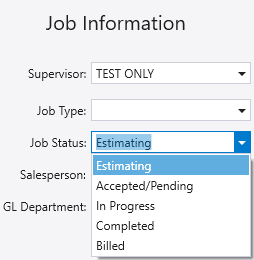
It is important to set the job status here. If the status is set to “Estimating”, only quotes can be created for a job. Once the job is sold, set the status to “Accepted/Pending”, and orders can then be created for the job.
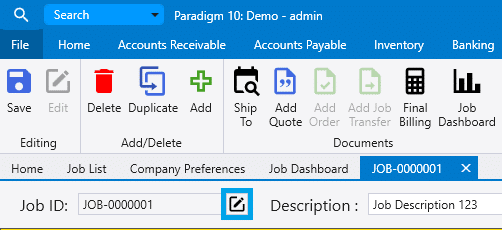
The job ID can be edited by clicking the pencil icon beside it.
Once all the information for the job has been filled out, click “Save”.
