
Bundle and Comment Lines
Bundles and comment lines are a great way to subdivide and organize transaction detail lines. Bundle codes especially are utilized heavily to get products packaged how the customer wants them.
Bundle Lines
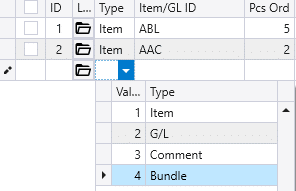
Bundle lines can be added to a transaction by clicking the dropdown on the line type, and selecting “Bundle” from the list.
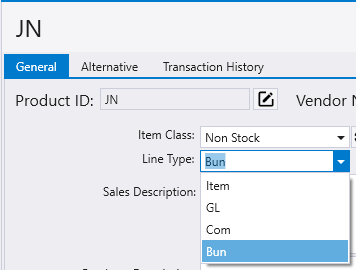
Alternatively, select a bundle item from the product ID list (most databases have a “JN” or “BUN” product ID for this). This allows bundles to be created without needing to click the line item type dropdown. You can also use a Kit/Bundle assembly item.
Bundle lines appear in red text in Paradigm so they stand out. All items after the bundle code will be part of that bundle, until the next bundle code. Subtotals for each bundle will be shown in the “Total” column in Paradigm and will be printed on reports as well. Subtotals will also be show for margin, margin 2, and the extended weight column.

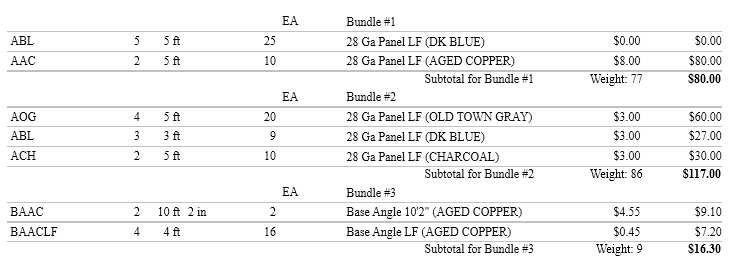
Bundles will also group items together in Production and Fulfillment Pro so that the items can be packaged how the customer requested. The bundle name shown will tell the worker which products should be packed together. Bundle codes can also be added/edited through Production, more on that here.

If an item that is part of a bundle is converted to PO, the bundle line will be added to the PO as well.


Bundle Shortcuts
Aside from changing the grouping on reports, bundle codes also offer a few shortcuts for data entry.
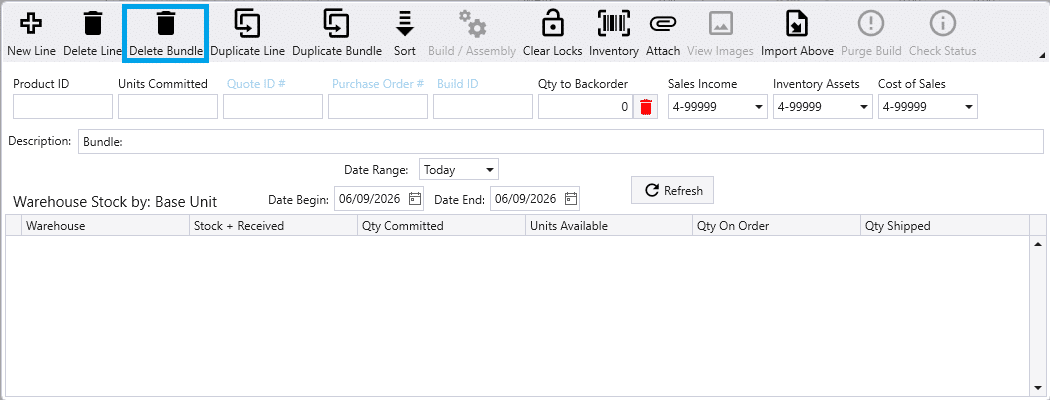
Bundles can be deleted along with all of the items that are part of it, by click on the line item options button and then selecting “Delete Bundle”.
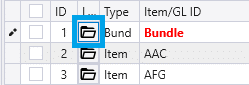
The warehouse on the bundle line can be changed to adjust the warehouse for all items in the bundle.

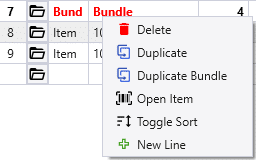
To duplicate an entire bundle, right click the bundle and choose “Duplicate Bundle”.
Comment Lines
Comments are just a note in the transaction detail, they don’t affect grouping/packing and are just there as text for reference.
They can be added to a transaction by clicking the dropdown on the line type, and selecting “Comment” from the list. Alternatively, select a comment item from the product ID list (most databases have a “COM” product ID for this). This allows comment lines to be created without needing to click the line item type dropdown. You can also use a Kit/Group assembly item.
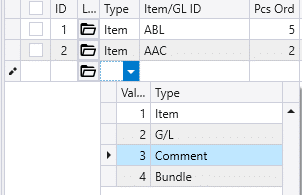
The line will appear on the transaction highlighted in red, and the comment can be entered in the description field.
