Chart of Accounts
This FAQ covers the Chart of Accounts page in Paradigm.
Overview
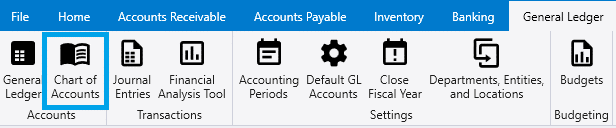
The Chart of Accounts page can be found by going to General Ledger > Chart of Accounts. Here, every account can be viewed all at once or filtered by their type.
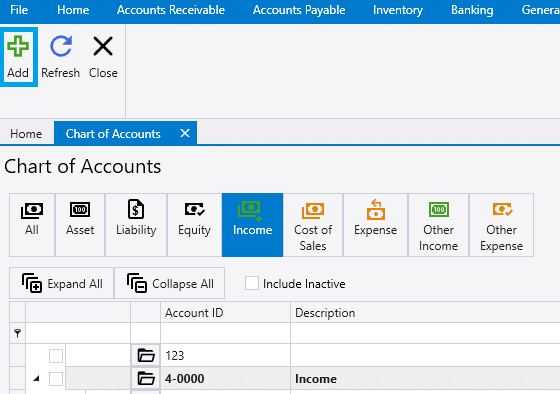
Accounts can be sorted by type from the top buttons. In the image below Expense accounts are selected to be shown.

Expand All / Collapse All
Select Expand All to show all detail account lines, or Collapse All to group detail lines under their respective headers.

View GL Details
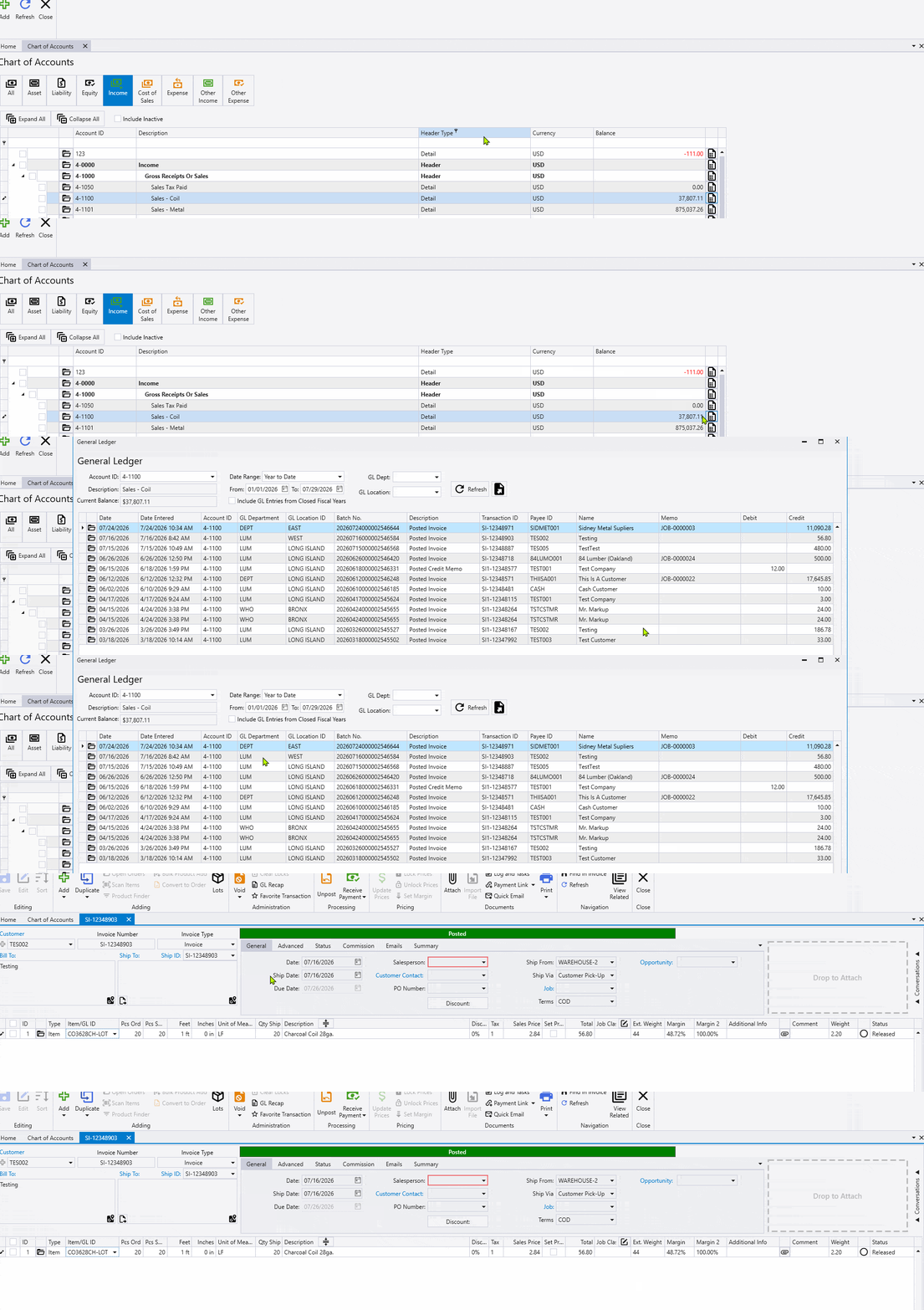
Select the icon on the far right of any row to view all transactions affecting that account. Double-click a transaction or click the folder icon to open it in a new tab.
Edit Accounts
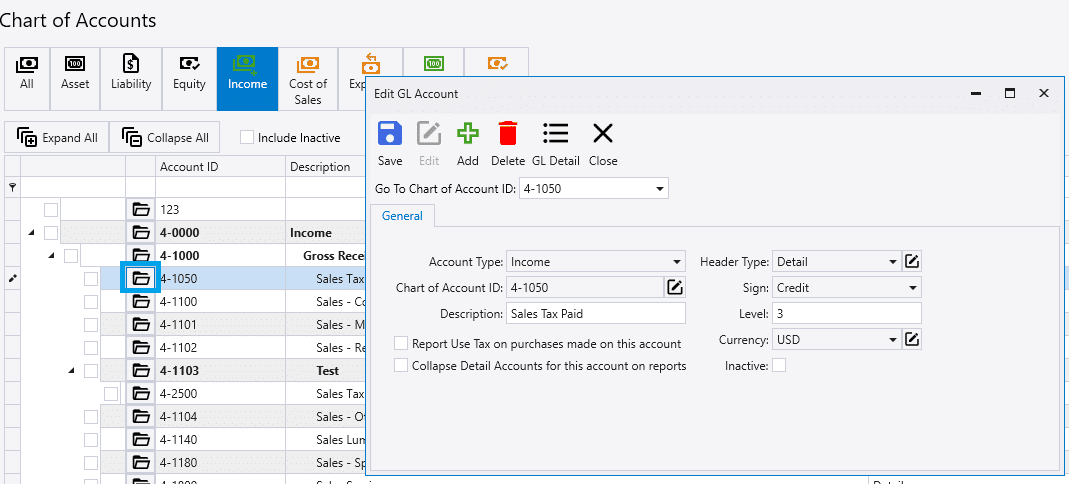
Select the Folder icon on an account row to open the Edit GL Account form. Here you can adjust report preferences or mark an account as inactive.
Set to Inactive Account
The account balance must be zero to be marked inactive. The account cannot be inactive if it is a default GL account. If the account balance is not zero or is a default account then an error will be displayed in a pop-up.
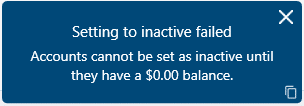
![Setting to inactive failed
Accounts that are set as default account ([DEFAULTACCOUNT]) cannot be set as inactive.](https://docs.goparagon.com/wp-content/uploads/chartOfAccounts7.png)
Create New Account
Select the Plus (+) icon in the header toolbar to open the new GL account form. See the Create GL Accounts FAQ for step-by-step instructions.
Search bar
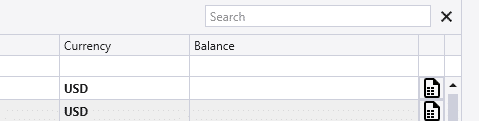
Pressing CTRL + F will show the search bar. This will search all of the columns for a match. Only the selected types of accounts will be searched (e.g. Asset, Expense, etc.)