Customer Saved Ship to Addresses (Ship IDs)
This FAQ will go over how to create, edit, and save customer ship to addresses.
- First, go to the customer that is getting the ship to address.
- Then click on the “Ship IDs” button in the header.

This will bring up the customer’s ship ID list. Double click on a ship ID in order to edit it, or click the “Add” button to create a new one.

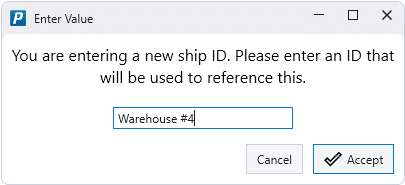
Then enter the ship ID if a new ship to is being created. This ID is just text and is the label that will show up when looking through the ship ID list on an order.
Then fill out all of the ship to location information. If the lock button is checked, the address will then be locked when used on a transaction so address validation will not modify it. If the default check box is selected, this ship ID will be used as default on an order. The tax code entered here will also be applied when this ship ID is used, if left blank it will just use the original tax code.
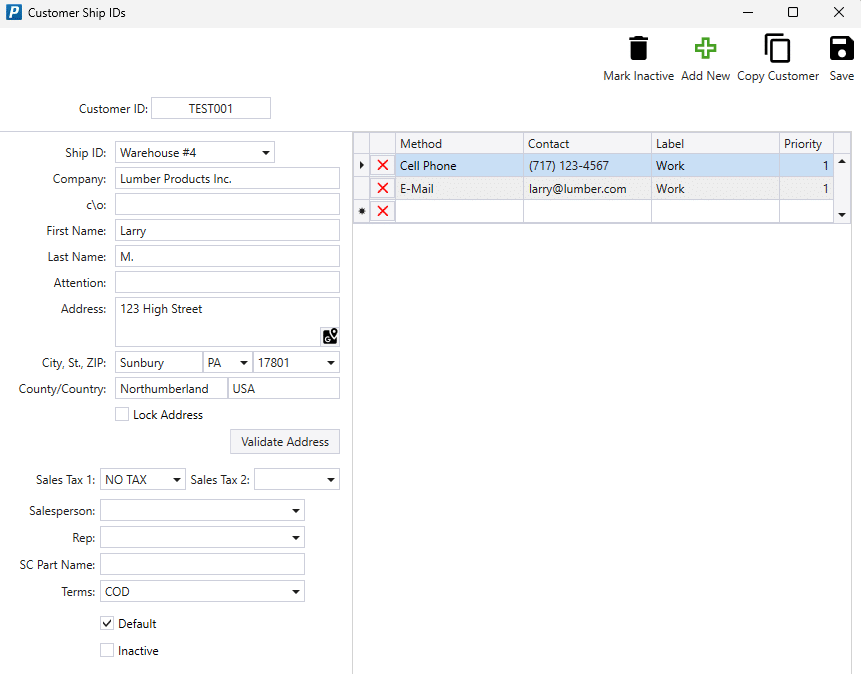
Once that is filled out, click “Save” to save and close out of the form or click “Add New” to save and create another one.
Using a Ship ID On A Transaction
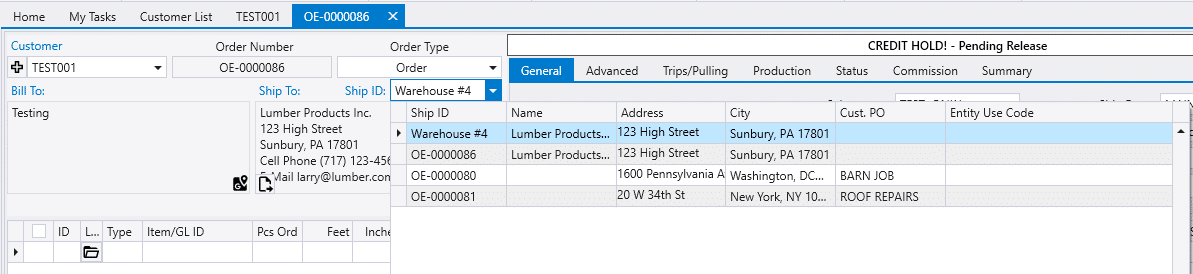
To use a ship ID on an order, simply click on the ship ID drop down and select it from the list.