How to Customize List Layouts
Customizing List Layouts
If a list form is customized, it will be saved for the next time it is used. List layouts can also be copied from one user to another (see How To Copy List Layouts And Saved Filters). If non-list forms need to be customized, check out this FAQ: Customize Transaction Form Layouts.
Once these changes have been made, close and reopen Paradigm to apply them.
Adding or Removing Column
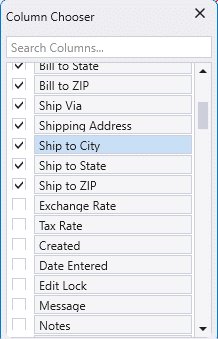
Fields can be added or removed by right-clicking on the header and searching for the desired field from the ‘Column Chooser’ list.
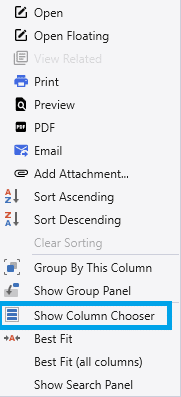
Select or unselect a column to show/hide it.
Moving a Column
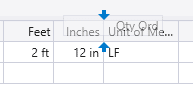
A column can be moved by clicking and dragging the column header it to the desired location. Two blue arrows will indicate where the column will be placed.
Resizing a Column
To resize a column, hover over the edge of the header until the cursor turns into a double sided arrow. Then simply click and drag to resize.

Resetting List Layouts
List layouts can be reset by right clicking the tab header and clicking “Clear saved layout”.
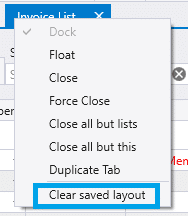
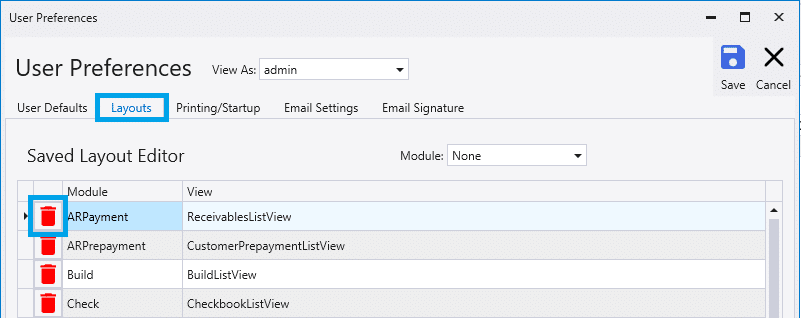
This can also be done by going to System > User Preferences > Layouts. From there, find the one that needs reset and click the red trash can icon.