Item Images
This FAQ will go over adding and viewing item images in Paradigm.
Adding Images
The following image types are supported: “.jpg”, “.jpeg”, “.png”, “.bmp”, “.gif”, “.webp”
Inventory Item
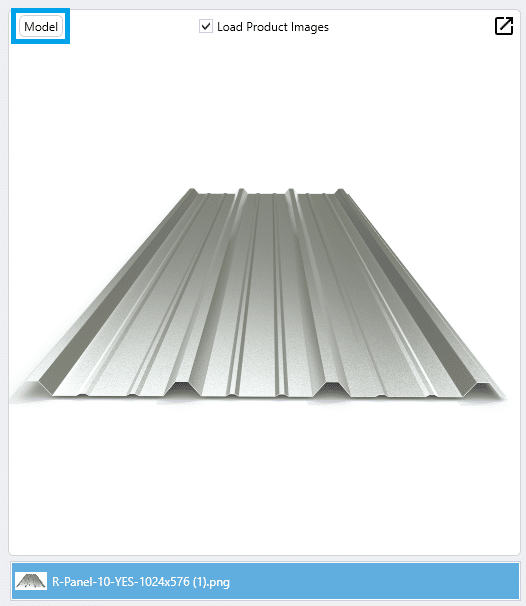
One way to attach an image is drag and drop an image or a URL onto the image viewer. This will show images attached to the item and attached to the model. Another option is to copy the image file or URL and paste it into the attachments menu using CTRL + V .
These images can be hidden or renamed directly from the main inventory screen by right-clicking the image. Image loading can be disabled in inventory and model screens by un-checking the Load Product Images checkbox. To open a floating image viewer, double click on the image.
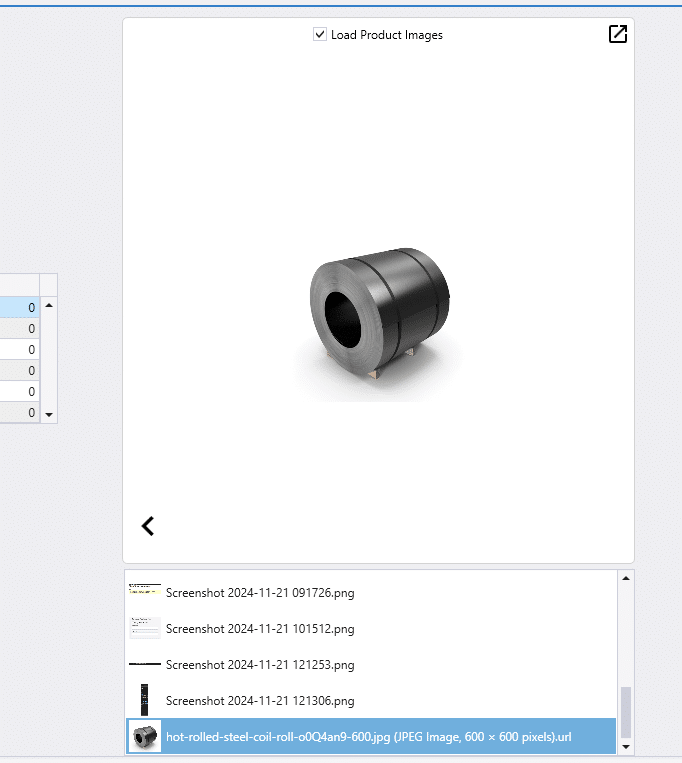
Images can be sorted by editing the Product Image number in the attachments screen. Un-checking the checkbox causes the image to not show as a product image.

Inventory Model And Standard Drawings
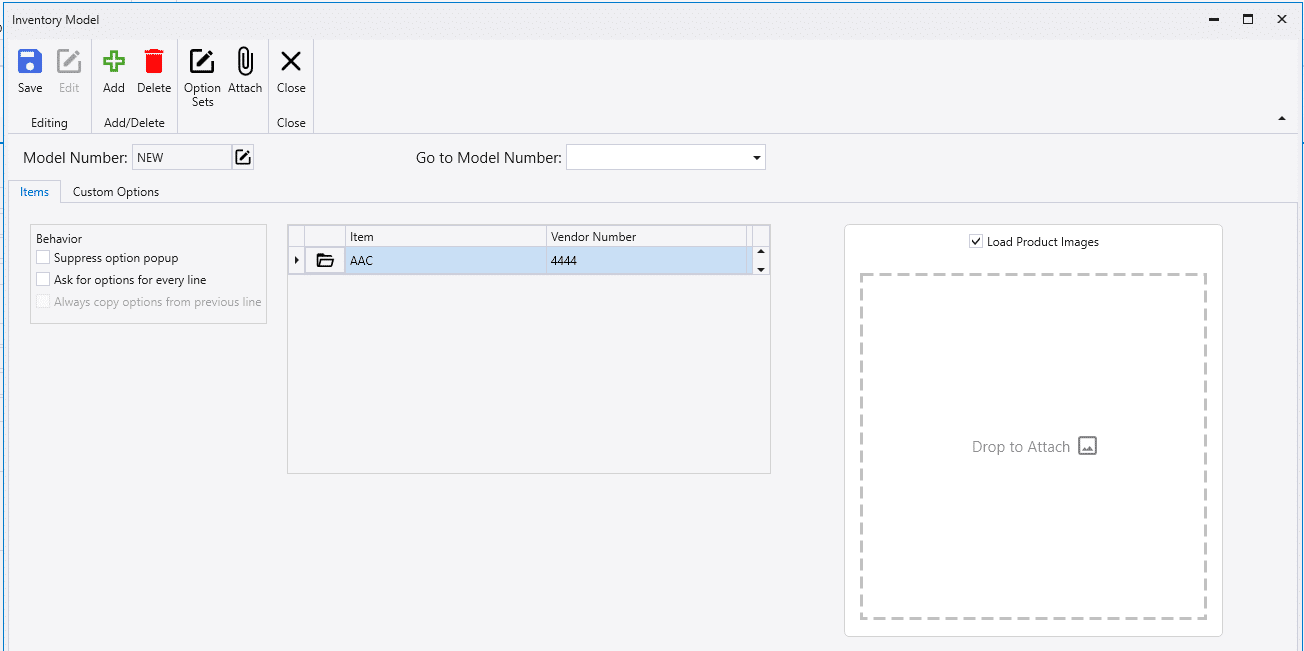
To attach an image to an inventory model, drag and drop an image or a URL onto the image viewer on the inventory model screen.
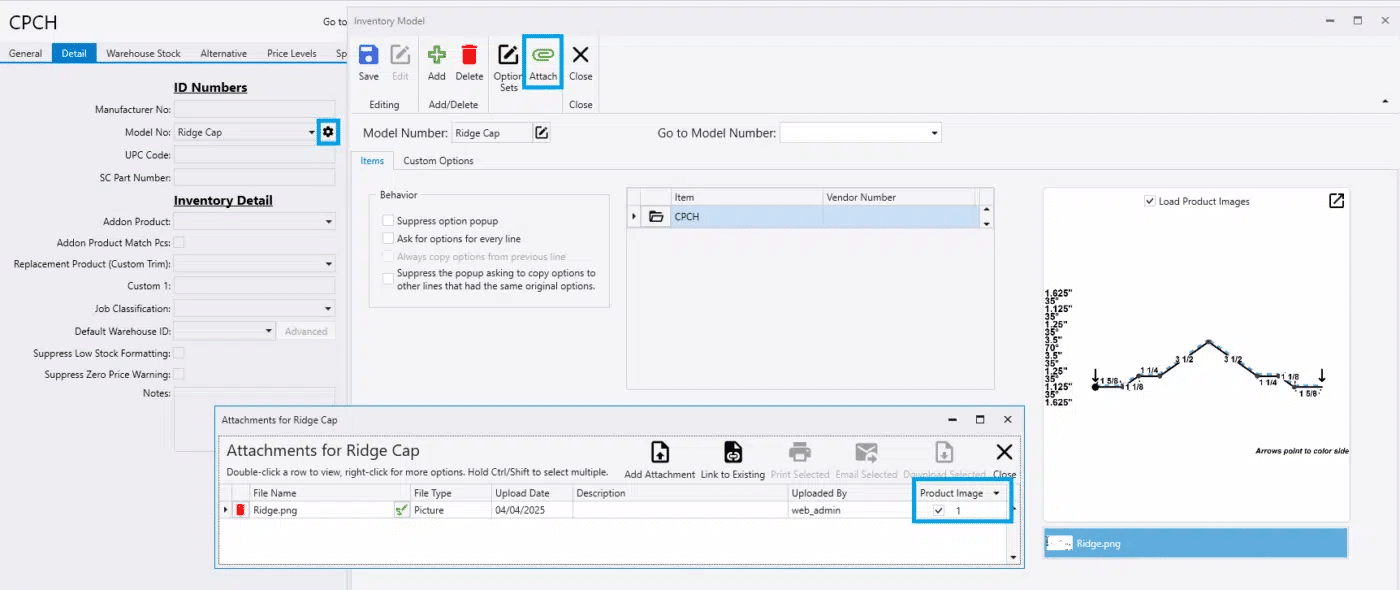
To enable a standard trim drawing as a model image, select the gear icon beside the model number drop down, click the paper click icon at the top, and check the box in the “Product Image” column.
Model images are marked with “Model” in the top left corner.
Viewing Images
Transactions
If the line has an item image, the paper clip will be blue.

Hovering over the detail attachment button on transaction detail lines or in the inventory list will show item image previews.
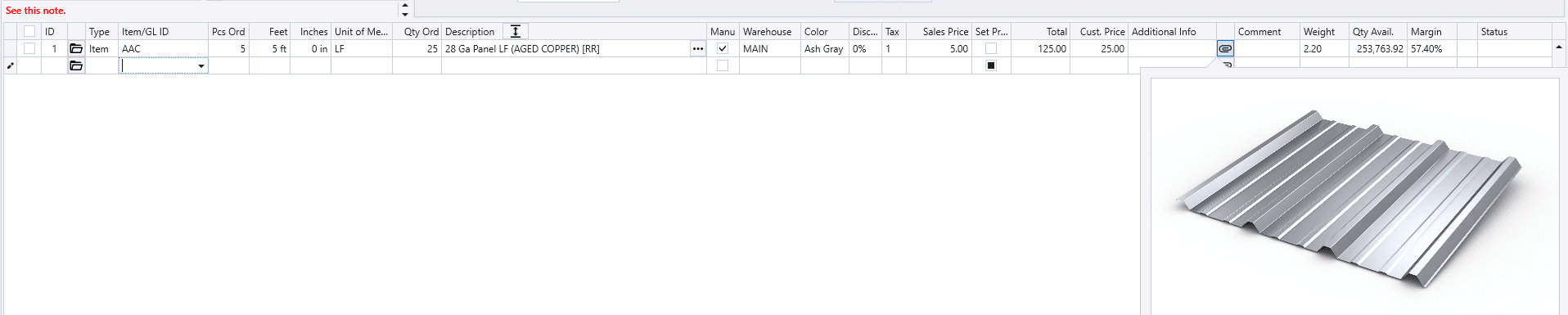
This can also be done from the transaction by clicking on the line item options button and then clicking “View Images”.

Scan Items
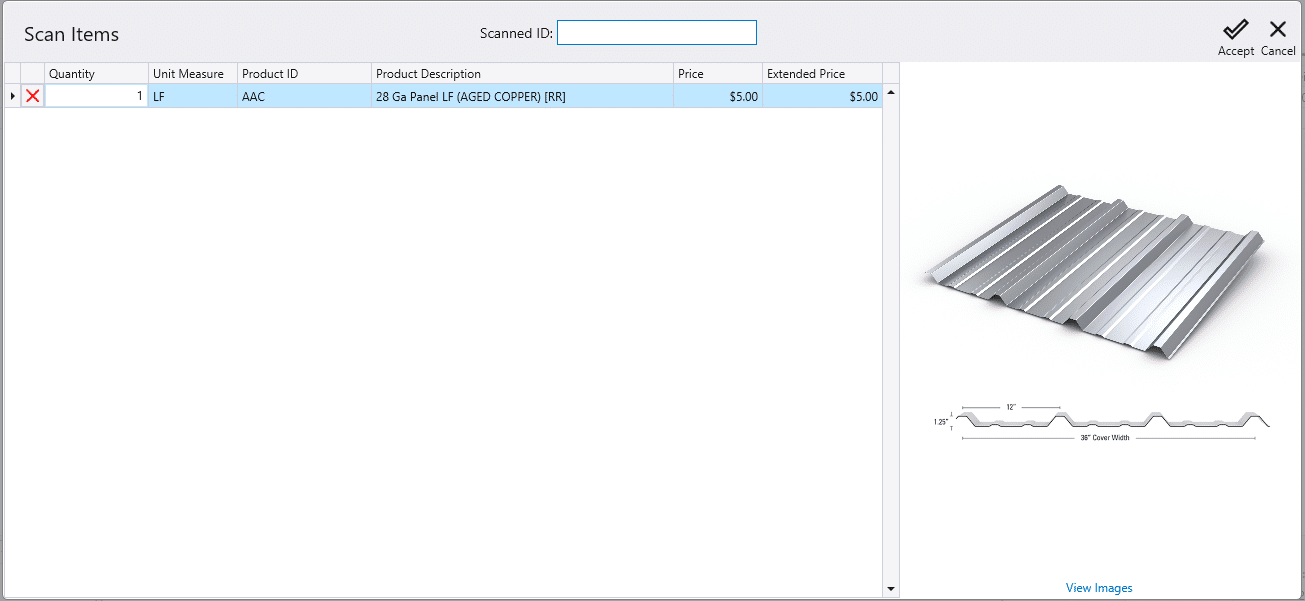
The item scan screen in transactions shows an image for the last scanned product.
Point Of Sale (POS)
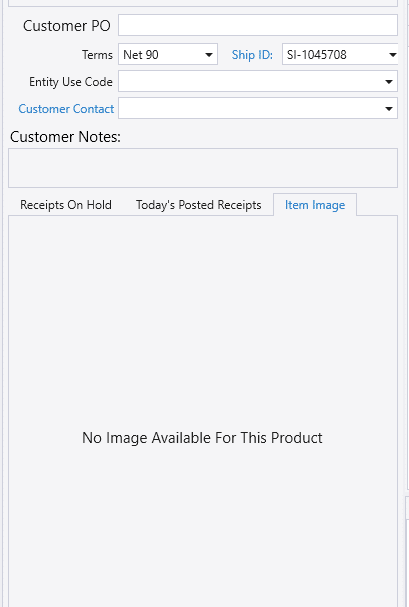
The Point of Sale screen shows images in the Item Image tab on the left hand sidebar for the last scanned product.
Customer Display
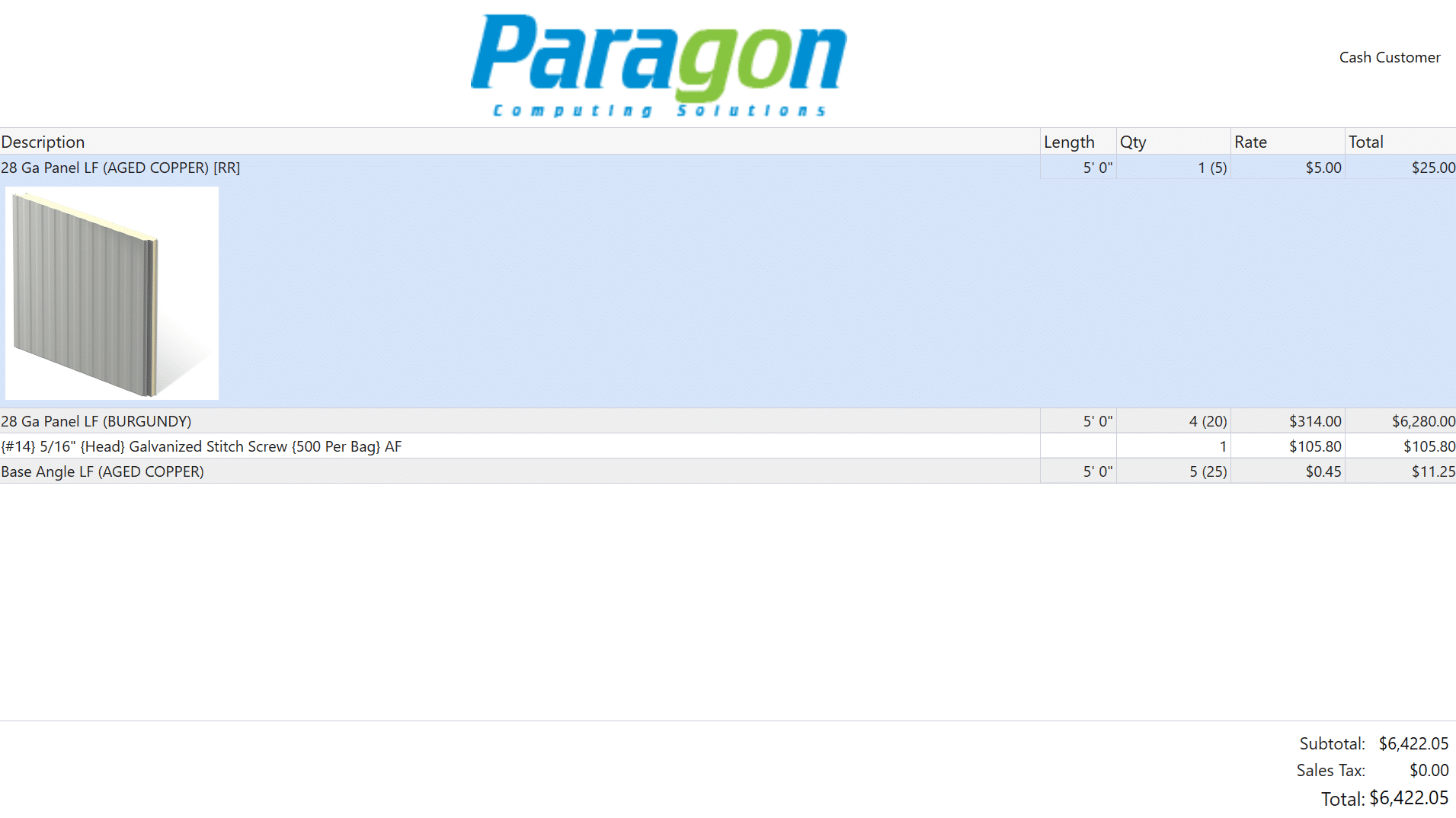
The item image will be shown on the customer display for the selected line.
Rentals
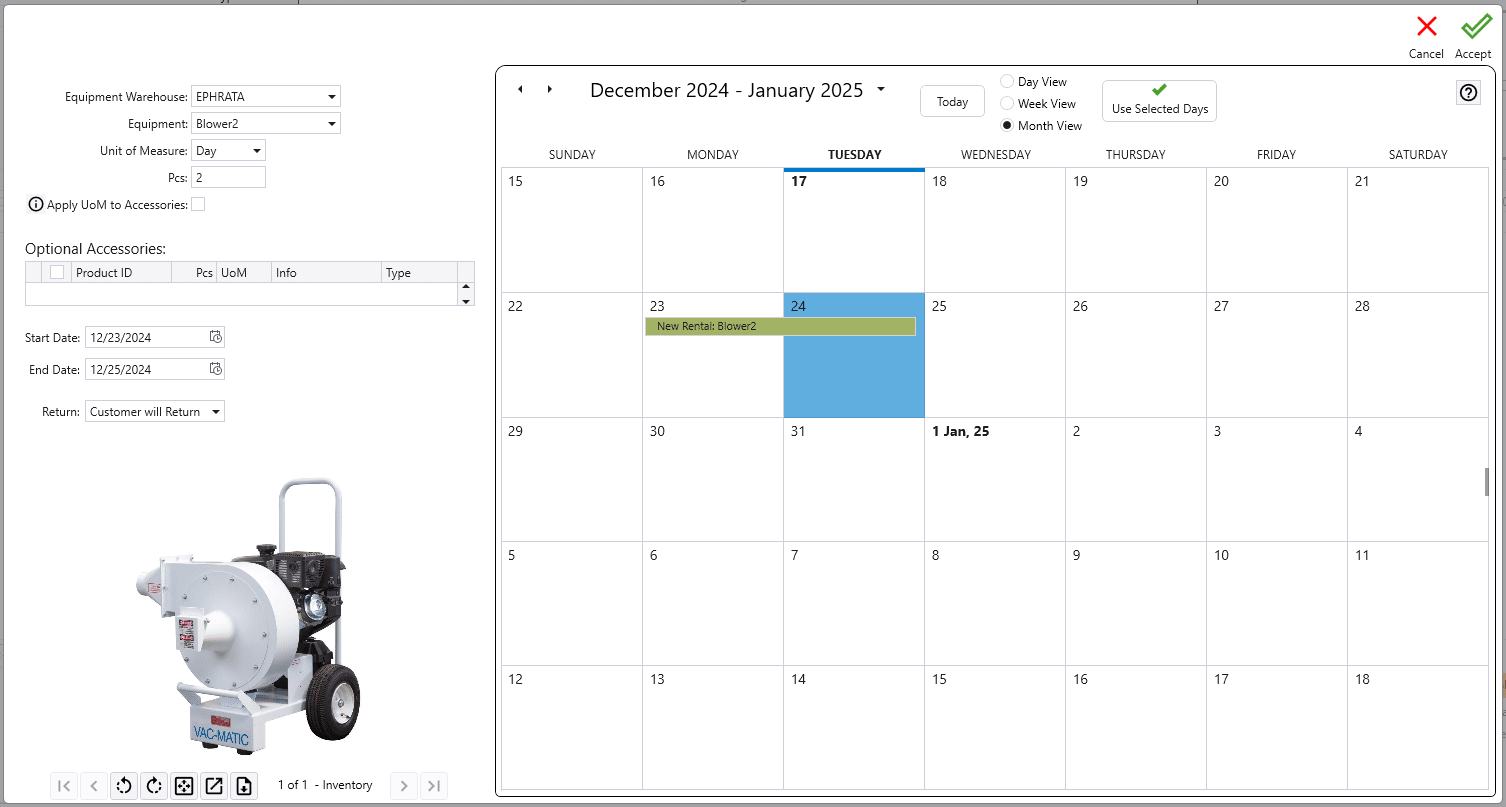
Images will be shown in the equipment rental calendar screen. More information on rentals can be found here: Equipment Rental
Production
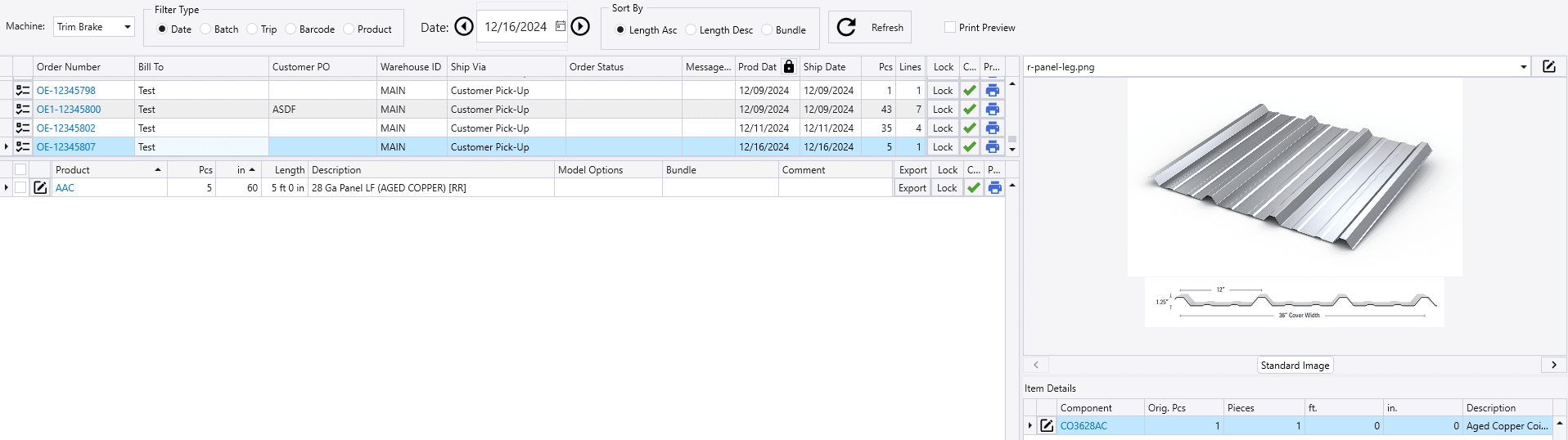
Inventory and model images will also show in the production image viewers, but custom attached images will show first. Standard images can be hidden in production if the “Hide images for standard trims” is enabled in Production Settings.
Production Image Labels
Listed below are the different labels that will be shown under the image in production, depending on the attached images or trim drawings.
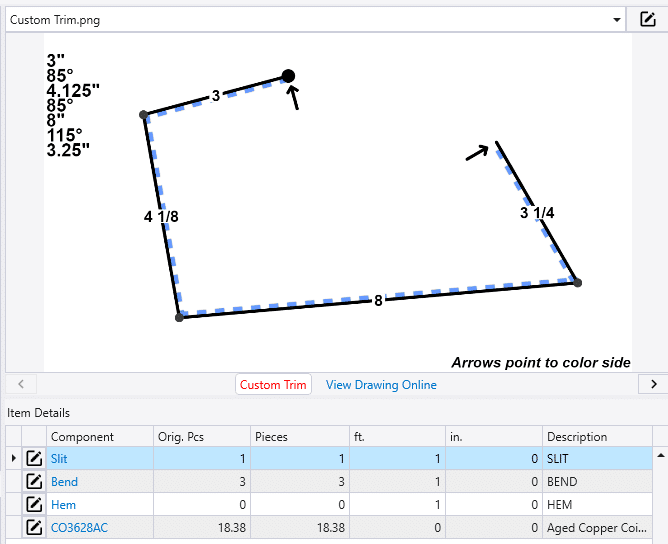
- Custom Trim – Trim drawing from the order transaction line.
- Standard Image – Image attached to the inventory item or a model image.
- Custom Image – Image attached to the transaction line.
Lists
Item images can be previewed from the following lists, by hovering over or clicking on the attachment button:
- Inventory List
- Inventory By Warehouse
- Purchasing Agent
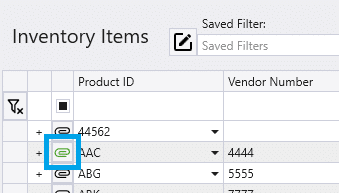
Image Caching
Images are cached for 24 hours, or until the maximum cache size is exceeded or the minimum drive space is reached. The images are cached in a folder on the server. After initial load of an inventory image, subsequent loading of the images will get done from the cache.
Image Cache Size
The maximum image cache size and minimum disc space can be set by going to Company Preferences > Setup > Image Cache Settings
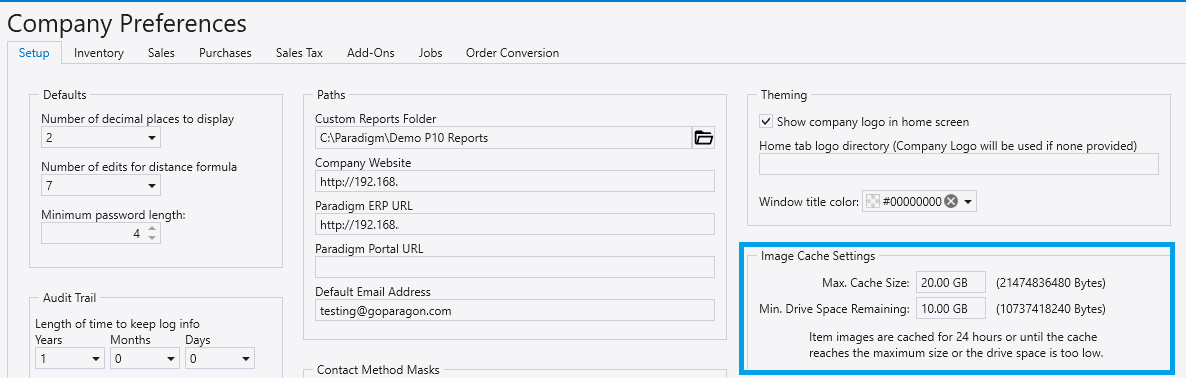
Image Cache Clearing
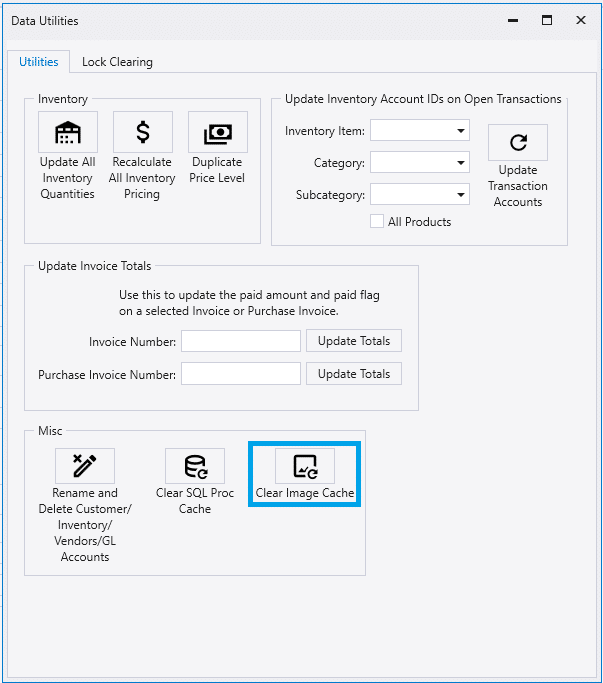
The image cache can be cleared by going to System > Data Utilities > Clear Image Cache