Production Batching
Production Batching allows a subset of the items released to manufacturing to be selected and grouped together into a batch, allowing printing and completing of the batch.
- Go to Production and click on “Production Batching”

- Then choose the machine that the batch will be created for.

- Select the items that are to be included in the batch by clicking the boxes on the left side of the row, and clicking “Add Batch” in the Batch window.

- The system will assign a Batch ID. Batch numbers can also be assigned to items by entering the values into the Batch ID column.
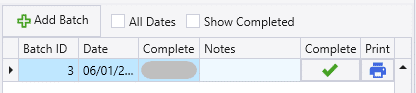
- More builds can be added to the batch by selecting them, and then right-clicking on the batch that the items are being added to and selecting “Add Selected Builds to Batch”.
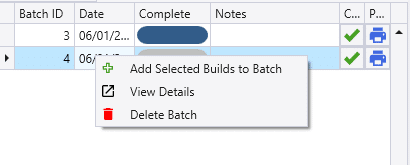
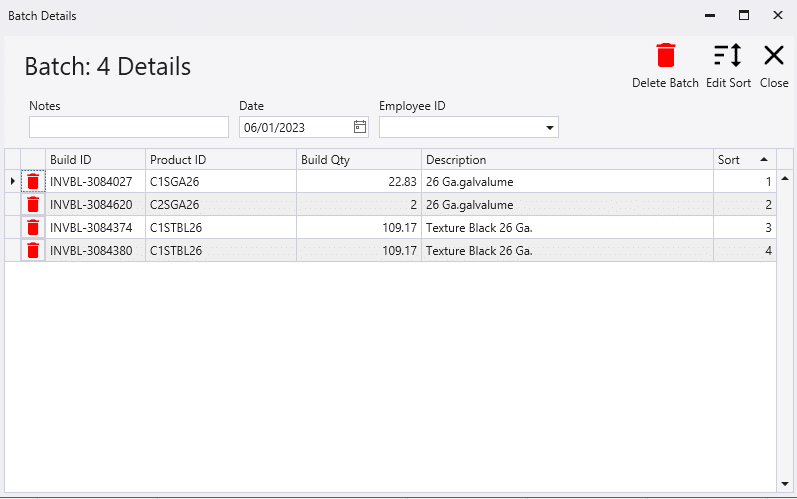
- The batch can also be deleted from the right click options, or click “View Details” to view the list of builds in that batch. From here they can also be rearranged in the order that they need to be completed in by changing the sort number.
- The “Pcs Buildable” column determines how many pieces can be built with the amount of available component inventory. The list of components that a manufactured item will be using can be viewed by clicking the drop-down arrow.

Tracking Completion
Tracking Completion via Printing Batch Lists
- One option to track completion is by printing out the batch list and give it the respective employees. They can then fill out the paper as they go, and once completed, it can be given to Production manager to be marked complete.
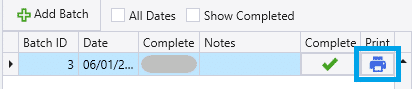
- To print out the batch, click the printer icon, which will have a listing of all the items that need to be produced like the one below. Barcodes can also be added.
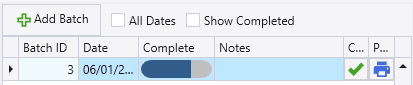
- Clicking the Complete green check mark will complete all builds in the batch.
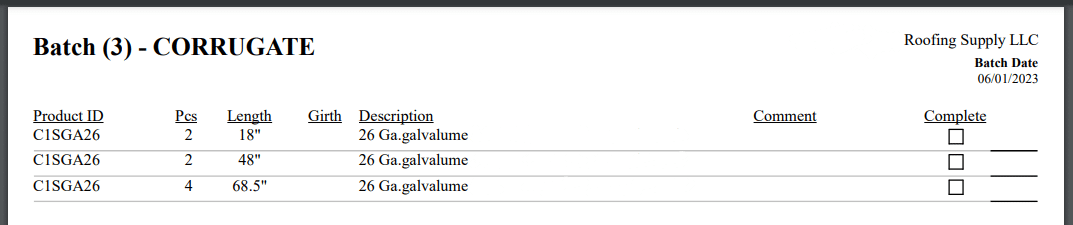
- The employee will then turn in this paper to the Production Manager after all the jobs have been completed, along with any notes.
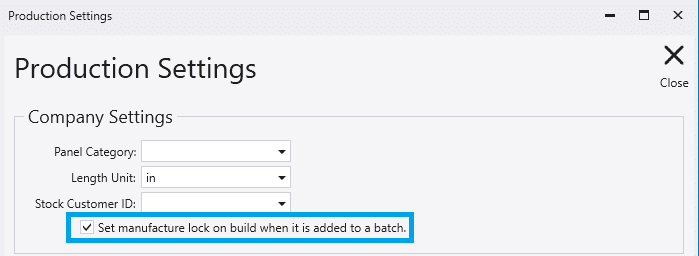
- Once the paper is printed, the builds in the batch will be locked by default. This is the recommended way to have it set up, otherwise the paper won’t match up with the build in Paradigm if someone modifies it. However, this setting can be disabled through Production > Production Settings.
Tracking Completion Through Paradigm Production
- Another option is if the employee has a computer at their machine. The Production Manager can then create the batch and tell the employee which batch number is to be completed. The employee can then filter down the list they use for just that batch. This is done by selecting Batch from the filter type and entering the Batch ID.

- The builds can then be locked and completed as normal
- The Production Manager can then see the progress being made on the “Complete” progress bar in the Batch window.