Custom Attributes
This FAQ will go over how to set up custom attributes in Paradigm ERP. These are used to record data that doesn’t fit nicely into an existing standard field in Paradigm, like external account numbers, IDs, or other custom data points.
Creating an Attribute
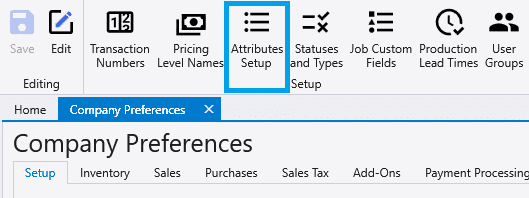
The Attributes Setup button appears in the ribbon toolbar that shows when the Company Preferences window is open. To open the Attributes Setup window, go to System > Company Preferences > Attributes Setup.
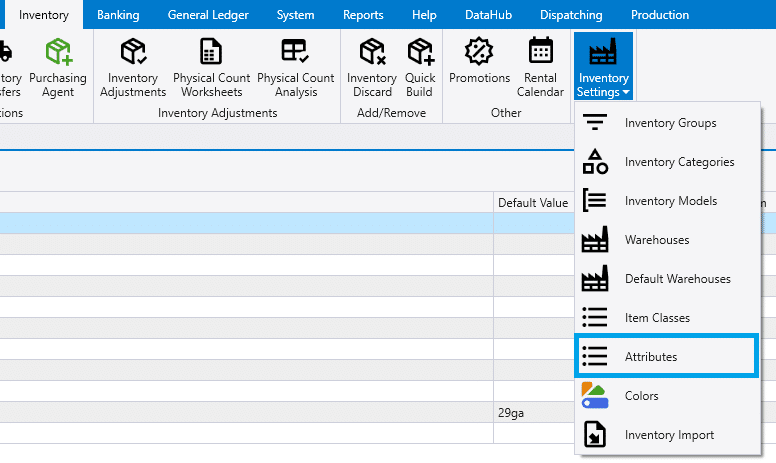
Alternatively, the attributes button can be found in the Inventory Settings drop-down located at Inventory > Inventory Settings > Attributes
- First choose the attribute type from the drop down to select the form for which to create the attribute.
- Then enter the attribute information.
- On a transaction attribute, the “Required” field can be enabled to require a value to be filled in before releasing/posting.
- The “List Item” number decides which column that it will display in on the list.
- There are 4 columns available on the column chooser for custom attributes.

- Attribute options can be set up to have the user choose from a set of options instead of allowing for custom values to be filled in:

- The order of these options can be changed by drag & drop as seen below or changing a value in the “Sort” column which can be chosen from the column chooser.

Limitations
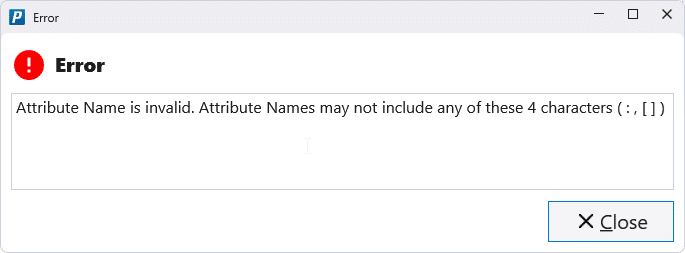
The following characters are not permitted in Attribute Names: : , [ ] (colon, comma, open square bracket, and close square bracket).
The same list of 4 characters is not permitted in Attribute Values for attributes that have the Web Display option checked.
The same list of 4 characters is not permitted in Attribute Option Values.
Viewing Attributes on A List
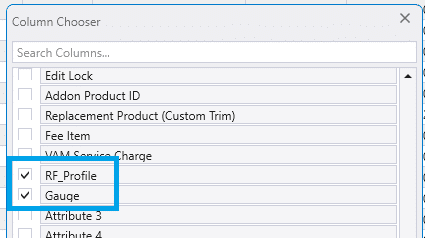
To view the custom attributes on a list, go to the list that matches the attribute type. Then open the column chooser and find the attribute on the list. Note that the list item number must be set for the attribute to show up. More info on editing list layouts can be found here: How To Customize List Layouts

Assigning Attributes
Transaction Attributes
To add a attributes to a transaction, go to the “Status” tab. These attributes are editable even on completed or posted transactions. Any attributes that are added to an order are copied when the Split Order tool is used, regardless of whether the attributes are marked “Copy During Duplication.”

Customer Attributes
Customer attributes can be added on a customer’s “Attributes” tab.

Inventory Attributes
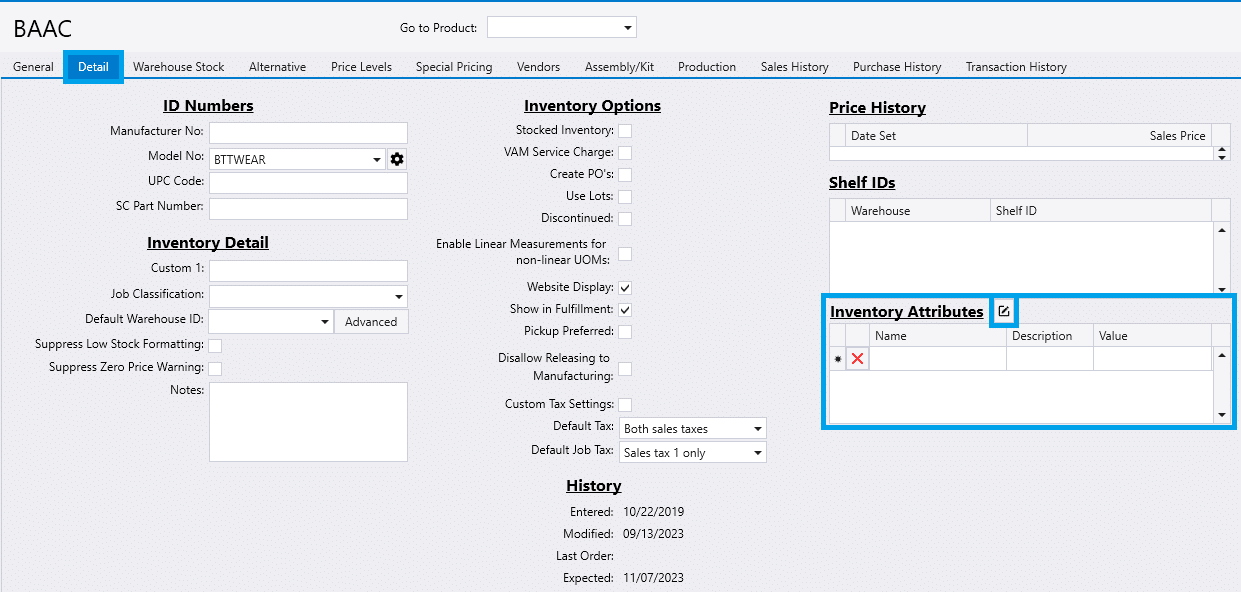
Inventory attributes can be added on the item’s “Detail” tab.