
Manufacture Order
This FAQ will go over MOs in Paradigm. An MO initiates the production process for a product that is produced for your own inventory.
Creating A Manufacture Order
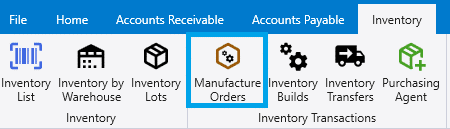
To view all MOs, go to Inventory > Manufacture Orders.
To create a new MO click the green plus.

Set the date, ship date, ship via, etc. The reference number will be shown in the “Customer PO” field in production.

Add the manufactured items to be produced.

Once finished, click “Release MO”.

Production
After an MO is released, it shows up in Production.
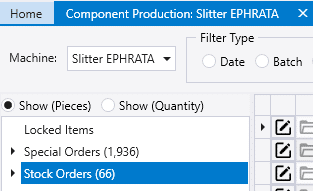
In Component Production, the MOs can be found in the stock orders section of the components tree.
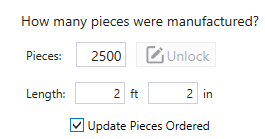
More information on how to change the quantity produced, can be found here: Changing Quantity Produced

Once the produced quantities have been changed and the staging area is set, the pieces ordered will automatically update in the original MO.
Once all production for MO has been completed, the MO will be marked as completed.

Purchasing Agent
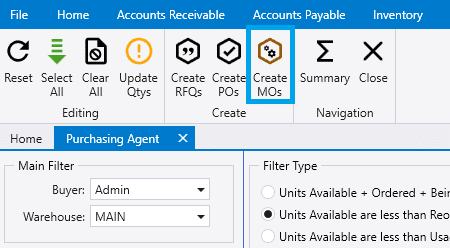
Creating MOs can also be done in the Purchasing Agent.
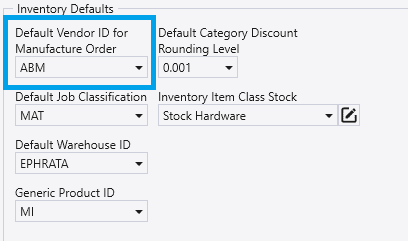
Default Vendor For Manufacture Order
To change the default vendor for MOs go to System > Company Preferences > Inventory.
Converting A Manufacture Order to A Transfer
If an item is needed In Warehouse B but is only produced at Warehouse A, a transfer will be needed in addition to an MO.
More information on how to convert a manufacture order to a transfer can be found here: Converting a manufacture order to a transfer