
MBS Import
An MBS import file can be imported as transaction detail lines on the order. This uses the MBS file named “bom_shp.ini”, located in the MBS job folder.
A standard import mode is also available and a conversion spreadsheet can be used instead, see more information here: Import Lines Into A Transaction
Generating The MBS File
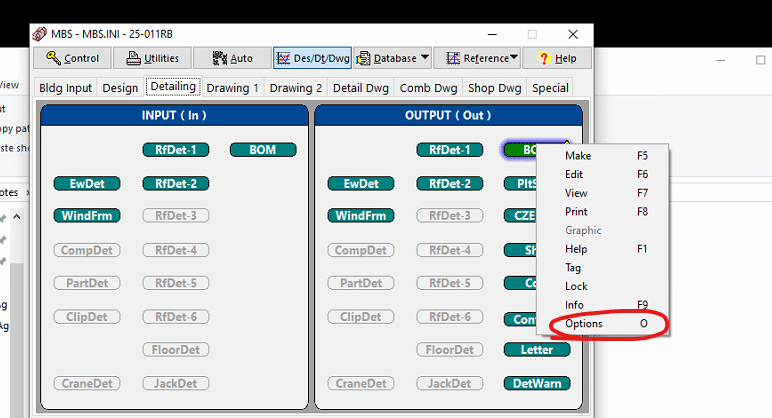
To generate the MBS “bom_shp.ini” file, go to Output > Right Click “BOM” > Options and enable “bom_shp.ini”. Then double click “BOM” to generate the files.
Importing Into Paradigm
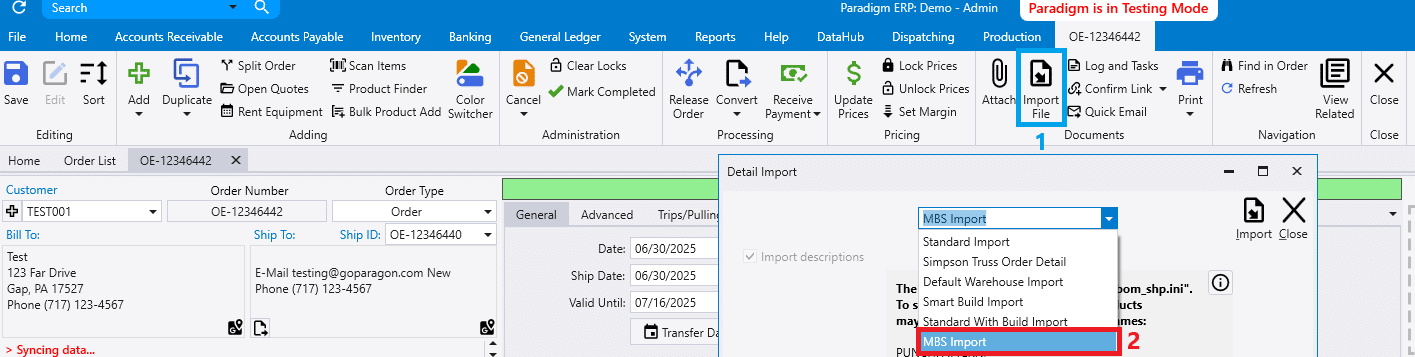
To import this in Paradigm, go to the “Import File” button [1] in the header on a transaction and selecting “MBS Import” [2].
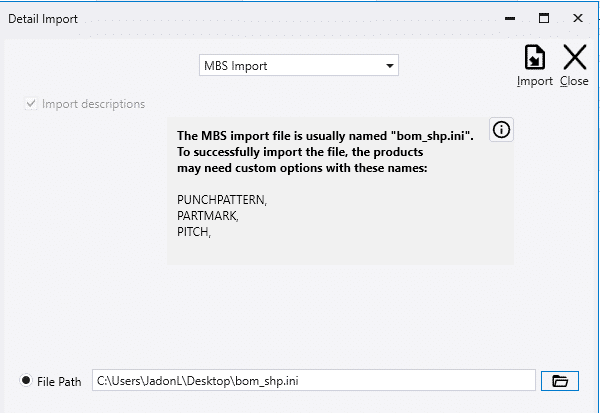
- Choose the file by clicking the folder icon.
- The MBS import file is usually named “bom_shp.ini”.
- To successfully import the file, the products may need custom options with these names: PUNCHPATTERN, PARTMARK, PITCH.
- Those options are required if the MBS import includes any of that data.
- Once the file is ready to import, click the “Import” button.
MBS Color Code
For some clients, MBS will export a color code that is not consistent with what was used in MBS.
For example, MBS may export “AB” for all colors even though there were 3 different colors on the building. To get around this, link those products to a standard or quote color and use the Color Switcher to update the colors in Paradigm as needed.