
Printing Reports From Lists
This FAQ will go over a couple different ways to print reports from lists.
Printing A Filtered List
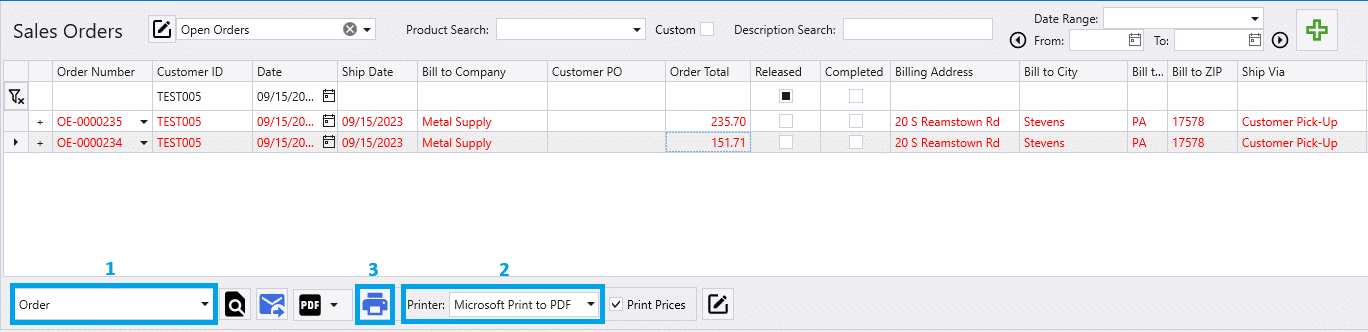
First filter the list to the records that need to be printed. In this example, the orders for 9/15 for customer “TEST005” are being printed.
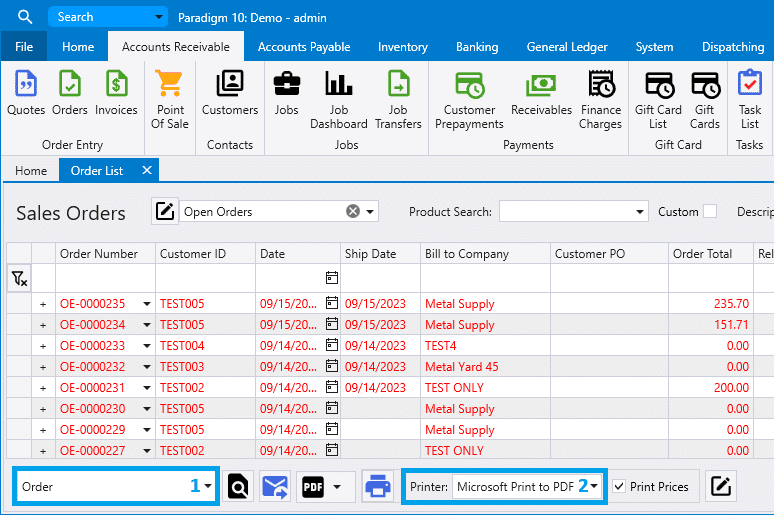
Then select the report [1], the printer [2] if it isn’t selected by default, and then click the print button at the bottom of the screen [3].
Printing Selected Records
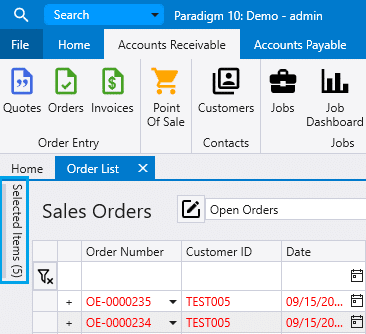
Start by clicking the “+” button to select records.

A “Selected Items” button will appear on the left side of the screen.
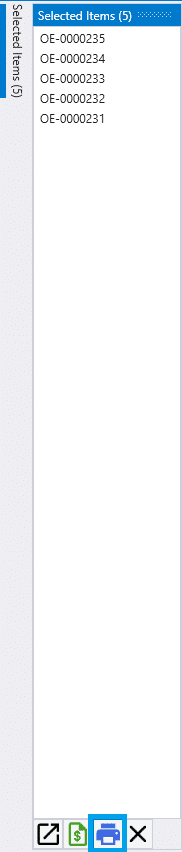
Hover over the button to view the selected records, and click the print button at the bottom.
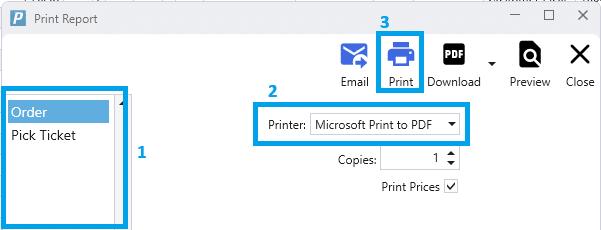
From here, the report [1] and printer [2] if it isn’t selected by default can be chosen. Once those are chosen, click “Print” [3].
Printing a Single Record
To print a single record from a list, first select the report [1] and printer [2] if it isn’t selected by default, from the bottom of the list.
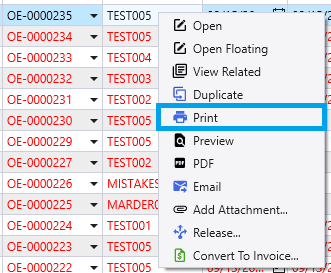
Then right-click the record and select “Print”.
For information on limiting print batch sizes, see Custom Limit for Report Records.