
Promotions
Creating A Promotion
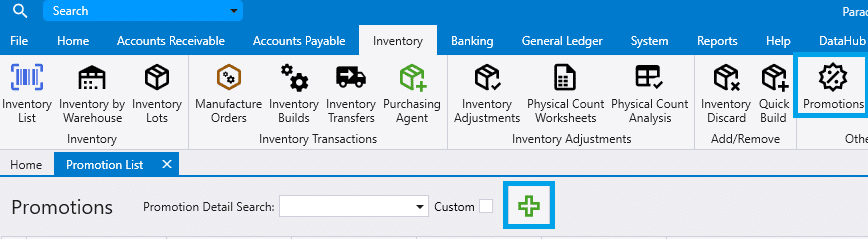
Promotions can be accessed by going to Inventory > Promotions. Then click the green plus to create a new one. This feature is used for creating sales for multiple items at once.
Adding Items To A Promotion
- After creating a new promotion, specify the begin and end date for that sale, as well as the warehouse for which you want the sale to apply.
- Leaving the warehouse blank will apply the sale to all warehouses.
- Setting the “Editing Deadline” will still allow changes after that date, but warnings will appear so that accidental edits are prevented.
- Items can then be added to the promotion individually, or entire categories/subcategories can be entered at once by using the ‘Bulk Add’ section at the top of the form.
- Another option is to use the Special Prices import and set
lngLinkto the promotion ID.
- Another option is to use the Special Prices import and set
- After adding the items to be put on sale, enter either a discount percent or the exact special price for each item to set the special price.

- Selecting a group of items and right clicking on them will allow for changes to be made to those highlighted items.
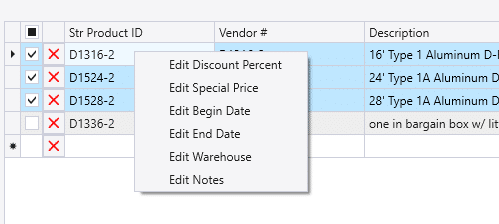
There are several useful features to note about this form:
- If the begin/end date or warehouse is different on an item than it is on the header, it will show up in red text.
- The dropdown for Warehouse will show the units in stock for each warehouse.
- The information in the promotion can also be found in the inventory item’s special pricing tab. See Inventory Special Pricing.
