Transfer Lead Times
This FAQ will go over how to enable and use the edit transfer lead times feature. More information on transfers on an order can be found here: Transfers For An Order
Default Transfer Lead Times
To set up default transfer lead days, go to Company Preferences > Production Lead Times > Transfer Lead Times. Then enter in the transfer lead days for the different warehouse transfer combinations. The lead days will affect how many days prior before a ship date that the order transfer will occur.
More information on lead days can be found here: Production Lead Days
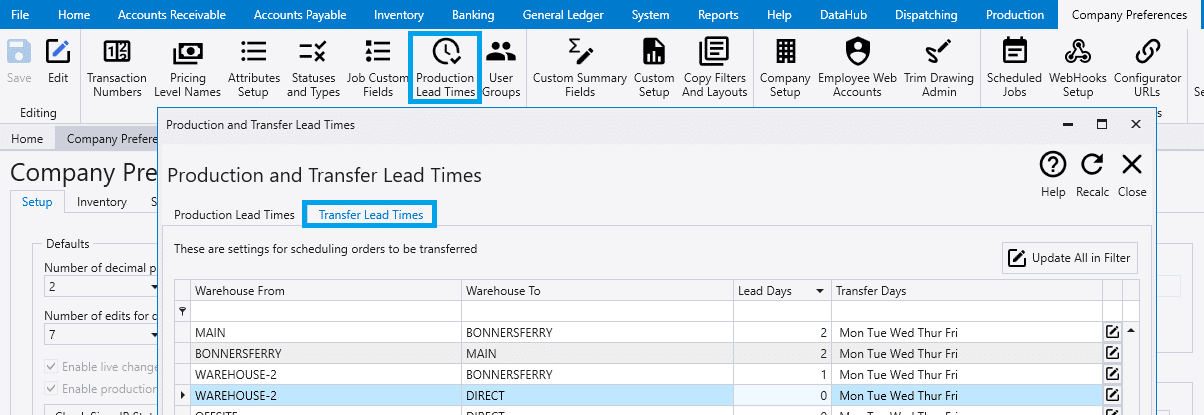
To edit the default lead days for a transfer, click the pencil button or double click the Lead Days column on the desired transfer.
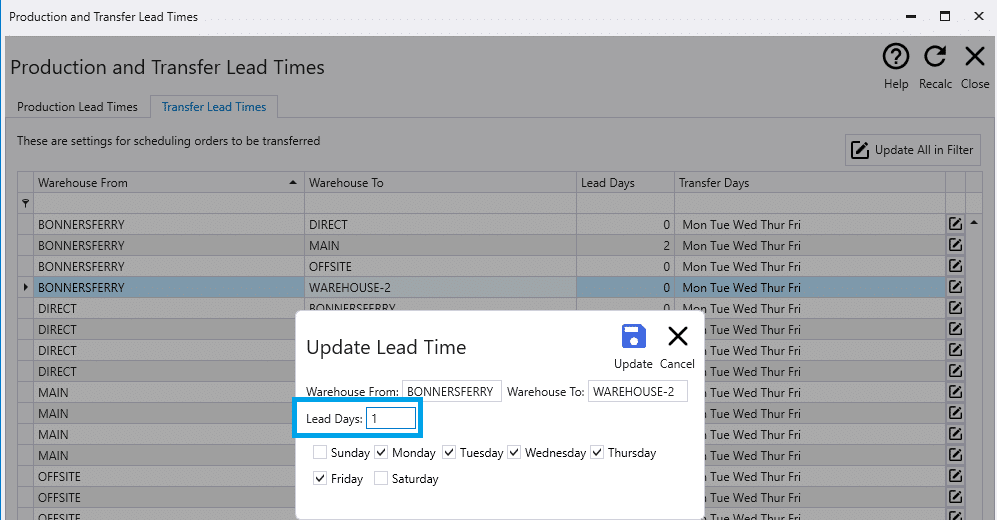
Here, the days that the transfer can occur on can be selected as well. If the ship date is on a Friday and the lead days is set to one but Thursday is not set to be a transfer day, the transfer will be set for Wednesday.
Enabling Edit Transfer Lead Times
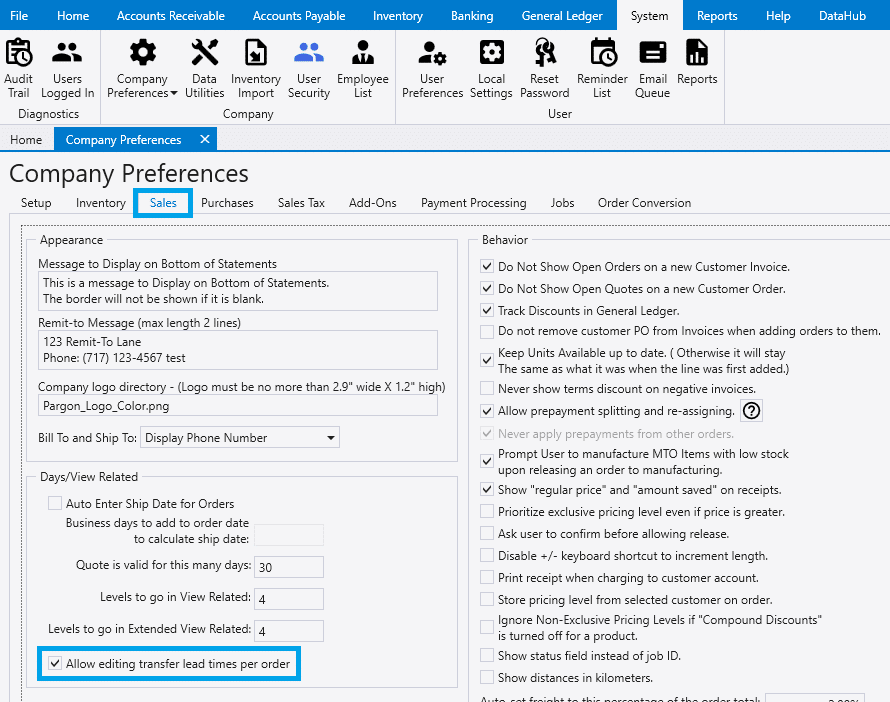
To enable this, go to System > Company Preferences > Sales > Days/View Related
Using Edit Transfer Lead Times
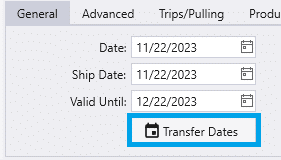
To edit the transfer lead days on an order, click the Transfer Dates button. This button will be disabled if there are no lines needing a transfer.

Custom Transfer Dates Warning
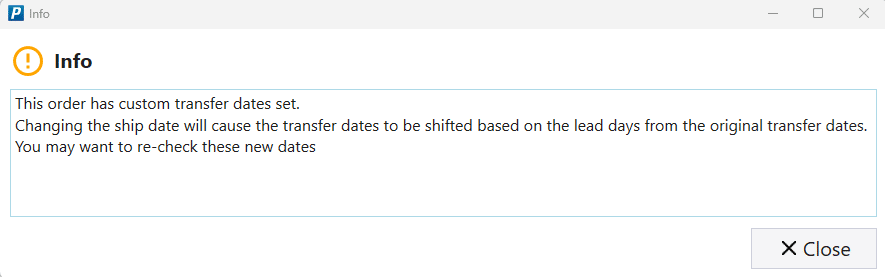
If the transfer dates have been manually adjusted on an order and the ship date gets changed, the following message will be shown:
This order has custom transfer dates set. Changing the ship date will cause the transfer dates to be shifted based on the lead days from the original transfer dates. You may want to re-check these new dates.