
Updating and Merging Product IDs
This FAQ will go over how to Update and Merge inventory Items/Product IDs.
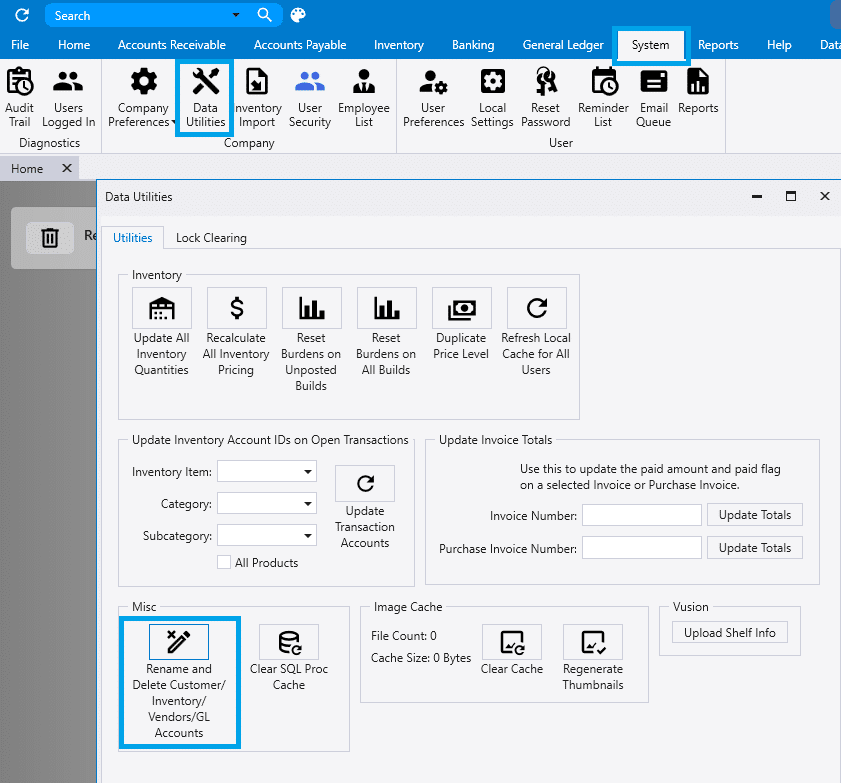
To merge an item, go to System > Data Utilities > Misc > Rename and Delete. The delete permission for items, vendors, or customers is needed to use this feature.
!! Be aware that once something is merged or deleted, there is no way to revert it. !!
Update and Merge Product IDs
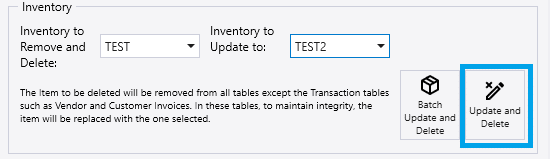
- Select the Product ID to remove and the ID to merge it into, then click update and delete.
- This process is also available to G/L Accounts and Vendors/Customers.
Batch Update Product IDs
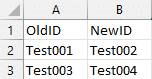
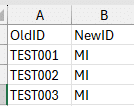
In order to create a batch update, an excel file needs to be creating in the correct format listed in Paradigm. All that is required is the old ID and the new ID to merge it into, like the example below. The rules for import are as follows:
- The file must be in an excel file.
- The file must have two columns with headers.
- The first column header is labeled OldID
- The second column header is labeled NewID
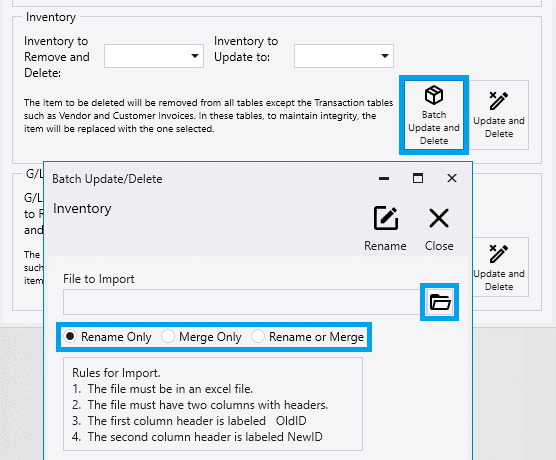
- Once that has been created, click on the “Batch Update and Delete” button by inventory.
- Then select the file button to upload and choose whether to rename only, merge only, or both.
Deleting Products
Batch update be used to delete multiple inventory items at once.
- Enter the IDs of the products getting deleted in the “OldID” column and fill down the “MI” product (or any other product ID of your choosing) in the “NewID” column.
- Select the file to import and select “Merge Only”.
- This will merge the products and set the old product ID as an alias on the new product.
Changing Product IDs
Another use for this is when a batch of items need new product IDs.
- Enter the current ID in the “OldID” column and the new one in the “NewID” column.
- Select the file and choose “Rename Only” before importing.
Batch Update and Delete for Customer IDs is also available.