
Integrated Messaging Addon – Emailing
The Conversations feature can be extended to send and receive emails with external email addresses. This article covers how to use and set up the Emailing add-on in Paradigm.
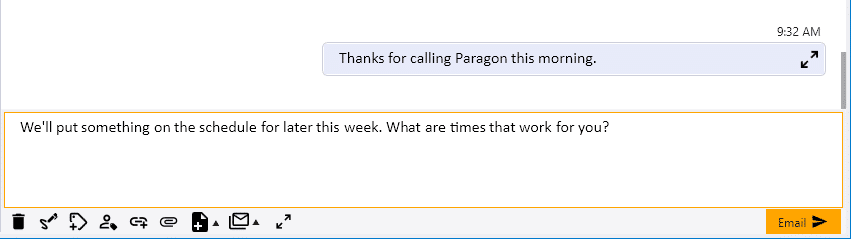
Email from Conversations
Users are able to use the conversations screen to send emails.
Enable Conversation Emailing
- Enable Conversation Emailing in Company Preferences > Add-Ons > Conversations.
- Click the folder icon to link the “group” email account to the
ParadigmEmailuser. - After that is linked, contact Paragon Support so they can complete the setup from the server side.

When an email has been added to the conversation, the window will be marked as Email Conversation.
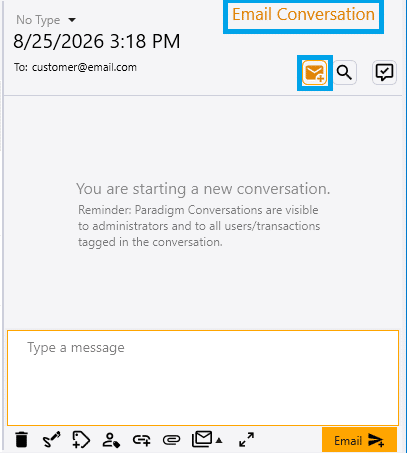
When the conversation is an Email Conversation, the following email-specific functions can be used.
Using Email Templates
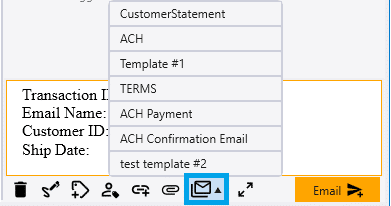
- When an email has been added to send the message to, the option to use an email template is available.
- By selecting the mail icon, any email templates that have been created can be quickly inserted into the message.
- To use and create templates for external text conversations see the messages templates section.
Adding Email Signatures
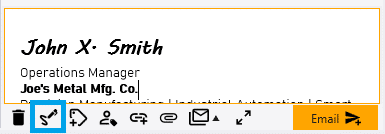
- The user’s email signature can be added to external messages to emails.
- The section How to Set Up Signatures has information for setting up signatures when sending messages to phone numbers.
Adding Links
- Adding links can be done the same way as a standard conversation. More information on adding links can be found in the Add Links section of the Conversations article.