
Receivables
This FAQ will go over receivables in Paradigm.
Information on customer prepayments can be found here: Customer Prepayments
Creating Receivables
Receive Payment
A receivable will be created when the “Receive Payment” button is used on an invoice and payment is received.

Manually Creating Receivables
A receivable can be manually created by going to Accounts Receivable > Receivables

Invoices, credit memos, and prepayments will be shown in the list – this shows a breakdown of the full customer balance. Prepayments linked to orders still show here and should not be used.
- Double clicking on the
Payment columnfield will bring in the entire amount due for that line. - Double clicking on the
Discount columnfield will bring in the terms discount.
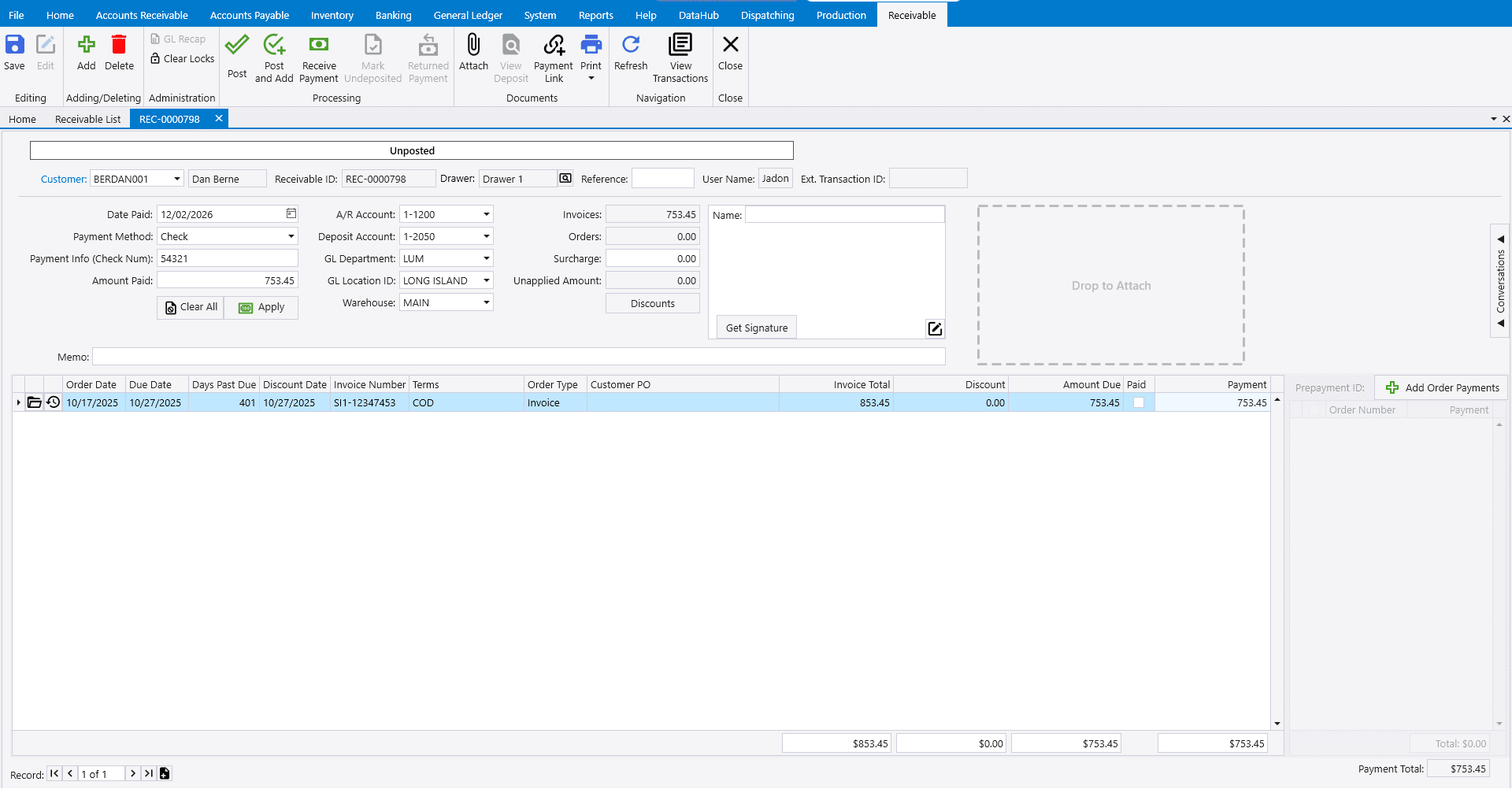
If the selected customer has any unposted invoices or prepayments, the banner will contain the warning: “This customer has unposted invoices/prepayments”.

Overpayments
An overpayment is created when the receivable is more than the amount due. More information on overpayments can be found here: Overpayments
Order Payments
To create order payments from the receivable, click Add Order Payments.
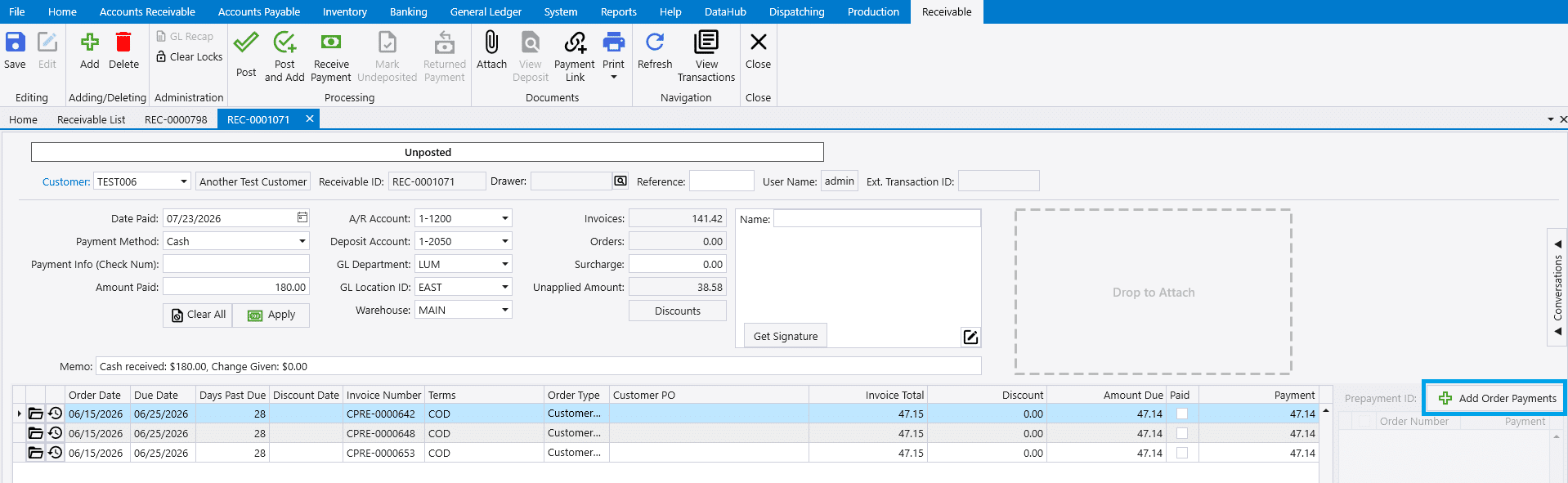
Then select the orders to apply the payments to.

Converting A Prepayment To A Receivable
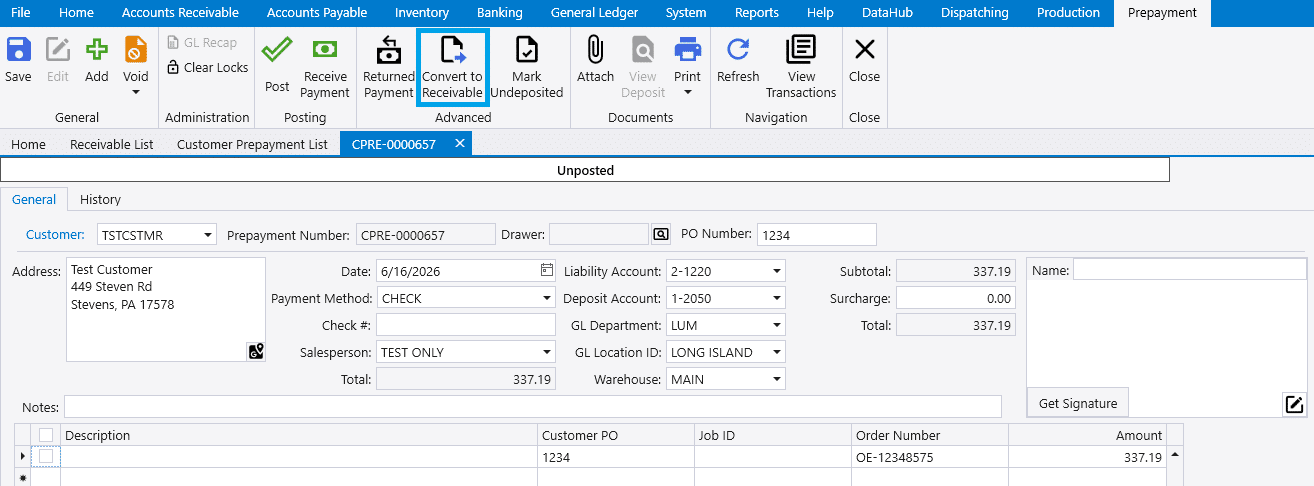
Customer prepayments can be converted to a receivable by using the Convert To Receivable button on the prepayment.
Viewing Related Transactions
The related transactions from a receivable can be found in these ways from the receivables list:
- Right-Click Menu
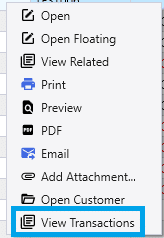
- Right-Clicking a receivable from the receivables list and selecting
View Transactionswill open the related transaction.
- Right-Clicking a receivable from the receivables list and selecting
- Header Button
- In a specific receivable, the header contains a
View Transactionsbutton which will also open the related transaction
- In a specific receivable, the header contains a
