Dispatching Settings
This FAQ will go over the dispatching settings in Paradigm.
Video Overview
Since this video was recorded the Ship Via editor has been moved. See the Ship Vias FAQ for more information.
Dispatching Setting
Dispatching settings can be found by going to Dispatching > Dispatching Settings
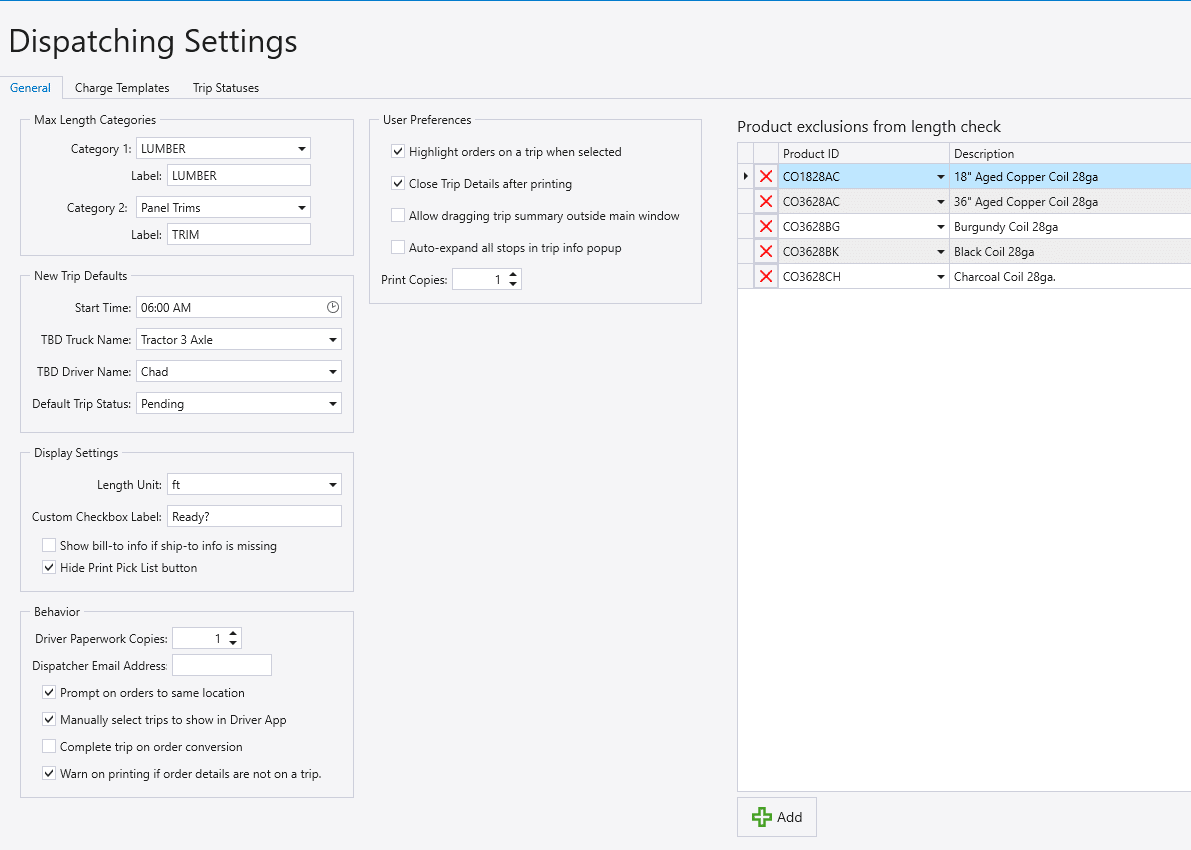
General
- Max Length Categories – Choose the max length categories.
- Length Unit – Choose length measurement unit.
- Start Time – Sets the default time out.
- TBD Truck Name – Sets the default Truck Name
- TBD Driver Name – Sets the default Driver Name
- Default Trip Status – Set the default trip status.
- Custom Checkbox Label – A custom checkbox that can be checked in Daily Deliveries. It has no function, but can be used as a miscellaneous check box.
- Driver Paperwork Copies – Sets the number of driver paperwork copies.
- Dispatcher Email Address – If the Paradigm Mobile App is being used, and the driver selects there was damage, an email will be sent to the email address entered.
- Show bill-to info if ship-to info is missing – Shows the bill-to info if the ship-to info is missing.
- Prompt on orders to same location – When an order for an address is selected, it will prompt about other orders going to the same address.
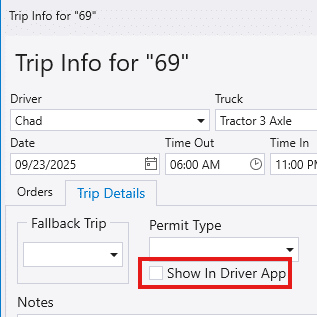
- Manually select trips to show in Driver App – Shows the option to manually select if the trip should be shown in the Driver App Delivery list.
- Complete trip on order conversion – Completes the trip when the order is converted.
- Warn on printing if order details are not on a trip. – Warns the user if order details are not on a trip.
User Preferences
- Highlight orders on a trip when selected – Highlights orders on a trip when the trip is selected.
- When the trip is selected in Truck Summary, the assigned orders will be highlighted in the list.

- Close Trip Details after printing – Closes the trip details pop up after printing.
- Allow dragging trip summary outside main window – Allows dragging the trip summary outside main window, more information on that can be found here: Truck Summary
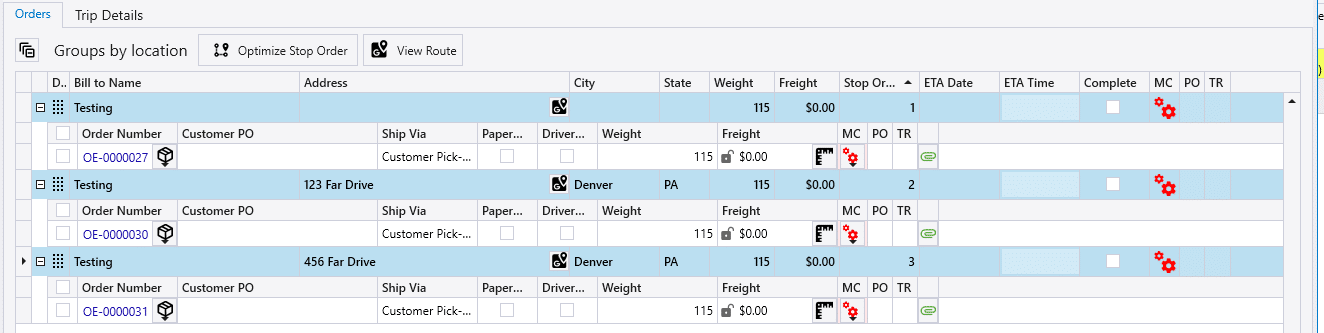
- Auto-expand all stops in trip info popup – Auto expands all stops in the trip info pop up.
- Expanding the stops will show each order associated with the stop.
- Print Copies – Number of copies to print.
Product Exclusions From Length Check
See this FAQ for more information: Dispatching: Product Exclusions from the Length Check

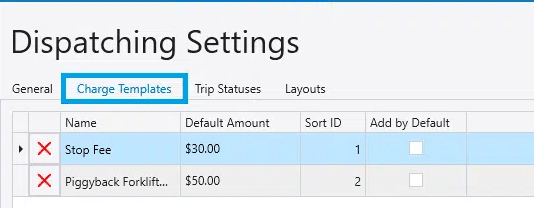
Charge Templates
See this FAQ for more information: Outside Deliveries: Creating Charges
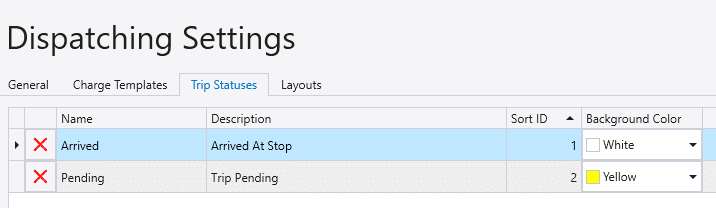
Trip Statuses
See this FAQ for more information: Trip Statuses